
VCPProvider
Contents
1. Portal Overview
VCPProvider is the dedicated portal for service providers and agencies that work with victim compensation programs. Whether you are a hospital, mental health counselor, dental office, funeral home, pharmacy, or any other provider of victim-related services, VCPProvider gives you a single, secure place to submit bills, track claims and payments, upload documentation, and communicate directly with program staff.
Core Capabilities
Bill & Invoice Submission
Submit expense bills for victim claims directly through a structured, guided workflow. Enter service details, CPT codes, amounts, and attach supporting documentation in minutes.
SAFE Claim Submission
Submit SAFE (Sexual Assault Forensic Exam) claims for forensic examinations and SANE (Sexual Assault Nurse Examiner) services. Track the full lifecycle from draft through payment.
Payment Tracking
View real-time payment status, download remittance statements, and access check numbers. Filter by date, service category, or claim number.
Document Management
Upload invoices, medical records, receipts, and certifications. All documents are securely linked to specific claims and organized for easy retrieval.
Two-Way Communication
Exchange messages with program staff, respond to information requests, and receive real-time notifications about claim status changes and payment activity.
Financial Summary
Access comprehensive financial overviews showing total billed amounts, total paid amounts, outstanding balances, and breakdowns by claim and service type.
Target Users
| Provider Type | Common Services | Typical Submissions |
|---|---|---|
| Medical Providers | Hospitals, clinics, physicians, emergency rooms | Medical bills, treatment records |
| Mental Health Counselors | Therapy, counseling, psychiatric services | Counseling session bills, treatment plans |
| Dental Providers | Dental exams, restorative procedures | Dental treatment bills |
| Funeral Homes | Burial services, cremation, funeral arrangements | Funeral/burial expense bills |
| Pharmacies | Prescription medications | Prescription (RX) bills |
| Forensic Exam Providers | SANE examinations, forensic evidence collection | SAFE Claims for forensic exams |
| Other Service Providers | Configurable per jurisdiction | Varies by program requirements |
Design Principles
- Responsive design — Works seamlessly on desktop, tablet, and mobile devices
- Secure access — Multi-factor authentication and role-based access control
- Provider-scoped visibility — Providers only see claims and payments specific to their organization
- 24/7 availability — Available 365 days a year from any modern web browser
- WCAG 2.1 Level AA compliance — Full accessibility for all users
- Multi-language support — English, Spanish, and additional configurable languages
2. Getting Started
Getting started with VCPProvider involves registering your organization, verifying your identity, and linking to your provider profile. Depending on your program's configuration, you may self-register or receive a managed invitation from program staff.
Registration Process
Complete the Registration Form
Navigate to the VCPProvider portal and complete the jurisdiction-configurable online registration form. Enter your email address, create a secure password, and provide your organization's details.
Verify Your Identity
Confirm your identity through an email verification link. Multi-factor authentication will be enabled if required by your program's administrator.
Provide Organizational Information
Enter your organization's name, Tax ID / EIN, service type categories, contact person details, correspondence address, and payment remittance address. Additional fields such as license numbers, credential declarations, and provider codes may be required depending on your jurisdiction.
Await Approval (If Applicable)
Depending on your jurisdiction's policy, your account may be auto-activated immediately or require manual review and approval by program staff before you can begin submitting bills.
Access Your Dashboard
Once approved, log in to your dashboard to begin submitting bills, tracking claims, and managing your provider profile. Your dashboard clearly displays which jurisdictions have approved your access.
Screenshot: VCPProvider Registration Form — Available in production environment
Registration Information
| Field Category | Fields Collected | Notes |
|---|---|---|
| Organization | Provider name, Tax ID / EIN, service type/categories | EIN is checked for duplicate detection |
| Contact Person | Name, phone number, email address | Primary point of contact for communications |
| Addresses | Correspondence address, payment remittance address | Separate addresses supported for billing and admin |
| Configurable Fields | License numbers, credential declarations, provider codes, CPT codes | Varies by jurisdiction |
Linking to Your Provider Organization
If your organization already has a profile in the system (created by program staff or a colleague), you can link your user account to the existing provider organization during registration. This ensures all users within the same organization share access to the same claims, payments, and documents.
Vendor Registration (Configurable Option)
Some jurisdictions require service providers to complete a vendor registration process with the state's centralized vendor management system before receiving payments. VCPProvider supports integration with these external registration systems, and your dashboard will indicate whether vendor registration is required and its current status.
Password Management
- Reset passwords using email verification and security questions without administrator intervention
- Passwords stored using industry-standard encryption
- Enforces password complexity and expiration rules as defined by the program
- Automatic account lockout after repeated failed login attempts
3. Dashboard
The VCPProvider dashboard is your central hub for managing all interactions with the victim compensation program. Upon logging in, you see an at-a-glance summary of your organization's activity, including submitted claims, payment status, and pending actions.
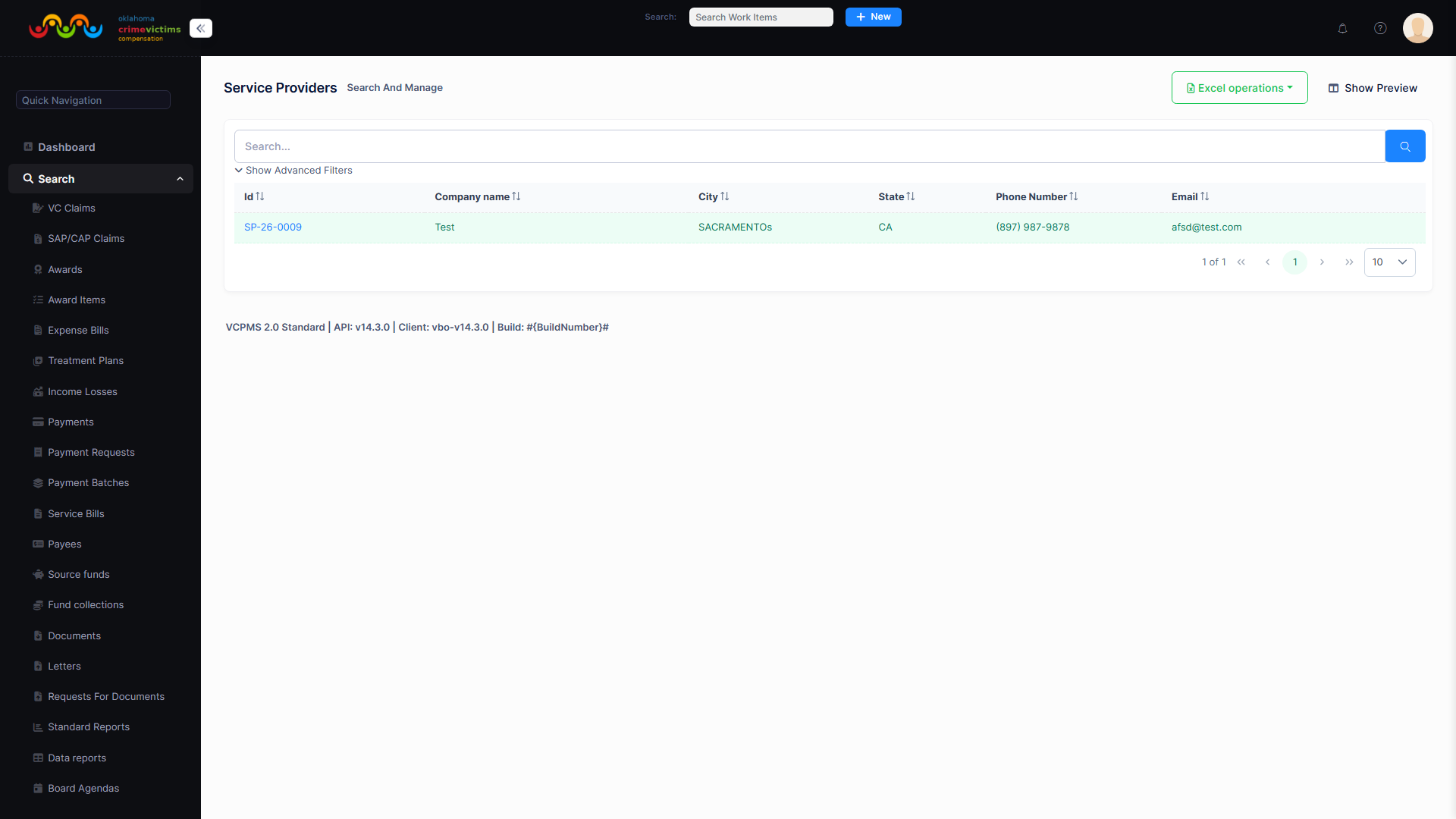
Service Provider search and list view (VBO back-office perspective)
Dashboard Features
Service Provider List
View all service provider organizations associated with your account. Select a provider to drill into detailed financial summaries, claims, payments, and documents.
Financial Summary
See total billed amounts, total paid amounts, and outstanding balances at a glance. Quickly identify which claims need attention and which payments are pending.
Notification Alerts
Immediate visibility into pending actions — new communications from staff, status changes on claims, payment issuances, and document requests.
Quick Actions
Submit new bills, upload documents, or start a new SAFE claim directly from the dashboard with convenient quick-access links.
Jurisdiction Selection (Configurable Option)
For programs that operate across multiple jurisdictions or judicial districts, VCPProvider supports jurisdiction-based data partitioning. When this feature is enabled:
- Upon login, you are prompted to select the jurisdiction you wish to access
- All data (claims, bills, payment records) is strictly separated by jurisdiction
- You can switch between authorized jurisdictions without logging out using the "Change Jurisdiction" option
- Data from one jurisdiction is never visible when viewing another
4. Service Provider Details
When you select a service provider from the dashboard, you are presented with a detailed, multi-tab interface that organizes all information about that provider's interactions with the compensation program. Each tab focuses on a specific area of activity.
Service Provider detail view with multi-tab interface (VBO back-office perspective)
4a. Financial Summary
The Financial Summary tab provides a comprehensive overview of your organization's financial activity with the compensation program.
Total Billed
Aggregate of all amounts billed to the program across all claims and service types.
Total Paid
Sum of all payments received from the program, with breakdowns by claim and payment date.
Outstanding Balance
Remaining amounts pending payment, including approved-but-not-yet-paid claims.
The financial summary includes breakdowns by claim and service type, allowing you to quickly identify where payments are concentrated and where outstanding balances remain.
4b. SAFE Claims Summary
The SAFE Claims Summary tab lists all SAFE (Sexual Assault Forensic Exam) claims associated with your provider organization. This view is particularly relevant for forensic examination providers (SANE nurses) and providers submitting standalone SAFE claims.
| Column | Description |
|---|---|
| Claim Number | System-generated unique claim identifier (ShortName) |
| Victim Name | First and last name of the victim served |
| Service Dates | Date range when services were provided (From/To) |
| Total Cost | Total amount billed for services rendered |
| Insurance Amount | Portion covered by insurance (if applicable) |
| Amount to Pay | Calculated: (Total Cost - Insurance) x Percent to Pay |
| Status | Current claim state (Draft, Submitted, Approved, Paid, etc.) |
Click any claim row to view detailed claim information, associated documents, and payment history.
4c. Payment Tracking (Read-Only)
The Payments tab provides a read-only view of all payments issued to your provider organization. This tab is your primary resource for reconciling payments with your internal accounting systems.
| Payment Detail | Description |
|---|---|
| Payment Date | Date the payment was issued |
| Service Description | Type of service associated with the payment |
| Reimbursed Amount | Dollar amount paid to your organization |
| Check Number | Check reference assigned during payment batch processing |
| Payment Method | Paper check (shipped today) or Excel/CSV batch export for the state financial system. NACHA/ACH direct export is on the roadmap. |
| Claim Reference | Associated claim number for cross-reference |
4d. Documents
The Documents tab provides centralized access to all documents associated with your provider's claims. You can upload new documents, view existing attachments, and verify that all supporting materials are in order.
- Upload invoices, medical records, receipts, and supporting documentation
- Documents are tagged, categorized, and linked to specific claims
- Multiple file types supported (PDF, images, scanned documents)
- Once attached, documents are managed by program staff and cannot be deleted by the provider
- Full document history with timestamps and audit trail
4e. Letters / Correspondence
The Letters tab contains all formal correspondence sent to your organization from the compensation program. This includes:
- Bill status notifications (approved, denied, or requiring additional information)
- Payment notification letters confirming disbursement details
- Requests for additional information or documentation
- General program communications and policy updates
All letters are stored as PDF documents that can be viewed online, downloaded, or printed directly from the portal.
Screenshot: Letters Tab — Correspondence from Program Staff — Available in production environment
5. Submitting Expense Bills (for Victim Claims)
Submitting expense bills is the primary workflow for most service providers using VCPProvider. This process allows you to submit bills for services rendered to crime victims who have active compensation claims. Bills can be submitted at any point during the claim lifecycle — not just at the time of initial application.
Bill Submission Workflow
Initiate New Submission
From your dashboard, select "New Bill Submission." If your program operates across multiple jurisdictions, select the appropriate jurisdiction first. Link the submission to an existing claim or victim.
Enter Service Details
Your provider information is pre-populated from your profile. Enter the victim/patient information (name, claim reference), service dates (from/to), service type or category, CPT codes or service descriptions, total cost amount, insurance amount (if applicable), and a description of services rendered.
Upload Supporting Documents
Attach relevant invoices, medical records, receipts, and other supporting documentation. Multiple files can be uploaded at once, and each document is tagged with type and reference information.
Review and Submit
Review all entered information for accuracy. The system validates that all required fields are completed before allowing final submission. Once submitted, program staff are notified immediately.
Confirmation and Tracking
Receive a confirmation of successful submission. The bill enters the program's review queue and its status is set to "Submitted." Track progress from your dashboard as staff review, approve, or request additional information.
Expense Bill detail view showing service details and amounts (VBO back-office perspective)
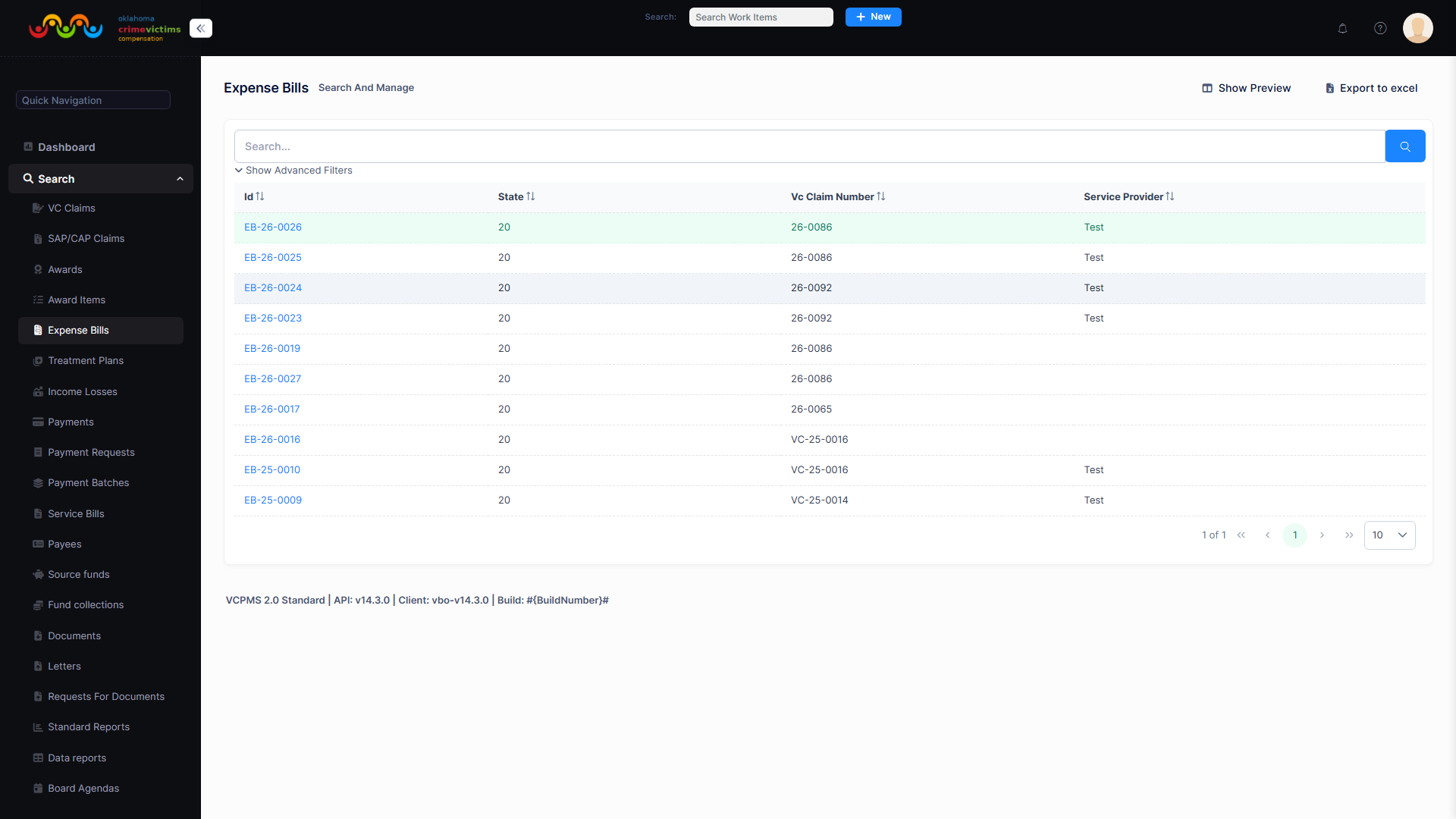
Expense Bills search and list view (VBO back-office perspective)
Supported Bill Types
Medical Bills
Hospital stays, physician visits, clinic services, emergency room treatments, surgeries, and diagnostic procedures.
Mental Health
Counseling sessions, therapy, psychiatric evaluations, and ongoing mental health treatment services.
Dental Bills
Dental examinations, restorative procedures, and emergency dental treatments related to victimization.
Funeral / Burial
Funeral services, burial expenses, cremation costs, and related arrangements for deceased victims.
Prescription (RX)
Prescription medications, pharmacy dispensing fees, and related pharmaceutical costs.
Other Services
Additional service categories configurable per jurisdiction to accommodate unique program requirements.
Continuous Bill Submission
Bill Status Tracking
After submission, track the status of each bill from your dashboard. Status indicators include:
6. Submitting SAFE Claims (Forensic / SANE Claims)
In addition to expense bills, VCPProvider supports the submission of SAFE claims (backed by the SafeClaim entity in the backend). SAFE claims are used for Sexual Assault Forensic Exams and Sexual Assault Nurse Examiner (SANE) services, which follow a separate billing and reimbursement workflow designed so the victim bears no billing burden.
SAFE Claim Submission Process
Create New SAFE Claim
Initiate a new SAFE claim from your dashboard. Enter victim information (first name, last name), service dates, and your provider details (pre-populated from your profile).
Enter Claim Details
Specify the total cost amount for services rendered, insurance coverage amount (if applicable), and provide descriptions of the forensic examination or SANE services performed. The system calculates the reimbursement amount based on your program's configured rules.
Upload Certifications & Documentation
Attach required certifications (SANE credentials, provider certifications), examination reports, and any additional supporting documentation required by your jurisdiction.
Submit for Review
Review all claim details and submit. The claim enters the program's review queue, and staff are notified of the new submission. You receive a confirmation with a unique claim number for tracking.
SAFE Claim detail view showing forensic exam claim information (VBO back-office perspective)
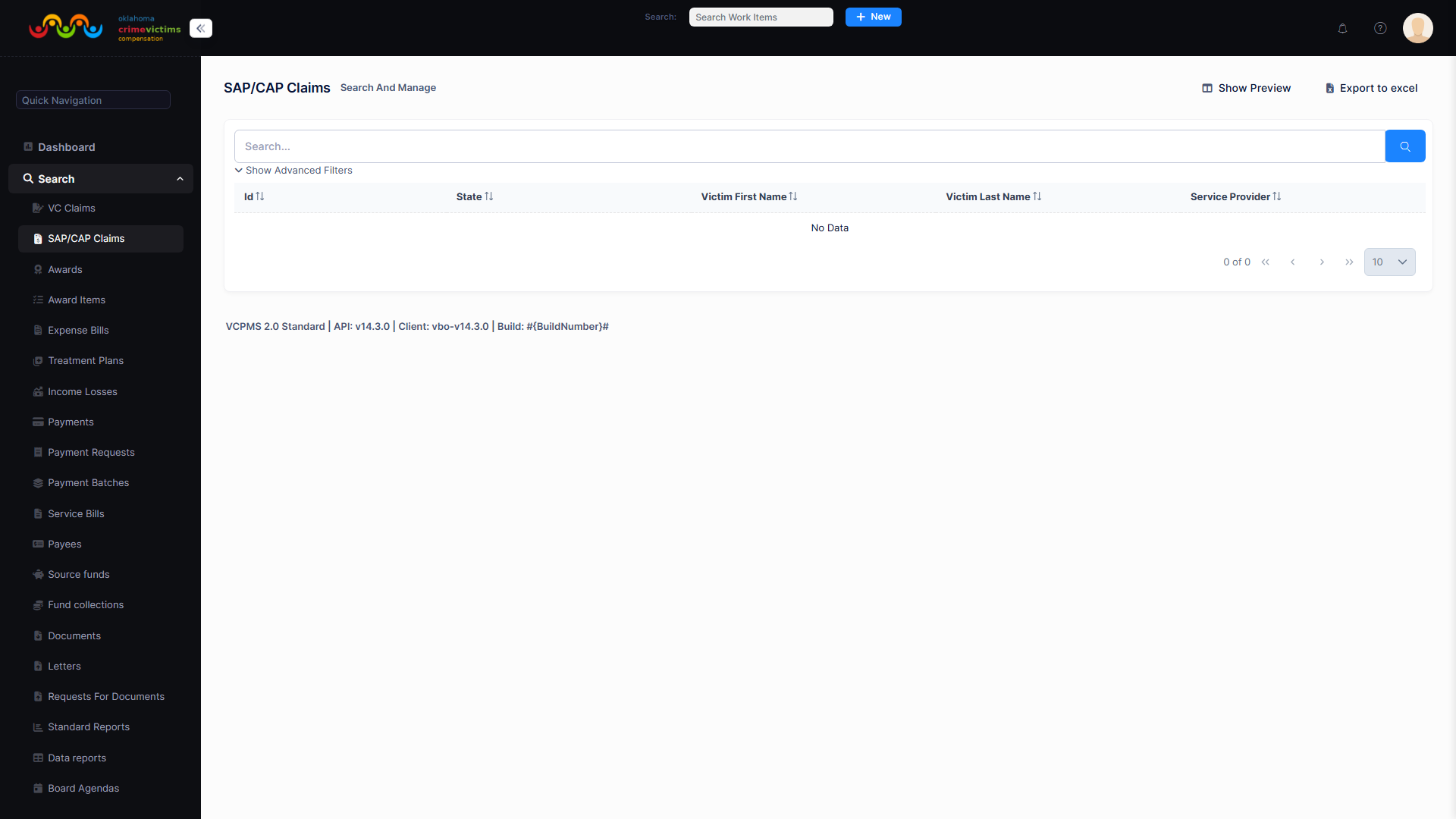
SAFE Claims search and list view (VBO back-office perspective)
SAFE Claim Lifecycle
SAFE claims progress through the following states, each visible to providers in real time:
| State | Description | Provider Action |
|---|---|---|
| Draft | Claim created but not yet submitted | Continue editing, attach documents, then submit |
| Submitted | Claim submitted and awaiting staff review | Monitor status; respond to any information requests |
| Approved | Claim approved for payment | No action needed; payment will be processed |
| Pending Payment | Approved and queued for payment processing | No action needed; payment is in process |
| Paid | Payment issued to provider | View payment details, download remittance |
| Rejected | Claim returned for corrections | Review rejection reason, correct, and resubmit |
| Denied | Claim denied with stated reason | Review denial reason; contact staff if needed |
| Withdrawn | Claim withdrawn by provider or staff | No further action available |
SANE / Forensic Exam Claims (Configurable Option)
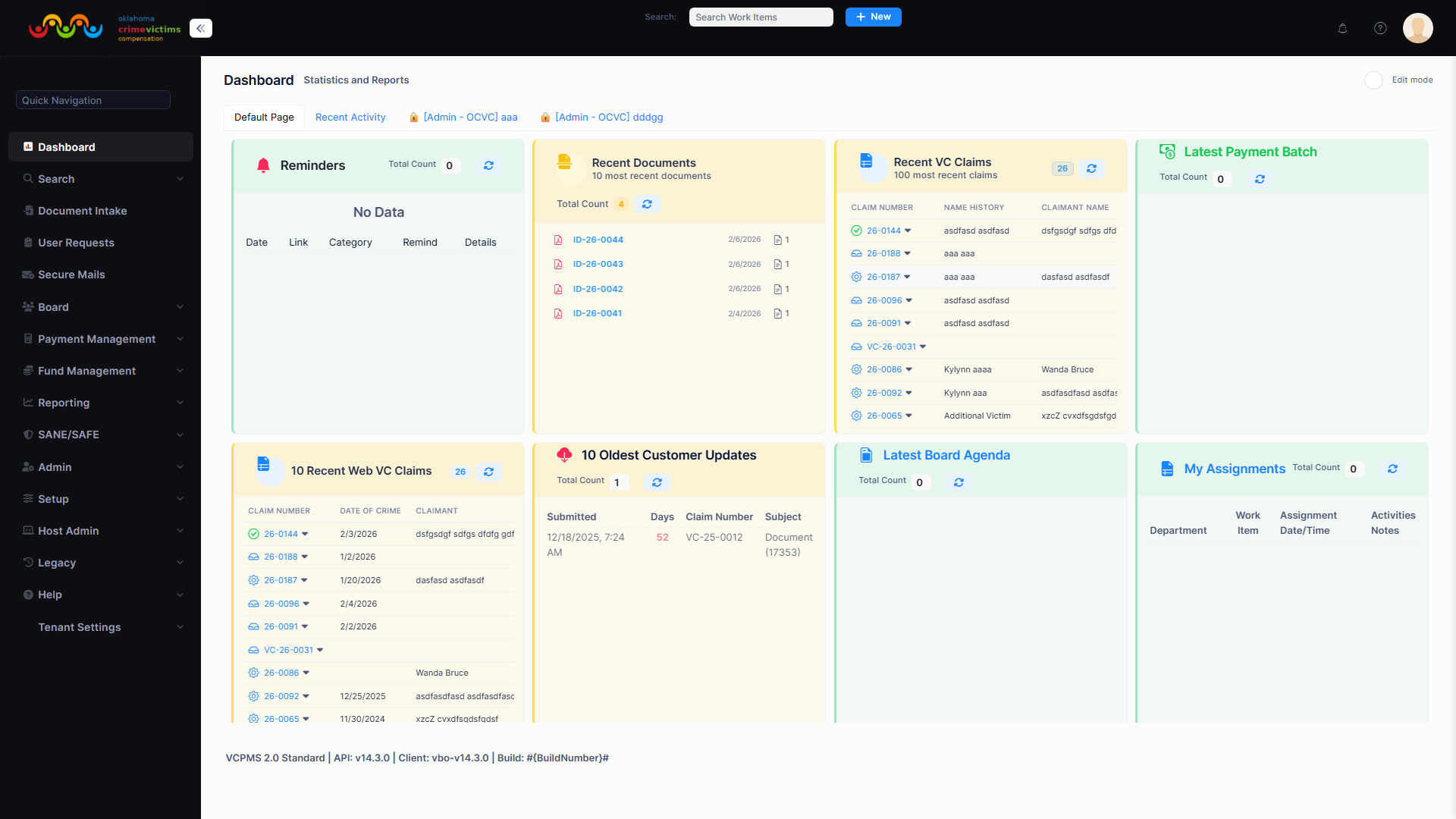
SANE/SAFE SAFE Claims list view (VBO back-office perspective)
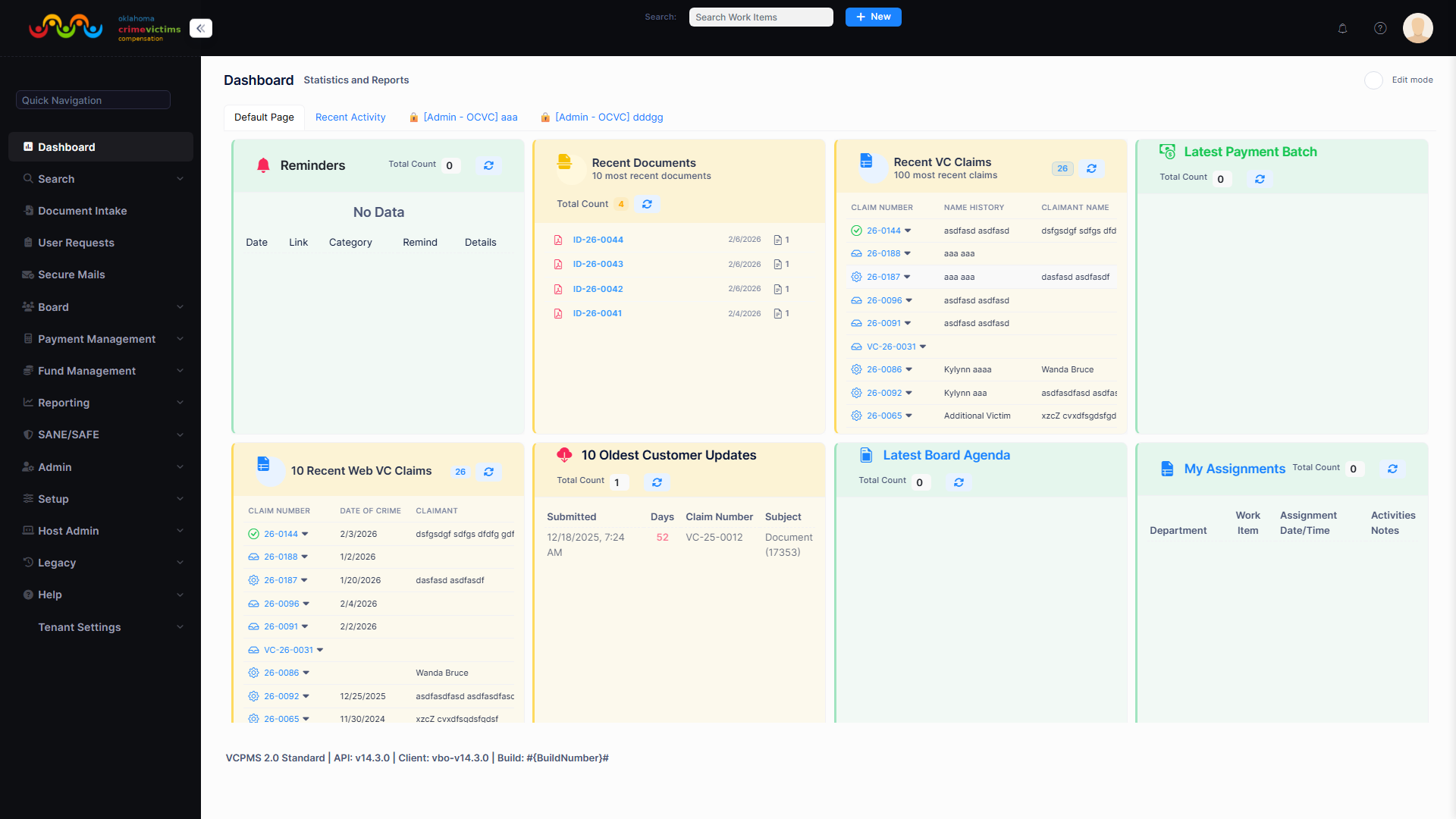
SANE/SAFE Service Providers list view (VBO back-office perspective)
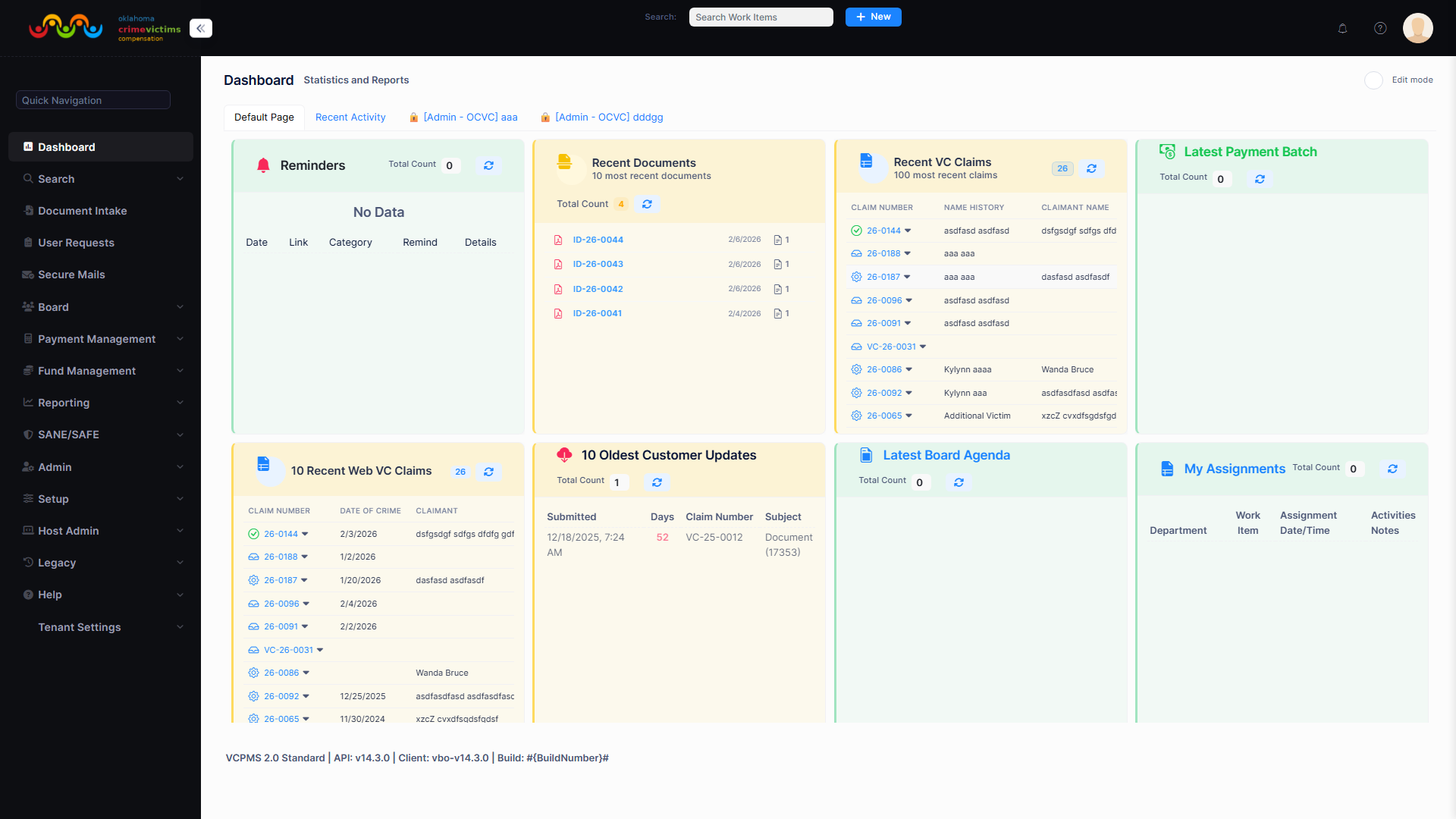
SANE/SAFE Payments list view (VBO back-office perspective)
7. Payment Information
VCPProvider gives service providers complete transparency into payment activity. Access detailed payment records, download remittance statements, and reconcile payments with your internal accounting systems — all from a single, easy-to-navigate interface.
Remittance Details
Each payment record includes comprehensive remittance information that maps directly to your submitted service records:
| Remittance Field | Description |
|---|---|
| Service Type | Category of service provided (medical, counseling, dental, etc.) |
| Service Date | Date(s) when the service was rendered |
| Billed Amount | Original amount submitted by the provider |
| Approved Amount | Amount approved by the program for payment |
| Denied Amount | Portion denied (if any) with explanation |
| Payment Issued | Actual payment amount disbursed |
| Check Number | Check reference assigned during payment batch processing, used for reconciliation |
| Payment Method | Paper check (shipped today) or Excel/CSV batch export. NACHA/ACH direct export is on the roadmap. |
| Denial Reason | Explanation for any denied portion of the claim |
| Funding Source | Source of funds (e.g., federal, state) used for the payment |
Payment List & Statements
- Full payment history — Access a complete list of all payments made to your facility
- PDF remittance statements — Download for individual payments or in batch
- Robust filtering — Filter by date range, service category, victim last name, or claim number
- Print-friendly format — Statements optimized for both printing and electronic delivery
- Paid and unpaid items — Statements show both paid items (with check numbers and payment dates) and unpaid/pending items (with notes or denial reasons)
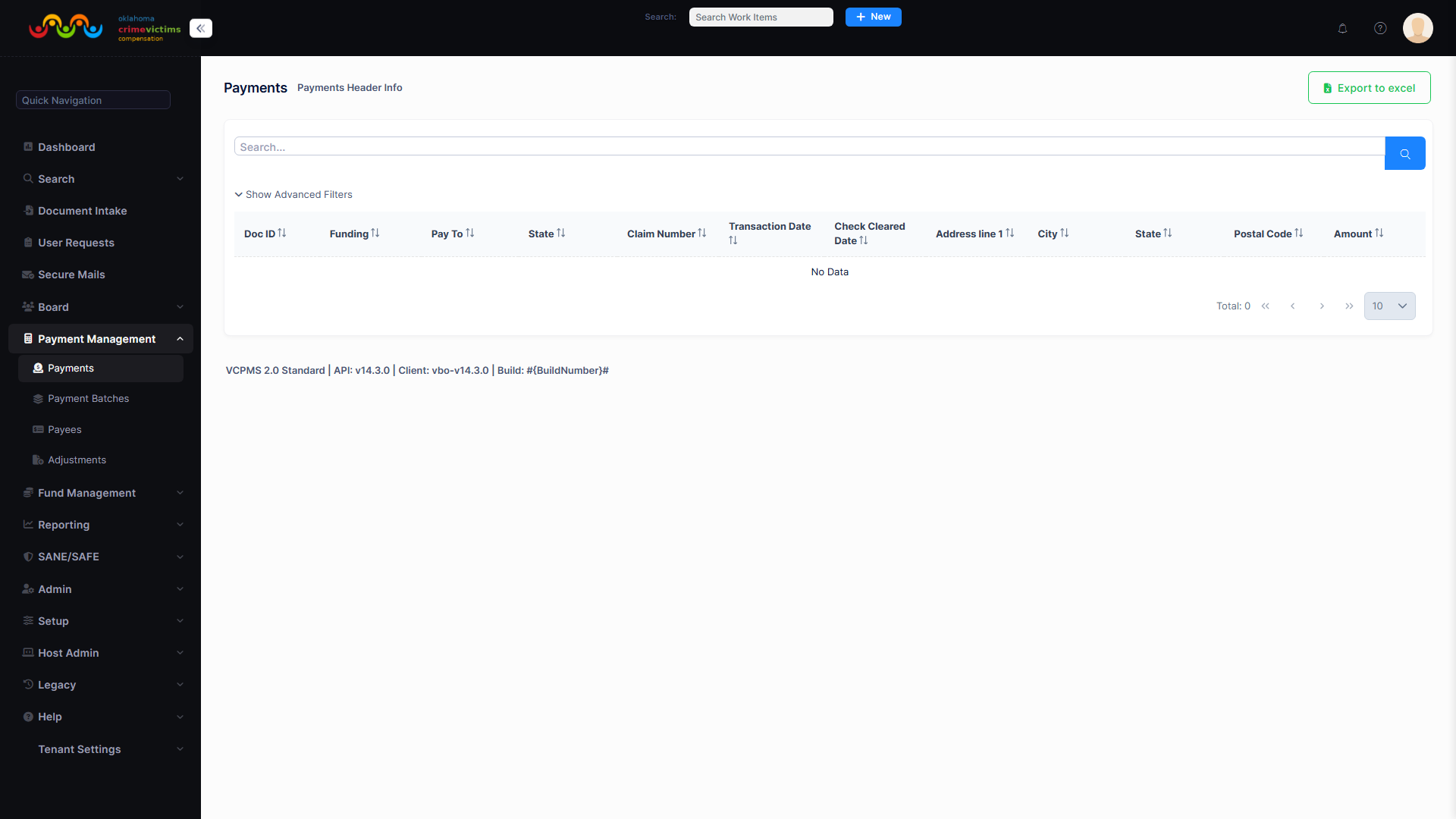
Payments list with filtering and status tracking (VBO back-office perspective)
Payment detail view showing remittance and disbursement information (VBO back-office perspective)
8. Document Management
VCPProvider includes a robust document management system that allows providers to upload, organize, and track all documentation associated with their claims. Every document is securely stored, linked to specific claims, and available for review by program staff.
Uploading Documents
Upload Process
Upload documents from the Documents tab or during the bill/claim submission workflow. Multiple files can be uploaded simultaneously.
Tagging & Categorization
Each document is tagged with a document type (invoice, receipt, medical record, certification) and linked to the appropriate claim for organized retrieval.
Security & Integrity
Once uploaded, documents cannot be deleted by providers. All document activity is logged in the audit trail. Program staff manage document lifecycle.
Supported Document Types
| Document Type | Description | Common Formats |
|---|---|---|
| Bills / Invoices | Itemized service bills and invoices for services rendered | PDF, scanned images |
| Medical Records | Treatment records, examination reports, discharge summaries | PDF, scanned images |
| Receipts | Proof of payment or service delivery | PDF, scanned images |
| Certifications | Provider credentials, SANE certifications, licenses | PDF, scanned images |
| Supporting Documentation | Any additional materials supporting a claim or bill | PDF, scanned images |
9. Communication
Effective communication between providers and program staff is critical for timely claim processing. VCPProvider includes multiple communication channels to ensure you stay informed and can respond quickly to staff requests.
Two-Way Messaging
Exchange messages directly with program staff through the portal's built-in messaging system. This secure channel supports:
- Submitting questions about claims, payments, or program policies
- Receiving and responding to requests for additional information
- Sending or receiving file attachments as part of the conversation
- Complete message history with timestamps for audit purposes
Screenshot: Two-Way Messaging — Conversation with Program Staff — Available in production environment
Notification Channels
Email Notifications
Receive email alerts for claim status changes, payment issuances, document requests, and new messages from staff.
SMS Notifications
Opt in to receive text message alerts for time-sensitive updates such as payment confirmations and urgent information requests.
Portal Notifications
In-app notification center displays all alerts and messages when you log in, ensuring nothing is missed.
Notification Triggers
| Event | Notification Sent |
|---|---|
| Claim status change | Alert when a claim you submitted changes state |
| Payment issued | Confirmation when a payment is disbursed to your organization |
| New communication from staff | Alert when program staff send you a message or request |
| Document requested | Alert when staff request additional documentation |
| Bill status update | Notification when a submitted bill is approved, denied, or requires action |
vPostalBox
All formal correspondence from the compensation program is delivered to your vPostalBox within the portal. This digital mailbox stores letters, notices, and official documents in PDF format, available for viewing, downloading, and printing at any time.
10. Requests & Updates
The Requests and Updates section of VCPProvider allows you to submit and track service-related requests, respond to staff inquiries, and provide additional information as needed throughout the claim lifecycle.
Request Capabilities
- View requests from staff — See all open requests for additional information, documentation, or clarification
- Submit new requests — Initiate requests or provide updates to program staff
- Upload documentation — Attach files to requests as supporting evidence
- Track request status — Monitor the progress and resolution of each request
- Full history — All requests and responses are logged with timestamps for complete audit trail
11. Profile Management
Keep your organization's information current through VCPProvider's profile management features. Accurate profile information ensures that payments are delivered correctly and that program staff can reach you when needed.
Organizational Information
| Profile Section | Editable Fields |
|---|---|
| Organization Details | Provider name, Tax ID / EIN, service type categories |
| Contact Person | Name, phone number, email address |
| Correspondence Address | Street address, city, state, ZIP for program communications |
| Payment Remittance Address | Separate address for payment delivery (supports different billing locations) |
| Provider Codes | Unique provider identifiers for streamlined billing |
Communication Preferences
- Configure preferred notification methods (email, SMS, portal messages)
- Select which events trigger notifications
- Update language preferences for portal interface and communications
- Changes take effect immediately
Change Tracking
All profile changes are logged with timestamps, and the system stores both previous and updated information for historical tracking. Updates are immediately visible to internal program staff.
12. FAQ & Help
Frequently Asked Questions
| Question | Answer |
|---|---|
| How do I register as a new provider? | Navigate to the VCPProvider portal and complete the online registration form. You will need your organization's Tax ID / EIN, contact information, and service details. Depending on your jurisdiction, your account may be auto-activated or require manual approval. |
| Can I submit bills for multiple jurisdictions? | Yes. If your organization serves victims across multiple jurisdictions, you can register for each and switch between them from your dashboard. Data is kept strictly separate between jurisdictions. |
| How do I check the status of a submitted bill? | Log in to VCPProvider and navigate to your dashboard. All submitted bills and claims are listed with their current status. Click any item for detailed status information and history. |
| When will I receive payment for an approved bill? | Payment timelines vary by jurisdiction and funding availability. Once a bill is approved, it moves to "Pending Payment" status. You will receive a notification when the payment is issued, including the check number. |
| Why was my bill denied? | Denial reasons are displayed on the claim detail page. Common reasons include incomplete documentation, services not covered by the program, or billing for services already reimbursed by insurance. Contact program staff through the messaging system for clarification. |
| Can I resubmit a rejected claim? | Yes. If a claim is "Rejected" (as opposed to "Denied"), you can correct the issues identified by staff and resubmit. The claim detail page will include the rejection reason and guidance for correction. |
| How do I update my payment remittance address? | Go to your Profile section and update the Payment Remittance Address field. Changes take effect immediately and are visible to program staff. |
| Can I delete a document I uploaded in error? | No. Once a document is attached to a claim, it cannot be deleted by the provider. Contact program staff through the messaging system to request correction. |
| Is the portal accessible on mobile devices? | Yes. VCPProvider is fully responsive and works on smartphones, tablets, and desktop computers. No separate app is required. |
| Who do I contact for technical support? | Use the built-in messaging system to contact program staff, or refer to the Help section within the portal for contact information specific to your jurisdiction. |
Contextual Help
VCPProvider includes contextual help throughout the portal:
- Page-level help — Each page includes guidance on its purpose and available actions
- Field-level tooltips — Hover over any field label for a description of what information is expected
- Inline validation messages — Real-time feedback when entering data, highlighting errors before submission
- Jurisdiction-specific content — FAQ and help content reflects your program's local procedures and compliance policies
Benefits of VCPProvider
Eliminate Paper-Based Billing
Replace manual, paper-based bill submission with a streamlined digital workflow. Submit bills in minutes, not days, and eliminate the cost of printing, mailing, and manual data entry.
Real-Time Payment Visibility
No more calling program offices to check on payment status. View real-time payment information, download remittance statements, and reconcile payments instantly from your portal.
Faster Reimbursement Cycles
Digital submission and automated routing mean your bills reach program staff immediately. Faster processing translates to faster payments for your organization.
Reduced Administrative Burden
Pre-populated provider information, structured data entry, and automated validation minimize errors and reduce the time your staff spend on billing administration.
Complete Audit Trail
Every submission, document upload, and communication is logged with timestamps. Full transparency into what was submitted, when, and by whom — protecting your organization and supporting compliance.
24/7 Access from Any Device
Submit bills, check payment status, and communicate with program staff anytime, from any device with a web browser. No special software or training required.
Direct Communication Channel
Built-in two-way messaging eliminates phone tag and email chains. Communicate directly with program staff, attach documents, and maintain a complete conversation history.
Multi-Jurisdiction Support
Serve victims across multiple jurisdictions from a single portal. Switch between programs seamlessly while maintaining strict data separation and jurisdiction-specific compliance.
Secure and Compliant
Enterprise-grade security with multi-factor authentication, role-based access control, AES-256 encryption, and WCAG 2.1 Level AA accessibility compliance. Your data is protected at every level.