
VCPOnline
The Victim/Claimant Portal — Empowering victims with 24/7 self-service access to compensation services
Victim & Claimant PortalTable of Contents
1. Portal Overview
VCPOnline is the public-facing portal of the VCPMS platform, purpose-built for victims and claimants to submit applications for victim compensation and manage their claims from any device, at any time. It is the primary digital interface through which crime victims interact with the compensation program.
Submit Applications
File compensation claims through a guided, 14-step application wizard with autosave and resume capabilities. Complete your application at your own pace.
Track Claim Status
View real-time claim status updates directly from your dashboard. Stay informed of every milestone, from submission through final determination.
Upload Documents
Submit supporting documents, medical bills, police reports, and other evidence at any time during the claim lifecycle — including photo capture from mobile devices.
Secure Communication
Communicate with program staff through two-way secure messaging. Respond to requests for additional information and receive correspondence electronically.
View Payments
Access payment history and benefit information. Download official payment statements in PDF format for your records.
vPostalBox
Receive all official correspondence through your virtual mailbox. View, download, or print letters and notifications at your convenience.
Who Uses VCPOnline?
| User Type | Description | Primary Activities |
|---|---|---|
| Victims | Persons who suffered physical or emotional injury as the direct result of a criminal act | File applications, track claims, upload documents, view payments |
| Claimants | Individuals filing on behalf of victims (family members, guardians, legal representatives) | File applications on behalf of victims, manage claim correspondence |
| Applicants | The person completing the application (may be the victim, claimant, or an authorized party such as a guardian) | Complete and submit the application, provide required documentation |
2. Getting Started
Getting started with VCPOnline is straightforward and secure. Users self-register through the portal, verify their identity, and gain immediate access to the application wizard and claim management tools.
Account Creation
New users register by providing their personal information and creating secure login credentials. The registration process is designed to be quick while ensuring proper identity verification.
Email Verification
Registration requires a valid email address, which serves as your unique identifier. A verification link is sent to confirm your identity before activation.
Secure Password
Create a strong password meeting configurable requirements (e.g., 12+ characters, mixed case, numbers, and special characters). Password policies ensure account safety.
Personal Profile
Provide your name, date of birth, phone number, and preferred language during registration. Notification preferences can be configured immediately.
Multi-Factor Authentication (MFA)
VCPOnline supports multi-factor authentication to provide an additional layer of security beyond passwords. When enabled by the local administrator, MFA requires users to verify their identity through a second factor during login.
- Security questions can be configured when setting up account passwords
- System includes protections against unauthorized login attempts: response latency, CAPTCHA challenges, account lockout, and IP filtering
- All connections are encrypted using secure socket layer (SSL/TLS) technology
Password Management
| Feature | Description |
|---|---|
| Self-Service Reset | Recover access through security questions and email verification without contacting staff |
| Configurable Complexity | Minimum requirements set by administrators (e.g., 12 characters, mixed case, numbers, special characters) |
| Expiration Policy | Configurable change intervals (e.g., every 90 days) to maintain security |
| History Enforcement | Prevents reuse of recent passwords (e.g., last 4 passwords) |
| Secure Storage | All credentials are hashed before storage — never stored in plain text |
| Administrative Reset | Program staff can send a secure, time-sensitive reset link when users need assistance |
Account Linking
After creating an account, administrators can associate a user profile with existing claims. This enables users to view the status of claims that were filed on their behalf (e.g., paper applications filed by staff or advocates).
- Once linked, the user gains full access to claim status, document submissions, and notifications
- Each claim can be linked to one VCPOnline user profile at a time, ensuring clear audit trails
- All changes to user-claim associations are logged with user ID, timestamp, and reason for modification
Duplicate Account Detection
The system validates for duplicate accounts during registration by checking email addresses and associated identity markers. If a potential duplicate is detected, the system blocks submission and prompts the user to recover their existing account or contact the jurisdiction for assistance.
3. Filing a New Application
VCPOnline provides a guided, step-by-step application wizard for submitting compensation claims. The wizard consists of 14 clearly defined steps, with each screen asking logically grouped questions that adapt dynamically based on the applicant's responses. The entire process is designed to be completed at the user's own pace, with robust save and resume capabilities.
Application Wizard Features
Dynamic Logic
Each screen adapts based on your responses. For example, guardian-related fields appear only when the victim is a minor. Conditional rules are configurable by local administrators.
Autosave & Resume
Progress is saved automatically in real time. Exit and return at any point — you will be redirected to your most recent step with all data preserved.
Draft Management
Save unfinished applications as drafts. Draft applications are clearly distinguished from submitted applications on your dashboard, and can be canceled at any time.
Real-Time Validation
Required fields are enforced through real-time validation with clear error messages. The system prevents submission until all mandatory information is provided.
The 14-Step Application Process
Start Application
The entry point for the application process. The system captures who is completing the application — the victim themselves, a claimant filing on behalf of the victim, or another authorized party such as a guardian. Based on this selection, subsequent screens dynamically adjust to collect the appropriate information and tailor the experience.
Victim Information
Collects comprehensive information about the victim including full name, date of birth, Social Security Number, race/ethnicity, gender, complete mailing address (with apartment/unit support), phone number(s), email address, preferred written and spoken languages, communication method preferences (phone, email, postal mail, fax), and tribal affiliation. The system supports smart address features including auto-population of city, county, and state from ZIP code entry. International addresses with letter characters in postal codes are also supported.
Duplicate Detection: After key fields are entered, the system performs real-time duplicate detection using combinations of birthdate, SSN, and crime date. If a matching claim already exists, the applicant is alerted immediately with guidance on how to proceed.
Minor Flag: The system automatically flags victims as minors when the date of birth indicates they are under 18. This flag affects field visibility, correspondence templates, and eligibility logic throughout the claim lifecycle.
Additional Secondary Victims
For jurisdictions that support secondary victim claims linked to a primary victim, this step allows the addition of secondary victims. This feature is configurable per deployment — jurisdictions that process one claim per victim may disable this step entirely.
Claimant Information
When the claimant is different from the victim, this step collects the claimant's details including full name, date of birth, address, phone number(s), email address, relationship to the victim, and referral source. Fields are configurable per jurisdiction — for example, some programs require date of birth and race only for the victim. Referral source options (e.g., Law Enforcement, District Attorney Office, Hospital or Medical Provider, Friend or Family, Poster or Brochure) are also configurable.
Crime Information
Captures details about the crime including the date of crime, location, county (with jurisdiction-specific options), type of crime (configurable per state), crime location type, a narrative crime description, and law enforcement report number. All dropdown options are fully configurable by local administrators to align with state statutes and program requirements.
Offender Information
Records offender details including name, relationship to the victim, court case number, and offender status. Multiple offenders can be added per claim. The system can flag cases for restitution upon conviction.
Insurance Information
Captures insurance coverage details including whether the victim has insurance, the type, company name, policy number, and coverage amounts. Multiple insurance entries are supported to document all available coverage sources.
Civil Attorney / Lawsuit
Records whether a civil lawsuit is involved, including attorney name, contact information, and lawsuit status. Claims tagged with litigation involvement may trigger conditional routing or hold certain actions (such as payments) pending legal review.
Expenses Information
Collects expense categories (medical, mental health, funeral, relocation, lost wages, and more), associated service provider information, amounts claimed per category, service dates, and references to supporting documentation. Users can upload and submit bills at any time during the claim lifecycle, not only at the time of application.
Employer Information
Records the employer's name and contact information, the victim's employment status at the time of the crime, income and wage information, and lost wages details for income loss benefit tracking.
Optional Information
Additional information fields configurable per jurisdiction. Includes referral source details and any supplementary data the program requires. The system fully supports Unicode for foreign characters and accents in all text fields.
Document Attachments
Upload supporting documents such as police reports, medical records, receipts, and identification. Supports file attachment from any device as well as photo capture directly from mobile devices. Multiple file types are supported, and each document can be renamed for clarity (e.g., "Medical Invoice - March 2025"). All uploaded documents are preserved across sessions even if the user exits and returns later.
Application Summary
Displays a complete, consolidated summary of all information entered across the application for review before final submission. The summary is available as a printable, printer-friendly PDF that includes all answers, uploaded document references, and metadata with clear headers, pagination, and official branding.
Submit Application
The final submission step. Applicants must review and accept a set of terms and conditions by checking individual statements (configurable by local administrators to reflect statutory language). An electronic signature is captured — the system accepts both typed names and drawn signatures via touch or mouse. The signature is recorded along with IP address, timestamp, and user ID. Upon successful submission, the system generates a unique claim number and sends a confirmation message to the applicant's email address.
Draft Management
Applicants have full control over their in-progress applications:
- Save as Draft: Unfinished applications are automatically saved and clearly marked as drafts on the dashboard
- Resume Anytime: Return to any draft application and continue exactly where you left off
- Cancel Draft: Draft applications can be canceled and deleted from the dashboard at any time. Unsubmitted applications are not assigned a claim number and no official record is created
- Complete Data Capture: All fields submitted through the online application are captured and stored, including structured data, uploaded documents, narrative text, and selections. No user-entered information is ever discarded
4. Dashboard
After logging in, the VCPOnline dashboard serves as your central command center. It provides a clear, organized view of all your application submissions and active claims, with real-time status updates and intuitive navigation.
Application Submissions
View all draft and submitted applications in one place. Draft applications display a Resume button to continue where you left off. Submitted applications show their current processing status.
My Claims
Access all claims associated with your account. Each claim displays its current status alongside date stamps, with a View button for full details including correspondence, payments, and benefit information.
Status Indicators
The dashboard provides clear, real-time status information for every application and claim:
5. Managing Your Claims
Once an application has been submitted and assigned a claim number, VCPOnline provides a comprehensive claim management interface organized into clearly labeled tabs. Each tab gives you direct access to different aspects of your claim.
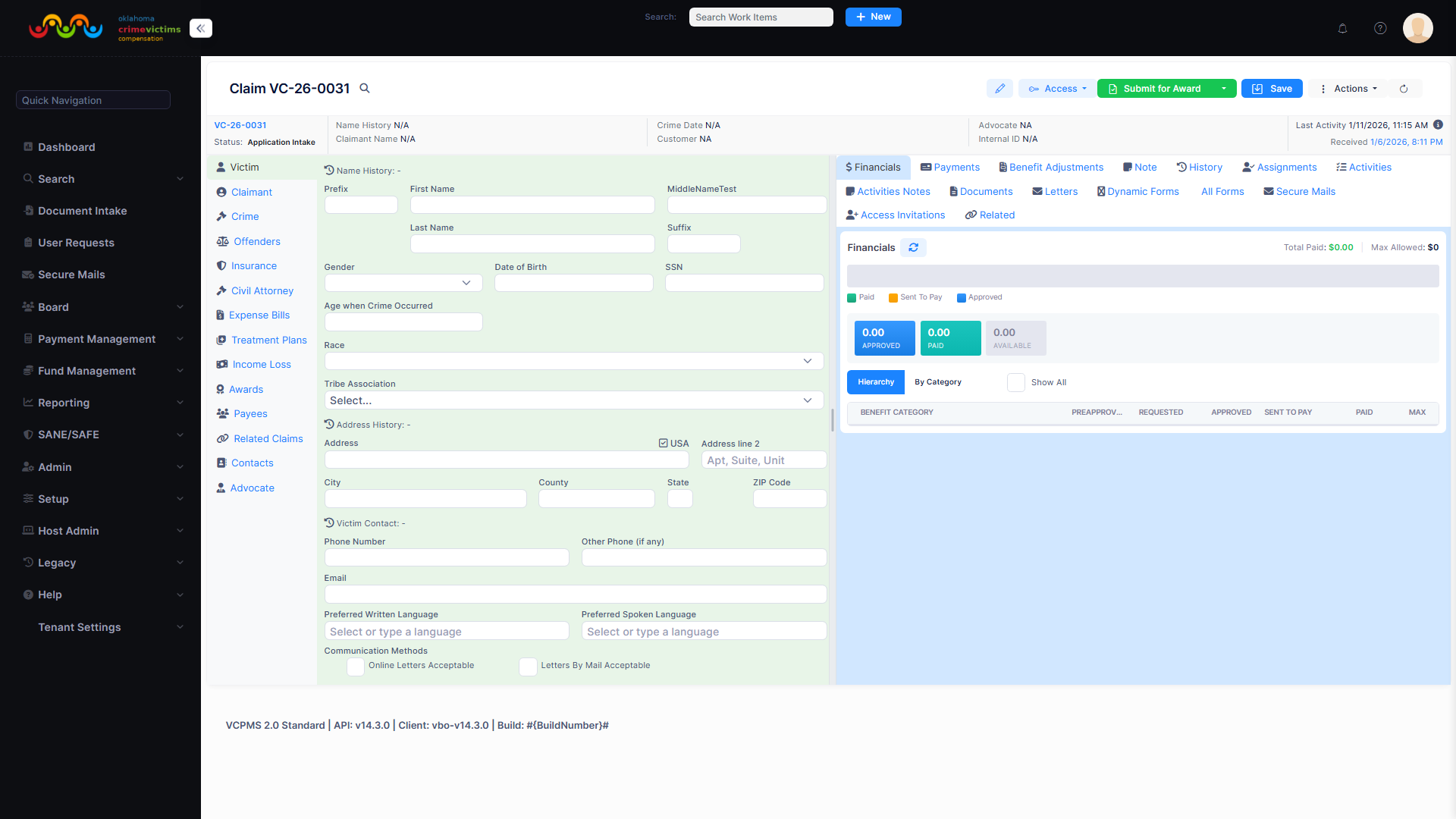
Claim detail view from VCPOffice showing the tabbed claim management interface. The VCPOnline portal presents a similar layout tailored for victims and claimants.
5a. Claim Summary
The Claim Summary provides a consolidated overview of your claim with all essential information displayed at a glance. This is the primary view you see when selecting a claim from the dashboard.
| Information | Details |
|---|---|
| Claim Number | Your unique claim identifier (e.g., "26-0045"), used for all tracking, correspondence, and reporting |
| Current Status | Real-time claim status with date stamps showing when each status change occurred |
| Victim Information | Summary of victim details including name, date of birth, and contact information |
| Claimant Information | Summary of claimant details and relationship to the victim (when applicable) |
| Crime Information | Date and location of crime, crime type, and law enforcement report details |
| Key Dates | Date of crime, date filed, date of each status change — providing a complete timeline |
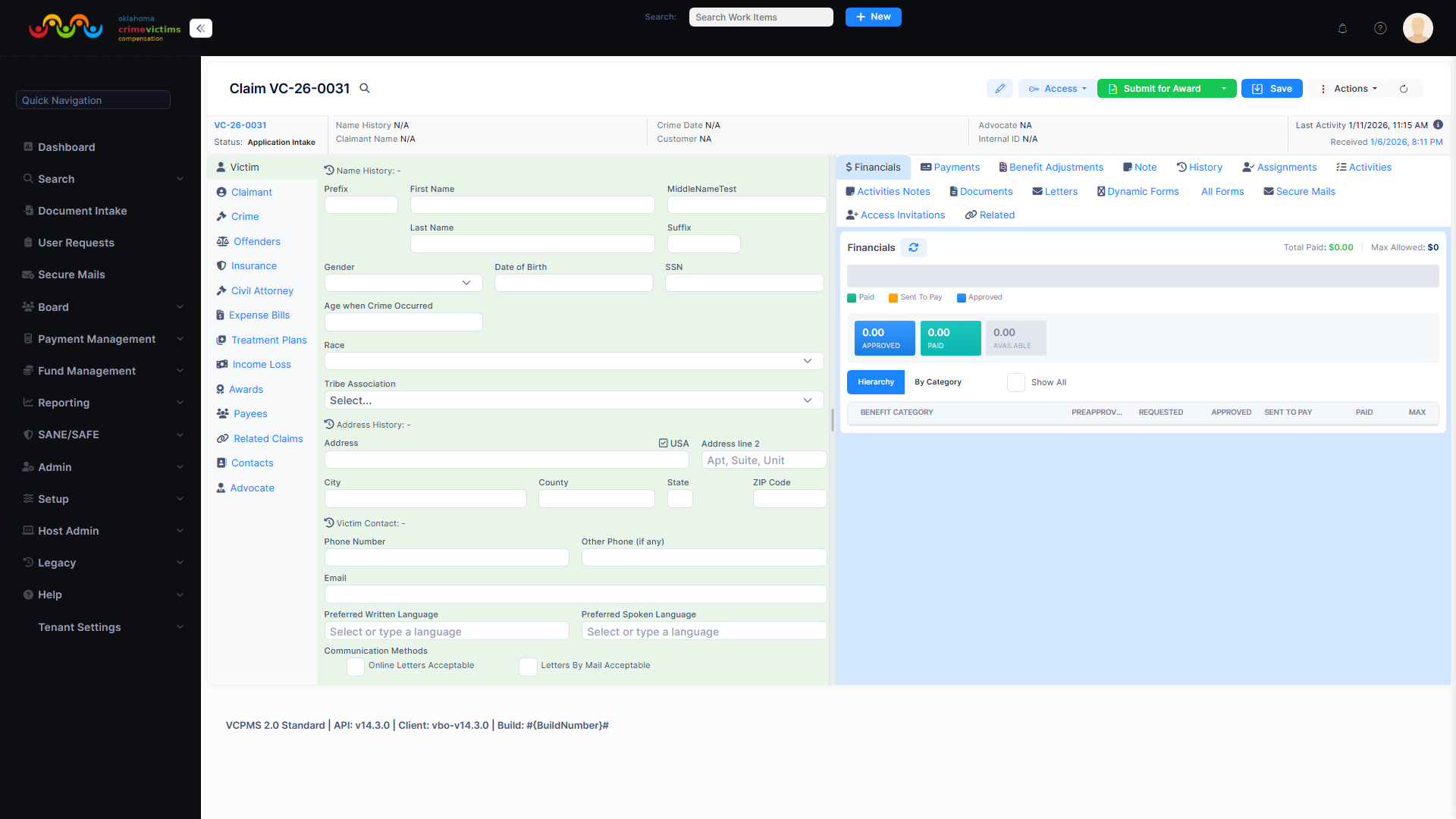
Victim information view from VCPOffice. In VCPOnline, claimants see a similar summary of their claim details and status timeline.
5b. Out-Documents / Letters
The Out-Documents tab displays all official correspondence sent to you by the program. Every letter, notification, and official document generated by staff is available here for review, download, or printing.
- View letters and notifications from program staff
- Download correspondence as PDF documents
- Print official documents directly from the portal
- All documents are formatted to meet legal and accessibility standards
- Historical archive ensures no correspondence is ever lost
5c. Claim Updates
The Updates tab enables two-way communication between you and program staff. You can submit update requests, upload new documentation, and respond to staff inquiries — all within a single, organized interface.
Submit Update Requests
Upload new bills, police reports, medical records, or other case-related files along with explanatory text. You can also send plain text requests for information or status inquiries.
Respond to Staff
When program staff request additional information or documents, respond directly through the Updates tab. Send attachments and explanations within a secure, trackable conversation.
The Updates tab also supports specialized submission types:
- Contact Information Changes: Request updates to your contact details (address, phone, email)
- Personal Information Changes: Request updates to personal information on file
- All update requests and their statuses are tracked and visible in the Updates list
5d. Requested Compensations
The Requested Compensations tab provides a read-only view of all benefit categories associated with your claim. This gives you full transparency into approved awards, expense bills, income losses, and treatment plans.
| Benefit Category | Description |
|---|---|
| Awards | Approved compensation amounts for your claim, including individual award line items |
| Expense Bills | Medical expenses, mental health/counseling, funeral/burial expenses, and other approved costs |
| Income Losses | Lost wages and income benefits, including employer and wage verification details |
| Treatment Plans | Approved treatment plans for medical and mental health services |
5e. Submissions
The Submissions tab provides a comprehensive view of all documents and materials you have submitted throughout the life of your claim. This includes the original application, subsequent document uploads, and expense bill submissions.
- Track the status of every document submission
- Upload additional supporting documents at any time after the initial application
- Documents are instantly associated with the claim, indexed, and tagged
- Each document is stored with its received date, type, and metadata
- Program staff are automatically alerted when new documents are uploaded
5f. Forms
The Forms tab allows you to complete dynamic forms assigned by program staff. These may include intake questionnaires, follow-up surveys, eligibility verification forms, or any other structured data collection that the program requires during the claims process.
- Forms are fillable online with dynamic logic that adapts based on your input
- A non-response option is available for questions you may choose not to answer
- Surveys generated through the portal can be received and completed within this tab
- All form responses are stored as part of the claim record
5g. Payments
The Payments tab provides a read-only view of all payment activity related to your claim. The "My Payments" section gives you a complete list of payments, with full details available for each transaction.
| Payment Detail | What You See |
|---|---|
| Payment Date | The date the payment was issued |
| Service Description | Description of the service or expense being reimbursed |
| Provider Name | The service provider who rendered the service |
| Billed Amount | The original amount billed for the service |
| Approved Amount | The amount approved for reimbursement by the program |
| Status | Current payment status (paid, pending) with check numbers and dates for paid items |
| Notes | Denial reasons or explanatory notes for unpaid or pending items, when available |
6. Document Submissions
VCPOnline makes it easy to submit supporting documents at any stage of the claims process — not just at the time of application. Whether you need to upload a police report, medical invoice, proof of income, or any other evidence, the document submission system is designed to be fast, flexible, and secure.
Upload Capabilities
Mobile Photo Capture
Capture and upload documents directly from your smartphone or tablet camera. No scanner needed — simply photograph your documents and they are automatically attached to your claim.
File Attachment
Attach existing files from your device. Multiple file types are supported including PDF, images, and common document formats.
Document Organization
Rename uploaded documents for clarity (e.g., "Medical Invoice - March 2025"). Each document is tagged with a received date and type for easy retrieval.
How It Works
Select Your Claim
Navigate to the Submissions tab of the claim you want to add documents to, or start a new document submission from your dashboard.
Upload Files
Choose files from your device or use your mobile camera to capture photos. Rename documents as needed for clarity and organization.
Submit
Finalize your document submission. The files are instantly associated with your claim, indexed, and available to program staff.
Track Status
Monitor the status of your submitted documents from the Submissions tab. Program staff are automatically alerted when new documents are received.
7. vPostalBox — Virtual Mailbox
vPostalBox is VCPOnline's virtual mailbox, providing secure electronic delivery of all official correspondence between program staff and victims/claimants. It eliminates the need for physical mail for routine correspondence while maintaining a complete historical archive of all communications.
Electronic Delivery
All system-generated letters, notifications, and official documents are delivered to your vPostalBox instantly — no waiting for postal delivery.
PDF Documents
Every letter is captured as a PDF and stored in your claim document history. View, download, or print correspondence at your convenience.
Instant Notifications
Receive a notification (via email, SMS, or portal message based on your preference) whenever new correspondence is available in your vPostalBox.
Complete Archive
Your full correspondence history is always accessible. The system tracks whether each piece of correspondence has been viewed, ensuring nothing is missed.
Delivery Options
You control how you receive correspondence:
| Delivery Method | Description |
|---|---|
| Electronic (Portal) | Correspondence delivered to your vPostalBox, viewable within VCPOnline at any time |
| Electronic (Email) | Notification sent to your email with a link to view the correspondence in the portal |
| Physical Mail | Printed copies sent via postal mail (for users who prefer or require physical delivery) |
| Combined | Both electronic and physical delivery for maximum accessibility |
8. Notifications & Alerts
VCPOnline keeps you informed at every stage of the claims process through a configurable, multi-channel notification system. You choose how and when you receive updates, and the system ensures no critical communication is missed.
Notification Types
| Notification | Trigger | Example |
|---|---|---|
| Status Changes | Automated when claim status changes | "Your claim 26-0045 has been moved to Under Review." |
| Action Required | When new actions are needed from you | "Additional documentation has been requested for your claim." |
| Staff Communications | When new messages are received from staff | "You have a new message from your claims examiner." |
| Document Requests | When additional documents are requested | "Please upload your medical records for claim 26-0045." |
| Payment Updates | When payment status changes | "A payment of $1,250.00 has been issued for your claim." |
| Bill Status Updates | When submitted bills are processed | "Your submitted medical bill has been approved." |
Notification Channels
Email Notifications
The primary notification method. System-generated emails are sent to your registered address with delivery confirmation and bounce detection. If an email is undeliverable, program staff are automatically alerted for follow-up.
SMS Text Messages
Opt-in text message notifications for time-sensitive alerts. Receive immediate updates on your mobile device for critical status changes and action requests.
Portal Messages
In-application messages viewable upon login to VCPOnline. These messages serve as a permanent record accessible at any time through the portal.
Email Reliability
VCPOnline's email system includes enterprise-grade reliability features:
- Integration with bounce-handling services to detect undeliverable messages
- When an email bounces, staff are alerted via dashboard and the claimant profile is flagged for follow-up
- Bounce alerts include the reason and date/time for diagnosis
- Staff can update the email address or switch notification to print as needed
- All emails are tracked for delivery confirmation and logged in communication history
- Staff can view the complete communication history and resend messages when necessary
9. Profile Management
VCPOnline provides a dedicated profile management section where you can update your contact information, configure communication preferences, and manage language settings. Changes are logged with timestamps and made available to program staff in real time.
Contact Information
Update your personal contact information at any time through the dedicated profile section:
- Physical Address: Update your mailing address. The system stores both previous and updated addresses for historical tracking.
- Phone Number: Update primary and alternate phone numbers
- Email Address: Update your email address (subject to re-verification)
- All changes are logged with timestamps and generate an internal task for staff review
- Updates are available to program staff instantly for real-time accuracy
Communication Preferences
| Preference | Options |
|---|---|
| Notification Method | Email, SMS, Portal Messages, Printed Letters — select one or more |
| Delivery Preference | Electronic only, Physical mail only, or Both |
| Language Preference | Preferred written and spoken languages for correspondence and portal interface |
Language Preferences
Your preferred language is captured during account setup and prominently displayed in your profile. It governs the generation of automated letters, emails, text alerts, and portal interface language. When non-English correspondence is required, internal staff are automatically alerted to ensure proper language support.
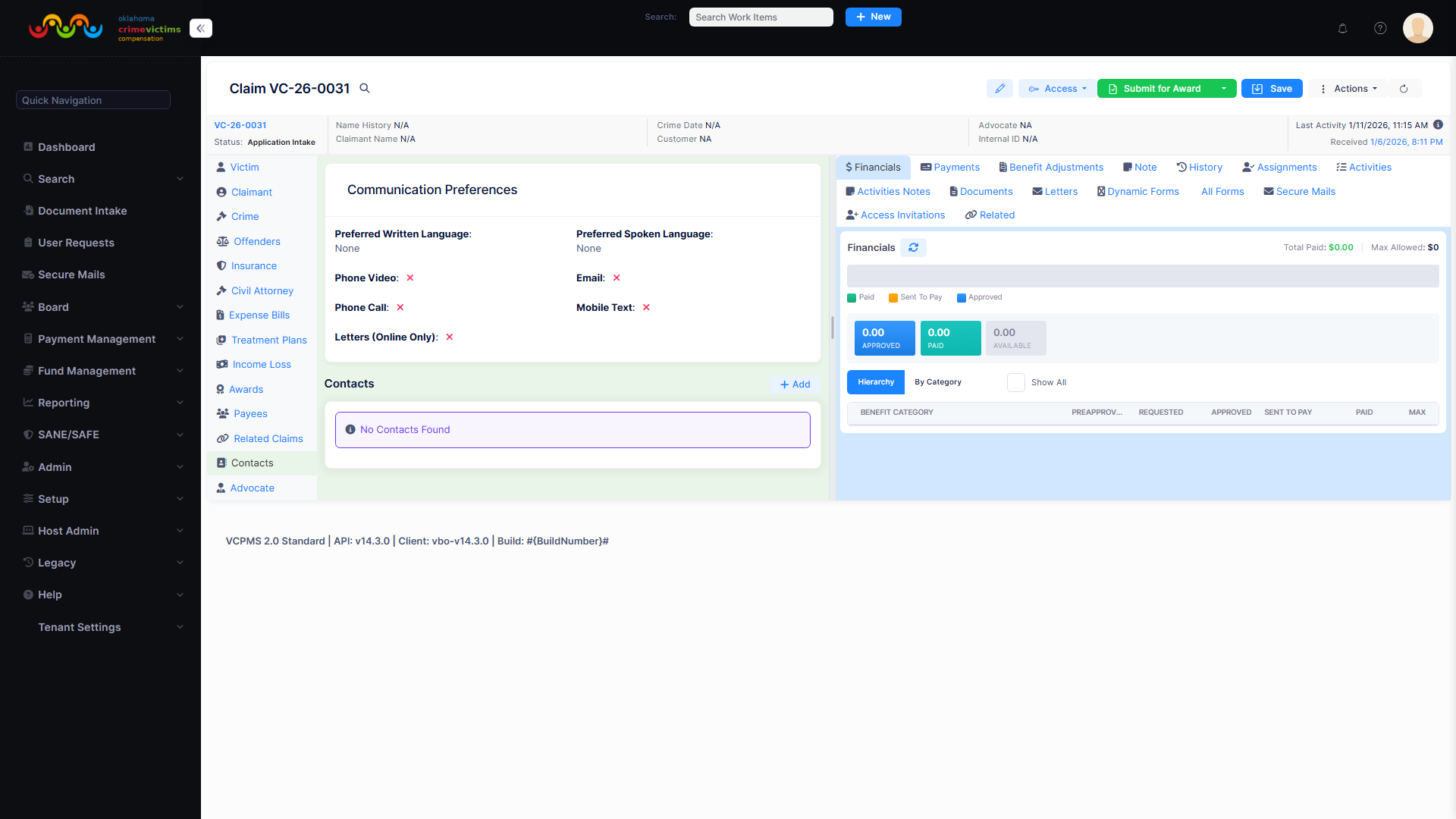
Contact information view from VCPOffice. In VCPOnline, claimants manage their own contact details and communication preferences through a similar interface.
10. Accessibility & Mobile
VCPOnline is built from the ground up to be accessible to all users, regardless of device, ability, or language. The portal meets rigorous accessibility standards while delivering a responsive, mobile-first experience that works seamlessly on any modern device.
Responsive Design
Smartphones & Tablets
Fully accessible from any mobile device. Touch-friendly controls, dynamic layout adjustments, and mobile-optimized forms ensure a seamless experience on smaller screens.
Desktop Browsers
Full-featured experience on desktop with optimized layouts that take advantage of larger screens. No browser plugins or extensions required.
Mobile Document Capture
Photograph and upload documents directly from your mobile device camera. Electronic signatures work on touch-screen devices with drawn or typed input.
Browser Compatibility
| Browser | Platforms | Status |
|---|---|---|
| Google Chrome | Windows, macOS, Android, iOS | Supported |
| Microsoft Edge | Windows, macOS | Supported |
| Mozilla Firefox | Windows, macOS | Supported |
| Apple Safari | macOS, iOS | Supported |
Multi-Language Support
VCPOnline provides comprehensive multi-language capabilities:
- Full Spanish Language Support: All externally visible content is available in Spanish, including application forms, data entry fields, validation messages, dropdown menus, navigation, system labels, and notifications
- Interface Translation: System controls (buttons, tabs, field names) are presented in the selected language
- Content Translation: Jurisdiction-defined content (form questions, instructions, dropdown values) is also available in configured languages
- Configurable Languages: Additional languages can be added and managed by administrators without requiring technical support
WCAG 2.1 A/AA Compliance
VCPOnline is fully designed to comply with ADA requirements and align with WCAG 2.1 Level A and Level AA accessibility standards:
| Accessibility Feature | Implementation |
|---|---|
| Color Contrast | High-contrast color schemes for legibility. Scalable fonts and content readable with browser zoom. |
| Alternative Text | All meaningful images and icons include alt text or descriptive labels for screen readers. |
| Keyboard Navigation | The entire system is operable using only a keyboard — navigation menus, form entry, dialog boxes, and submission. |
| Screen Reader Support | Forms are clearly labeled with accessible error messaging and focus management for assistive devices. |
| Regular Testing | Accessibility tested using automated tools and manual validation before each release. |
11. FAQ & Help
VCPOnline includes a comprehensive built-in help system designed to guide users through the portal and the claims process. Contextual assistance is available throughout the application, and a dedicated FAQ section provides answers to common questions.
FAQ Section
A curated set of frequently asked questions covering portal usage, the claims process, document requirements, and more. Maintained by jurisdictional administrators to reflect local procedures and policies.
Contextual Help
Embedded page-level and field-level tooltips and help text throughout the application. Get guidance exactly where you need it, without leaving the current screen.
Step-by-Step Tutorials
Guided walkthroughs for key processes including account creation, application submission, document upload, and claim management. Designed for first-time users.
Quick Links
Direct links to relevant sections and resources from the FAQ, enabling users to navigate directly to the information or feature they need.
Benefits of VCPOnline
24/7 Self-Service Access
Victims and claimants can submit applications, upload documents, check claim status, and manage their profile at any time of day or night — from any device with a web browser.
Guided Application Process
The 14-step wizard with autosave, resume, and real-time validation ensures applications are complete and accurate, reducing processing delays caused by missing information.
Real-Time Status Transparency
Claimants always know exactly where their claim stands. Automated notifications via email, SMS, and portal messages keep users informed without requiring them to call the office.
Reduced Administrative Burden
Self-service document upload, electronic signatures, and online form completion eliminate manual data entry and paper processing, freeing staff to focus on claims review.
Secure Two-Way Communication
The vPostalBox and update request system provide a secure, auditable channel for all correspondence — reducing reliance on phone calls and physical mail.
Mobile-First, Accessible Design
Responsive design, WCAG 2.1 A/AA compliance, and multi-language support ensure the portal is accessible to all users regardless of device, ability, or language.
Faster Claim Processing
Direct digital submission, real-time duplicate detection, and instant document indexing dramatically reduce the time between application and first contact.
Complete Audit Trail
Every interaction — from account creation through final payment — is logged with timestamps, user IDs, and full audit history, ensuring compliance and accountability.
Configurable Per Jurisdiction
Every aspect of the portal — from application fields and dropdown values to notification preferences and language support — is configurable by local administrators without code changes.