
Administration Guide
Contents
- Administration Overview
- User Management
- Role & Permission Management
- Organization Units
- Workflow Configuration
- Document & Report Templates
- Dynamic Forms
- Benefit Categories & Eligibility
- Entity Field Configuration
- Dashboard Role Configurations
- Standard Form Templates
- Enum Configuration
- Tenant Export & Import
- Help Topics & Contextual Help
- User Groups
- Visual & Branding Settings
- System Maintenance
- Document Upload Configuration
1. Administration Overview
VCPMS delivers comprehensive administration capabilities through the VCPOffice back-office portal. Program administrators can manage users, configure workflows, customize forms, set up correspondence templates, define business rules, and tune every operational parameter — all without vendor assistance or technical support tickets.
The administration module is built on the principle of self-service empowerment: every jurisdiction maintains independent configuration while sharing the same secure, multi-tenant platform infrastructure. Changes made by one tenant never affect another, and configuration history is fully audited for compliance and accountability.
Administration Access Levels
VCPMS provides four tiers of administrative access, each with progressively broader control over system configuration and operational management:
| Access Level | Scope | Typical Responsibilities |
|---|---|---|
| System Administrator | Platform-wide (host level) | Tenant provisioning, platform settings, system health monitoring, global feature toggles, infrastructure configuration |
| State Administrator | Full tenant scope | Workflow configuration, user management, template management, benefit category setup, federal reporting configuration |
| Program Administrator | Program-specific scope | User role assignment, queue management, notification rules, report configuration, day-to-day operational settings |
| Supervisor | Team/unit scope | Team member management, workload redistribution, queue monitoring, approval workflows, performance dashboards |
No-Code Configuration
Business users configure workflows, forms, templates, and rules through intuitive UI screens — no vendor tickets or development cycles required.
Granular Access Control
Four-level RBAC with system, page, field, and document permissions ensure administrators have precisely the access they need and nothing more.
Full Audit Trail
Every configuration change, permission modification, and administrative action is logged with user, timestamp, and before/after values for compliance.
Tenant Isolation
Each jurisdiction maintains completely independent settings, workflows, and data while sharing a unified, centrally maintained platform.
2. User Management
VCPMS supports a comprehensive user management system designed to handle the diverse stakeholder ecosystem of victim compensation programs. Administrators create, manage, and control access for five distinct user types, each mapped to a specific portal within the platform.
2.1 User Types
Every user in VCPMS belongs to a defined user type that determines their portal access, available features, and permission scope. The following table describes each user type and its associated portal:
| User Type | Portal | Description | Registration Method |
|---|---|---|---|
| StaffUsers | VCPOffice | Internal program staff — claims processors, supervisors, administrators, finance staff, and management | Admin-created accounts |
| CustomerUsers | VCPOnline | Victims, claimants, and applicants who file and track their own compensation claims | Self-registration with email verification and identity confirmation |
| ServiceProviderUsers | VCPProvider | Medical providers, counselors, funeral homes, and other service providers who submit reimbursement claims | Self-registration with admin approval |
| AdvocateUsers | VCPAdvocate | Victim advocates who assist claimants with applications and provide support throughout the process | Self-registration with admin approval |
| LeaUsers | VCPAgency | Law enforcement agency personnel who verify crime reports and provide case information | Self-registration with admin approval |
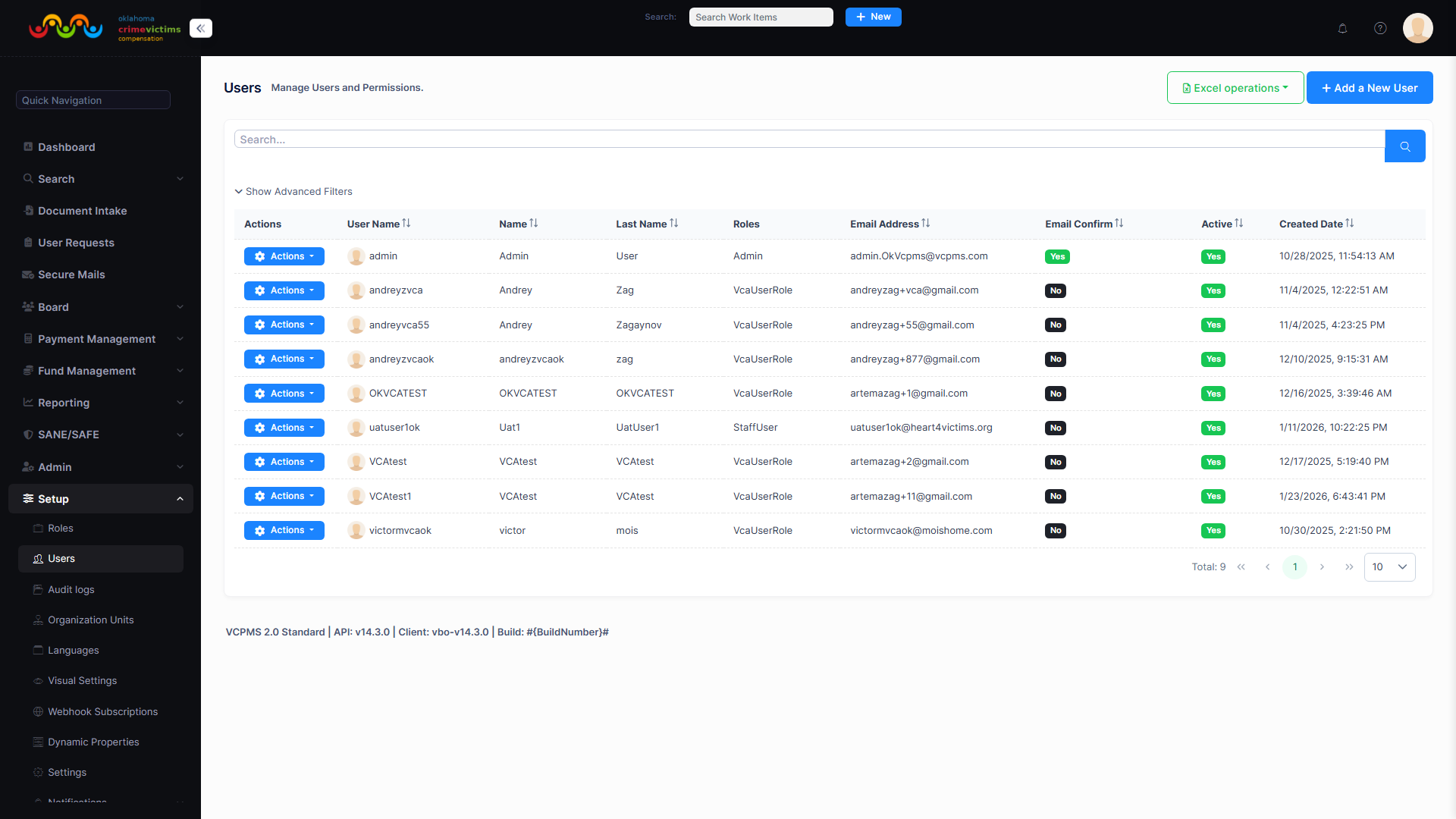
User Management list view — showing user accounts with type, status, last login, and action buttons
2.2 Creating Users
User creation follows different pathways depending on the user type:
Internal Staff Users (Admin-Created)
Administrators create staff accounts directly from VCPOffice. The admin specifies username, email, role assignment, organization unit membership, and initial permissions. A temporary password is issued and the user is prompted to change it on first login.
External User Self-Registration
Victims, providers, advocates, and law enforcement personnel register through their respective portals. The system sends an email verification link, and the user must confirm their identity before the account becomes active.
Identity Confirmation
For external users, registration may include identity confirmation steps such as email verification, phone number verification, and in some cases manual review by an administrator before access is granted.
Duplicate Detection
During registration, VCPMS performs automatic duplicate detection using email address and EIN (for service providers) to prevent duplicate accounts. The system blocks exact duplicates and flags potential matches for administrator review.
2.3 Managing Users
Once created, administrators have full lifecycle management capabilities for all user accounts:
- Edit Profiles: Update contact information, name, organization, and any custom user fields
- Archive/Inactivate: Disable accounts without deleting them, preserving audit history and data integrity
- Reset Passwords: Force password resets or issue temporary passwords for users who are locked out
- Assign Admin Rights: Elevate users to administrative roles or revoke elevated access as needed
- View Login History: Review login timestamps, IP addresses, and session details for security monitoring
- Manage Role Assignments: Add or remove role memberships that control feature access
2.4 External User Approval
External user registrations (service providers, advocates, law enforcement) go through an approval workflow before accounts are activated:
2.5 User Deactivation & Termination
VCPMS enforces strict protocols when user access must be revoked. The following events trigger the deactivation review process:
| Trigger Event | Action Required | System Behavior |
|---|---|---|
| Employee Transfer | Review and reassign open work items; adjust org unit membership | Pending items redistributed; access scope updated |
| Extended Absence | Temporarily disable account; reassign active queue items | Account suspended; queue items routed to backup assignee |
| Prolonged Inactivity | System flags accounts with no login activity beyond threshold | Automatic notification to admin; optional auto-disable |
| Termination | Immediate account deactivation; debriefing; access revocation | All sessions terminated; credentials invalidated; work items reassigned |
Upon termination, the system performs a complete access revocation including session termination, credential invalidation, security item retrieval tracking, and formal debriefing documentation. All actions are recorded in the audit log.
3. Role & Permission Management
VCPMS implements a comprehensive Role-Based Access Control (RBAC) system that provides granular control over every aspect of the platform. Permissions are enforced at four distinct levels, ensuring that users can access only the data and functions required for their role.
3.1 Permission Levels
The four-level permission hierarchy provides defense-in-depth security, from broad page access down to individual document control:
| Level | Scope | Controls | Example |
|---|---|---|---|
| System Level | Platform-wide features | Access to administration modules, tenant settings, global configurations | Can access Workflow Configuration settings |
| Page Level | Individual screens/pages | Visibility and access to specific application pages and menu items | Can see the Payments list page |
| Field Level | Individual data fields | Read/write access to specific fields on a page, including visibility control | Can view but not edit the SSN field |
| Document Level | Document types and files | Upload, view, download, delete, and process permissions per document type | Can view medical records but not financial documents |
3.2 Permission Types (CRUD+S)
At each level, five independently controllable permission types determine what actions a user can perform:
Add
Create new records, submit new claims, add new entities. Independently controlled — a user can view existing data without being able to add new records.
Update
Modify existing records, edit claim details, change status. Can be granted without Add permission, allowing edits but not creation.
View
Read-only access to records and data. The most commonly granted permission — enables visibility without any modification capability.
Delete
Remove records from the system. The most restricted permission, typically reserved for administrators and supervisors with explicit approval.
Search
Ability to search across records. Can be limited independently from View — a user might view assigned claims but not search across all claims.
3.3 Role Configuration
Roles are configured by user type and refined by functional categories. Each role bundles a set of permissions that reflect a job function within the organization:
Define Role by User Type
Roles are scoped to a specific user type (Staff, Customer, Provider, Advocate, Law Enforcement). A role created for StaffUsers cannot be assigned to a CustomerUser.
Assign Permission Sets
Select the system, page, field, and document permissions that the role should include. Use the visual permission matrix to check/uncheck individual capabilities at each level.
Refine by Functional Category
Optionally scope the role to specific functional areas (e.g., Claims Processing, Finance, Intake, Supervision) to create focused roles that align with organizational structure.
Assign to Users
Assign the role to individual users or apply as a role template for bulk assignment. Users can hold multiple roles, with permissions additive across all assigned roles.
3.4 Permission Assignment & Auditing
- Individual Assignment: Permissions can be granted or revoked at the individual user level for exceptions that do not warrant a new role
- Role Templates: Pre-configured role templates accelerate onboarding — assign a template and the user inherits all bundled permissions immediately
- Change Logging: Every permission change (grant, revoke, role assignment, role removal) is logged with the administrator who made the change, timestamp, and before/after state
- Periodic Review: Administrators can generate permission audit reports to verify that access levels remain appropriate over time
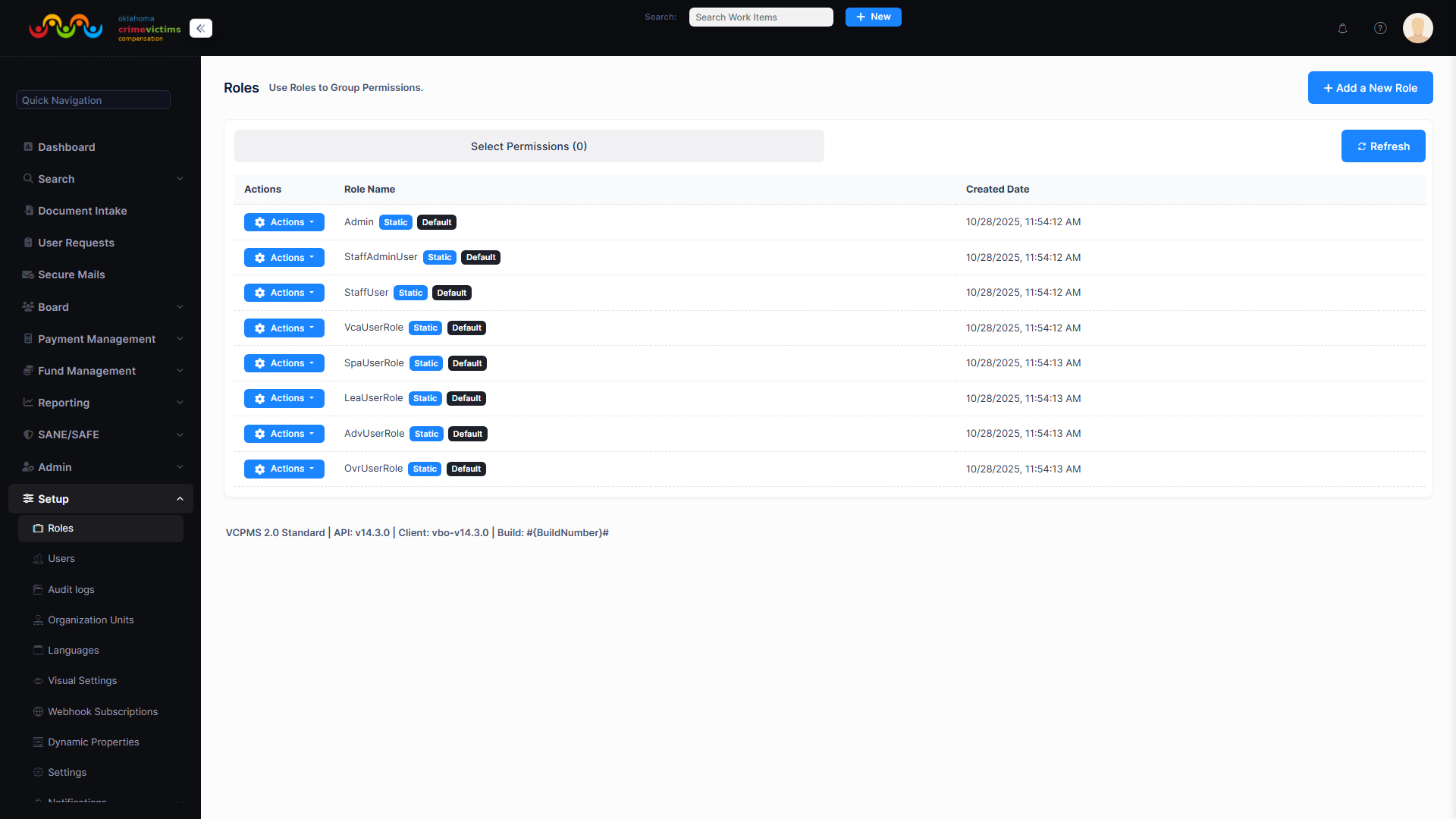
Role Permission Matrix — showing checkboxes for Add/Update/View/Delete/Search across all pages and features
4. Organization Units
Organization Units provide a hierarchical structure for managing staff, distributing workloads, and controlling claim routing. They represent the organizational structure of your agency — departments, teams, work groups, and regional offices — within VCPMS.
4.1 Hierarchical Structure
Organization units support unlimited nesting depth, allowing agencies to model their exact organizational structure:
Agency / Division Level
Top-level organizational unit representing the entire agency or major divisions (e.g., "Victim Services Division", "Claims Processing Center").
Department Level
Functional departments within a division (e.g., "Intake Department", "Finance Department", "Medical Review Team").
Team / Work Group Level
Specific teams within departments (e.g., "Intake Team A", "Southern Region Team", "Expedited Claims Group").
Individual Staff Assignment
Staff members are assigned to one or more organization units. Their unit membership determines which claims they can access and which queues they monitor.
4.2 Claim Routing & Assignment
Organization units serve as the foundation for VCPMS's intelligent claim routing engine. Claims are automatically assigned based on configurable rules tied to organization unit structure:
| Routing Method | Description | Best For |
|---|---|---|
| Round-Robin | Claims are distributed evenly among team members in sequence | Balanced workload across evenly skilled staff |
| Geographic | Claims routed based on county, region, or zip code of the crime location | Regional offices or geographically assigned case workers |
| Workload-Based | Claims assigned to the team member with the lowest current case count | Balancing uneven workloads or during staff shortages |
| Specialty | Claims routed by type, crime category, or complexity to specialized staff | Teams with specialized expertise (e.g., homicide claims, child abuse cases) |
| Manual Override | Supervisors can manually reassign claims regardless of routing rules | Exceptions, escalations, and special circumstances |
4.3 Additional Uses
- Report Filtering: Generate reports scoped to a specific organization unit to see team-level or department-level metrics
- Permission Scoping: Limit user visibility to claims and data within their organization unit hierarchy
- Dashboard Configuration: Configure dashboard widgets to show metrics relevant to the user's organization unit
- Notification Routing: Route system notifications to the appropriate team or department based on claim assignment
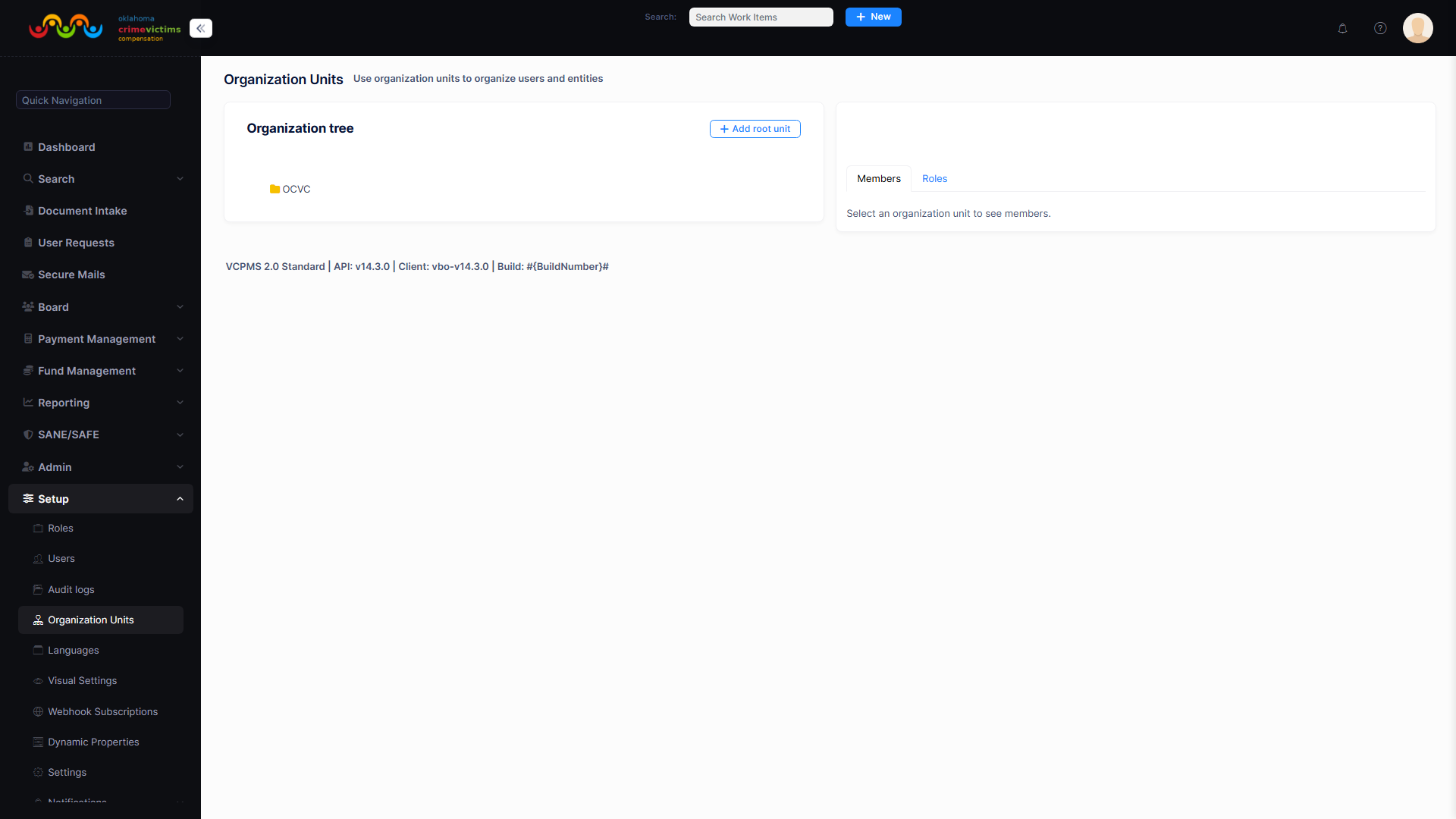
Organization Unit hierarchy tree — showing nested departments, teams, staff counts, and active claim counts
5. Workflow Configuration
The workflow engine is the operational heart of VCPMS. Through the WorkItemManagerConfig entity, administrators define exactly how each type of work item (claims, payments, awards, documents) progresses through its lifecycle. Every tenant maintains independent workflow configurations, enabling each jurisdiction to model its unique policies and procedures.
5.1 State Transition Rules
State transition rules define the valid workflow paths for each work item type. Administrators control which state changes are permitted, who can initiate them, and what conditions must be met:
| Configuration Element | Description | Example |
|---|---|---|
| Valid Transitions | Define which state-to-state moves are allowed | Draft → Submitted (allowed), Draft → Paid (not allowed) |
| Required Permissions | Specify which roles can initiate each transition | Only Supervisors can move from "Under Review" to "Approved" |
| Validation Rules | Conditions that must be satisfied before a transition is allowed | Claim must have at least one supporting document before submission |
| Conditional Logic | Branching paths based on claim attributes | Claims over $25,000 require Director approval; claims under go to Supervisor |
| Multi-Level Approval | Sequential approval chains for high-value or sensitive actions | Case Worker → Supervisor → Director → Board for claims over $50,000 |
Example: Victim Claim Workflow
Workflow State Transition Editor — visual diagram showing states, transitions, conditions, and approval chains
5.2 Assignment Rules
Assignment rules automate the distribution of work items to staff members based on configurable criteria. The rules engine evaluates incoming work items and routes them to the appropriate queue, team, or individual:
Automatic Task Creation
When a claim enters a specific state, tasks are automatically created and assigned to the appropriate team member or queue based on routing rules.
Smart Routing
Route by claim type, amount threshold, county/region, crime type, or any combination of criteria. Multi-factor routing ensures optimal assignment.
Round-Robin Distribution
Distribute work items evenly across team members within an organization unit. The system tracks assignment counts to maintain balance.
Workload Balancing
Assign to the team member with the lowest active case count. Configurable weight factors account for claim complexity.
Auto-Forward
When an assigned user is unavailable (on leave, over capacity), automatically forward to a backup assignee or supervisor.
Manual Override
Supervisors can always manually reassign any work item, overriding automatic rules. All overrides are logged in the audit trail.
5.3 Queue Management
VCPMS provides multiple queue types to organize and prioritize work across the organization:
| Queue Type | Scope | Purpose |
|---|---|---|
| Departmental Queues | Organization unit | Shared queues visible to all members of a department or team for collaborative work distribution |
| Working Queues | Functional area | Specialized queues for specific work types (e.g., intake queue, payment approval queue, document review queue) |
| Personal Queues | Individual user | Each user's personally assigned work items, prioritized and sortable by deadline, state, or custom criteria |
| Centralized Inbox | Tenant-wide | Unified view of all unassigned or escalated items requiring attention, accessible by supervisors and administrators |
All queues support advanced filtering, sorting, column customization, and dashboard integration. Users can pin frequently accessed queues for quick navigation.
5.4 Notification Rules
Notification rules define when and how stakeholders are informed about claim activity. Administrators configure triggers, recipients, channels, and content for each notification type:
- Email Notifications: Automated emails sent via SMTP or SendGrid with configurable templates, merge fields, and branding
- In-App Notifications: Real-time notifications displayed within the VCPMS portal with read/unread tracking and action links
- Victim Updates: Configurable notifications sent to victims through VCPOnline when their claim status changes, a payment is issued, or action is required
- Multi-Channel Delivery: Notifications can be sent via multiple channels simultaneously (email + in-app + SMS) based on recipient preferences
- Configurable Triggers: Define which state transitions, assignments, or events trigger notifications, with conditional logic for recipient selection
5.5 Alert Configuration
System alerts proactively notify staff when configurable thresholds or conditions are met:
| Alert Type | Trigger Condition | Default Action |
|---|---|---|
| Counseling Limits | Counseling hours approaching or exceeding benefit category maximum | Notify case worker and supervisor; flag claim for review |
| Budget Limits | Total claim amount approaching or exceeding per-claim or per-category cap | Block further payments; require supervisor override to continue |
| Payment Caps | Individual payment amount exceeds configurable threshold | Route payment for additional approval before processing |
| Overdue Reminders | Work item has not progressed within configurable time period | Escalate to supervisor; send reminder to assigned user |
| Litigation Flags | Claim is flagged for active litigation or legal review | Restrict state transitions; notify legal team; add hold indicator |
5.6 Document Generation Rules
Document generation rules automate the creation of correspondence and official documents based on workflow events:
- Auto-Generate Letters: Automatically generate approval, denial, or status notification letters when a claim transitions to specific states
- Template-Based: Each generated document uses an administrator-configured template with merge fields, conditional sections, and branding
- Batch Generation: Generate correspondence for multiple claims simultaneously (e.g., monthly payment notifications)
- PDF Storage: All generated documents are stored as PDFs within the claim record for permanent reference
5.7 Number Generation
Each work item type has a configurable number format for generating unique, human-readable identifiers:
| Setting | Description | Example |
|---|---|---|
| Display Format | Pattern using placeholders for prefix, sequence number, and year | {1}-{0:0000} produces VC-0001 |
| Yearly Reset | Option to reset sequence counter at the start of each calendar year | FR-2026-0001 (resets to 0001 each January) |
| Timezone | Timezone used for determining when the yearly reset occurs | "Eastern Standard Time" or "Central Standard Time" |
Workflow Configuration panel — showing state transitions, assignment rules, notification triggers, and number format settings
6. Document & Report Templates
VCPMS provides a complete template management system for generating correspondence, reports, and federal submissions. Administrators create and maintain templates that are used for automated and on-demand document generation across the platform.
6.1 Document Templates (Correspondence)
Document templates define the layout, content, and merge logic for all system-generated correspondence. Each template type serves a specific communication purpose:
| Template Category | Examples | Capabilities |
|---|---|---|
| Approval Letters | Claim approval notification, award confirmation, benefit authorization | Merge fields for claim data, award amounts, benefit details; bilingual output |
| Denial Letters | Claim denial notification, appeal rights information, reason codes | Conditional sections based on denial reason; appeal deadline calculation |
| Payment Notifications | Payment issued notice, payment schedule, EFT confirmation | Payment amount, payee details, check/EFT number, claim reference |
| Restitution Requests | Restitution collection letters, payment reminders, balance statements | Offender information, restitution balance, payment history |
| Status Updates | Claim status change notification, information request, deadline reminders | Current status, next steps, required actions, contact information |
Template Features
- Merge Fields: Dynamic data insertion from claim, claimant, provider, payment, and other entity fields
- Conditional Logic: Show or hide template sections based on claim attributes (e.g., show appeal rights only on denial letters)
- Bilingual Output: Templates support dual-language generation for jurisdictions with multilingual requirements
- Electronic Signatures: Configurable signature blocks with digital signature support for authorized signers
- Version Control: All template changes are versioned; previous versions are retained for historical reference
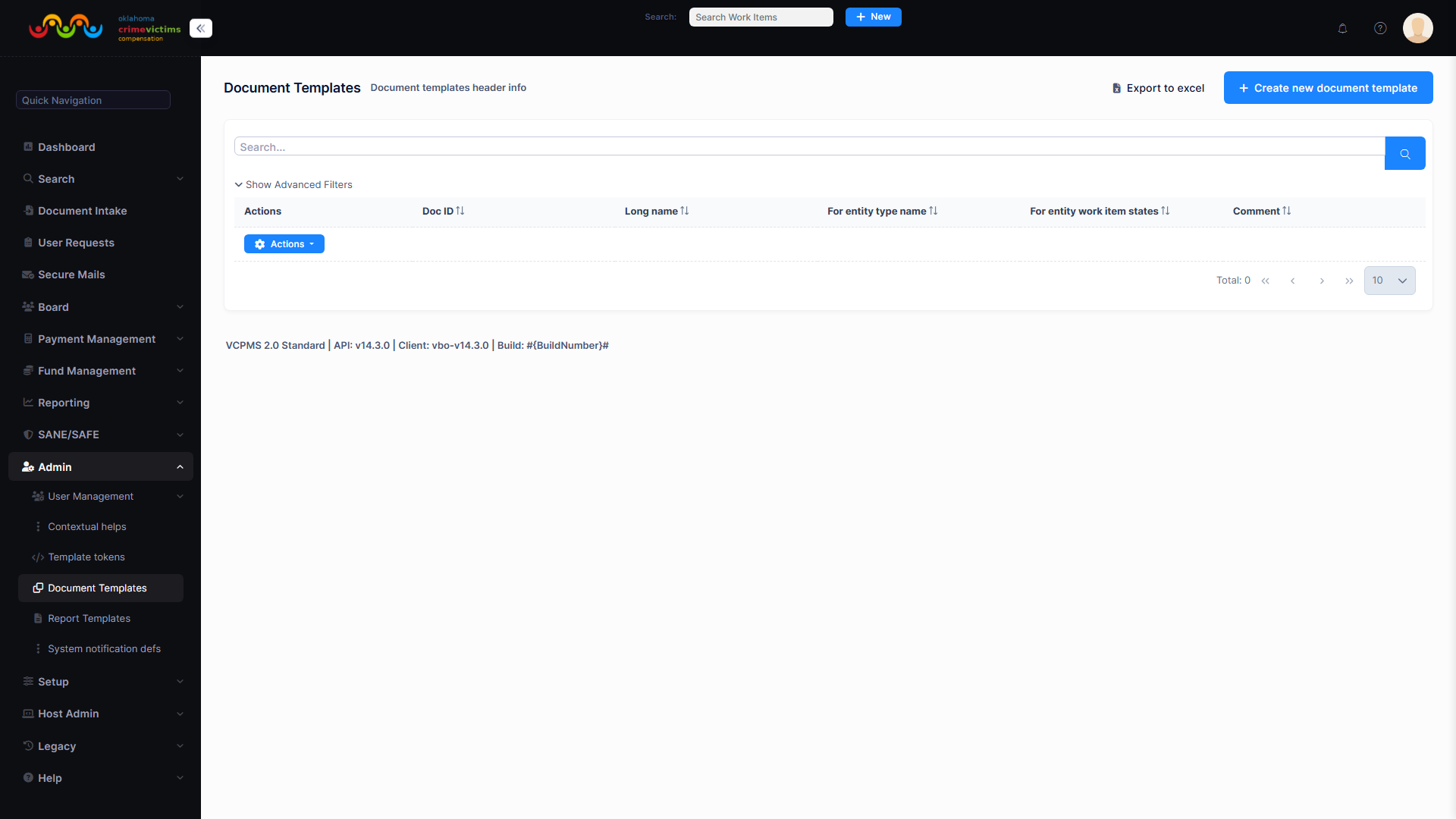
Document Template Editor — showing merge field insertion, preview panel, and version history
6.2 Letter Generation
Letters can be generated individually or in batch, with flexible delivery options:
- Individual Generation: Generate a letter for a single claim directly from the claim detail screen
- Batch Generation: Select multiple claims and generate correspondence in bulk (e.g., monthly payment notices for all active claims)
- Email Delivery: Send generated letters as email attachments directly from VCPMS
- Print Queue: Queue letters for physical printing and mailing
- PDF Storage: All generated letters are automatically saved as PDF documents within the claim record
6.3 Report Templates
VCPMS includes over 30 standard report templates covering all aspects of victim compensation program operations. In addition, administrators can build custom reports using the ad-hoc report builder:
Standard Reports (30+)
Pre-built reports for claims activity, payment summaries, financial analysis, workload metrics, and program statistics. Ready to run with configurable date ranges and filters.
Custom Report Builder
Ad-hoc report builder allows administrators to select data fields, define filters, choose grouping and sorting, and create custom layouts without technical assistance.
Saved Configurations
Save frequently used report configurations for quick re-execution. Share saved reports with other users or teams. Schedule automatic generation.
Cross-Tab & Drill-Down
Cross-tabulation reports for multi-dimensional analysis. Click any summary value to drill down into the underlying detail records.
6.4 Federal Reports
VCPMS provides built-in support for all required federal reporting, with automated data population and export capabilities:
| Federal Report | Frequency | Automation Level |
|---|---|---|
| VOCA PMT (Performance Measurement Tool) | Quarterly / Annual | Auto-populated from claim data; editable before submission; JustGrants export format |
| Crime Victim Compensation State Certification | Annual | Auto-calculated from financial records; verification workflow before submission |
| Quarterly Performance Reports | Quarterly | Auto-generated with claim counts, payment totals, processing times; administrator review and approval |
6.5 System Notification Definitions
Administrators define notification templates that control the content and format of all system-generated notifications:
- Templates: Rich-text notification templates with merge fields for dynamic content insertion
- Triggers: Define which system events (state changes, assignments, deadlines) activate each notification
- Channels: Configure delivery via email, in-app notification, SMS, or any combination
- Multi-Language: Notification templates support multiple languages for multilingual user bases
Report Template list — showing standard and custom reports with last run date, schedule, and export format options
7. Dynamic Forms
VCPMS includes a no-code dynamic form builder that allows administrators to create, modify, and deploy custom forms without developer involvement. Dynamic forms are used for intake applications, surveys, supplemental data collection, and any structured information gathering that needs to adapt to changing program requirements.
7.1 Form Definitions
The form definition editor provides a visual builder for creating form layouts with a variety of field types and configuration options:
| Field Type | Description | Configuration Options |
|---|---|---|
| Text Input | Single-line and multi-line text fields | Min/max length, regex pattern validation, placeholder text, Unicode support |
| Date Picker | Calendar-based date selection | Min/max date range, format mask, relative date constraints |
| Dropdown | Single-select from predefined options | Static or dynamic option lists, cascading dropdowns, default value |
| Checkbox | Boolean yes/no selection | Default state, label text, required acknowledgment |
| Multi-Select | Select multiple options from a list | Min/max selections, option ordering, search within options |
| File Upload | Attach supporting documents | Allowed file types, max file size, multiple files, virus scanning |
| Numeric | Number input with optional formatting | Min/max value, decimal places, currency formatting |
| Signature | Electronic signature capture | Required/optional, timestamp recording, IP logging |
Advanced Form Features
- Conditional Logic: Show or hide fields based on previous answers (e.g., show "Employer Name" only if "Currently Employed" is checked)
- Section Grouping: Organize fields into logical sections with headers and descriptions
- Validation Rules: Required fields, format validation, cross-field validation (e.g., "end date must be after start date")
- Unicode Support: Full Unicode support for international characters and multilingual form content
- Save & Resume: Users can save partially completed forms and return later to finish
Dynamic Form Builder — drag-and-drop field placement, conditional logic editor, and live preview panel
7.2 Approval Queue
Submitted forms are routed through configurable approval workflows before being processed:
- Configurable Approval Chains: Define single or multi-level approval workflows based on form type, submission source, or content
- Review/Approve/Deny: Reviewers can approve, deny with reason, or return for additional information with specific feedback
- Routing Rules: Route submissions to specific reviewers based on geographic region, form type, or organizational unit
8. Benefit Categories & Eligibility
Administrators define the benefit categories available in their jurisdiction, set maximum payout limits, configure eligibility rules, and manage the business logic that governs compensation decisions. This section covers the complete benefit configuration framework.
8.1 Benefit Categories
Each jurisdiction configures its own set of benefit categories that align with state law and program policies. Common categories include:
| Category | Description | Typical Configuration |
|---|---|---|
| Medical | Hospital, physician, and emergency medical expenses | Per-incident max, lifetime max, covered provider types |
| Mental Health / Counseling | Therapy, counseling, and psychiatric services | Session limits, hourly caps, approved provider list |
| Funeral & Burial | Funeral services, burial, and related expenses | Fixed maximum amount, required documentation |
| Relocation | Emergency relocation and temporary housing for victims | Duration limits, maximum amount, documentation requirements |
| Lost Wages / Income | Compensation for lost income due to crime-related inability to work | Weekly maximum, duration cap, employer verification required |
| Dental | Dental treatment and repair resulting from crime | Per-incident maximum, covered procedure types |
| Prescriptions | Prescription medications related to crime injuries | Per-prescription limit, formulary restrictions, duration |
8.2 Financial Controls
Each benefit category includes comprehensive financial controls to ensure responsible fund management:
Maximum Payout Limits
Set per-category, per-claim, and per-incident maximum payout amounts. Limits are enforced automatically during award and payment processing.
Payment Priority
Define the order in which benefit categories are funded when total claims exceed available funds. Ensures critical benefits are prioritized.
Encumbrance Tracking
Track committed but not yet paid amounts to prevent over-allocation of funds. Real-time encumbrance visibility across all active claims.
Real-Time Budget Tracking
Live dashboards showing fund balances, committed amounts, paid amounts, and remaining capacity by category, source fund, and time period.
8.3 Eligibility Configuration
The eligibility rules engine allows administrators to define the criteria that determine whether a claim qualifies for compensation. Rules are configurable, versioned, and enforceable at multiple stages of the claims process:
| Rule Category | Configurable Criteria | Enforcement Point |
|---|---|---|
| Age Requirements | Minimum and maximum victim age; special rules for minors | Application submission, eligibility review |
| Crime Type | Eligible crime categories; exclusions; special provisions for specific crime types | Application intake, automated screening |
| Residency | State residency requirements; out-of-state victim provisions; federal jurisdiction | Application submission, eligibility determination |
| Timing / Filing Deadline | Reporting deadline to law enforcement; filing deadline from crime date; good cause extensions | Application submission, with waiver capability |
| Cooperation | Law enforcement cooperation requirements; cooperation with prosecution; victim/witness obligations | Ongoing eligibility review |
Waiver System
VCPMS supports three levels of eligibility waivers for exceptional circumstances:
Level 1: Case Worker Waiver
Case workers can waive minor eligibility requirements (e.g., filing deadline exceeded by small margin) with documented justification. Automatically flagged for supervisor review.
Level 2: Supervisor Waiver
Supervisors can waive moderate eligibility requirements with detailed documentation. Required for waivers that exceed case worker authority or involve policy exceptions.
Level 3: Director / Board Waiver
Director or board-level approval required for significant eligibility waivers, including cooperation waivers, residency exceptions, and extraordinary deadline extensions.
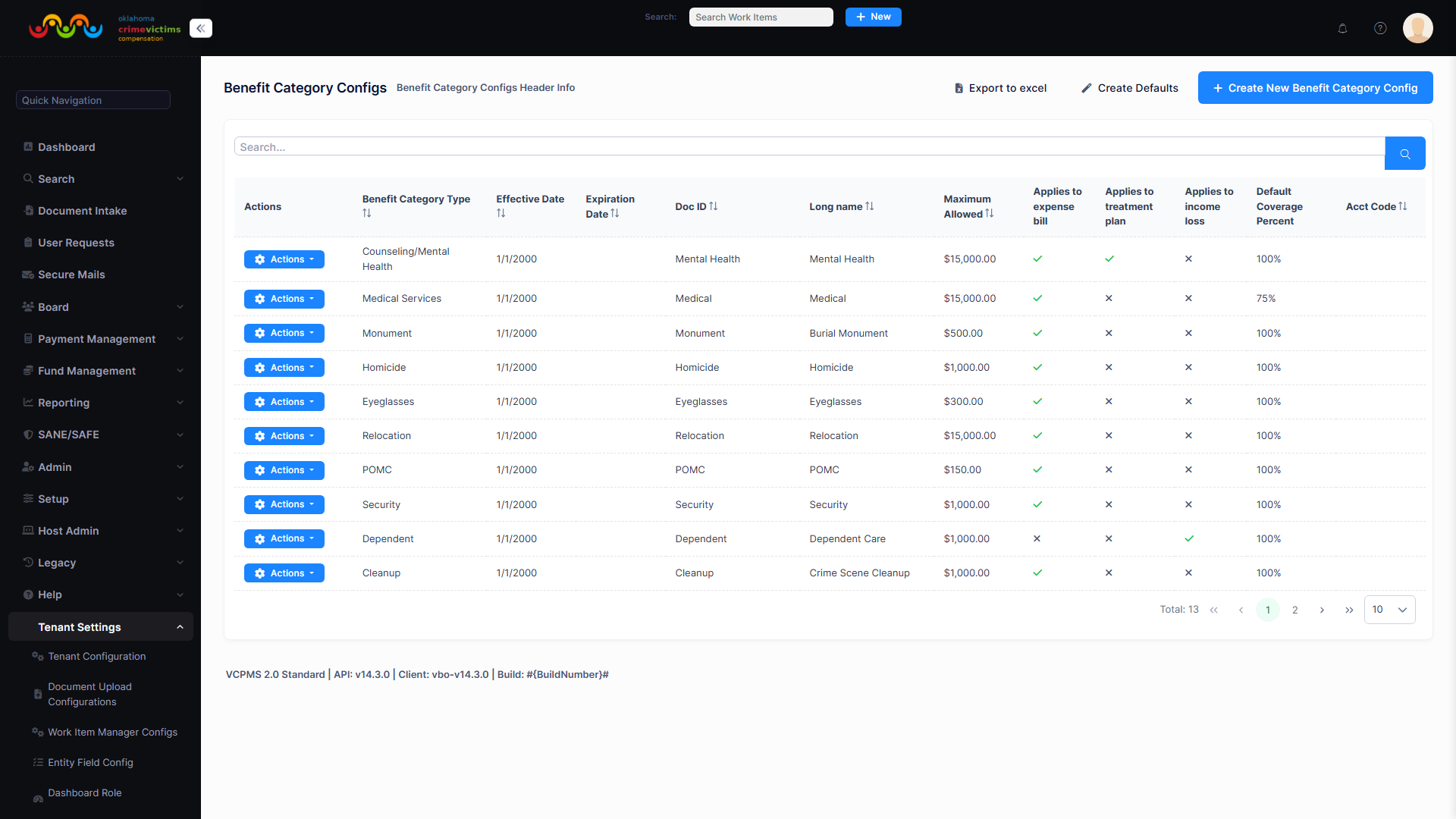
Benefit Category Configuration — showing categories, maximum amounts, eligibility rules, and waiver level settings
9. Entity Field Configuration
VCPMS allows administrators to extend the data model by adding custom fields to entities without any technical support or code changes. Custom fields are immediately available on forms, in reports, and through the API.
9.1 Custom Field Types
Administrators can add the following field types to any supported entity:
| Field Type | Description | Configuration Options |
|---|---|---|
| Text | Free-form text entry | Max length, required/optional, default value, placeholder |
| Date | Calendar date selection | Date range constraints, format, required/optional |
| Dropdown | Single selection from admin-defined options | Option list, default selection, required/optional |
| Checkbox | Boolean true/false toggle | Default state, label text |
| Multi-Select | Multiple selections from admin-defined options | Option list, min/max selections, display format |
| Numeric | Numeric values with optional formatting | Min/max value, decimal precision, currency flag |
9.2 Field Placement & Display
- Field Placement: Configure where custom fields appear on entity forms — choose section, position, and column layout
- User Type Restrictions: Control which user types can see and edit each custom field (e.g., a field visible to staff but hidden from external users)
- Conditional Display: Show custom fields only when specific conditions are met (e.g., display "Appeal Reason" field only when claim is in Denied state)
- Reporting Integration: Custom fields are automatically available as report columns and filter criteria
9.3 Data Field Choices Maintenance
Dropdown and multi-select fields use administrator-managed choice lists. The choice maintenance interface provides:
- Add Values: Add new options to any dropdown field
- Edit Values: Modify the display text of existing options (internal IDs are preserved)
- Reorder Values: Drag-and-drop reordering to control the display sequence in dropdowns
- Deactivate Values: Mark obsolete values as inactive — they remain on existing records but are hidden from new selections
- Jurisdiction Isolation: Each tenant maintains its own independent set of choice values, even for the same field type
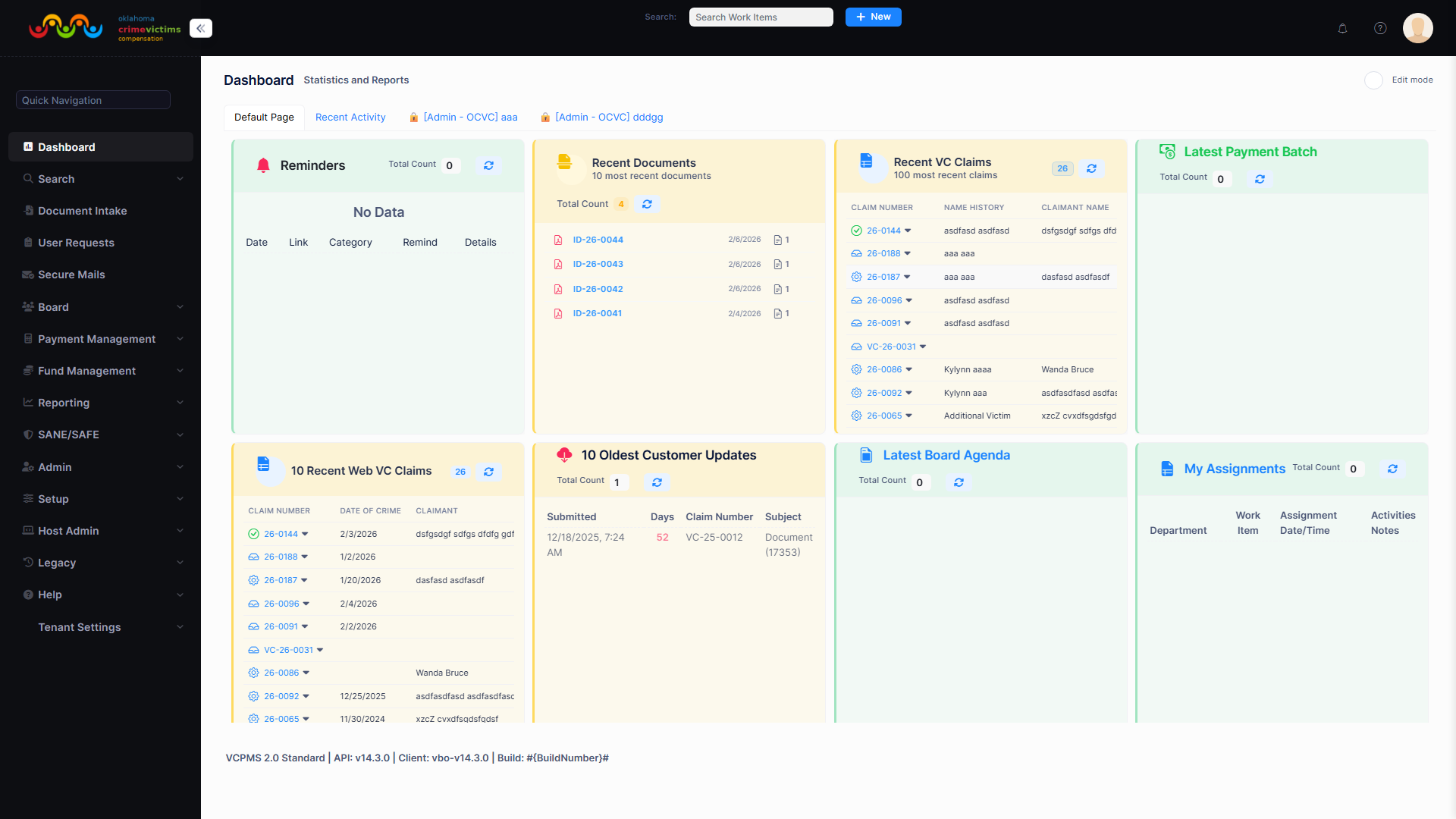
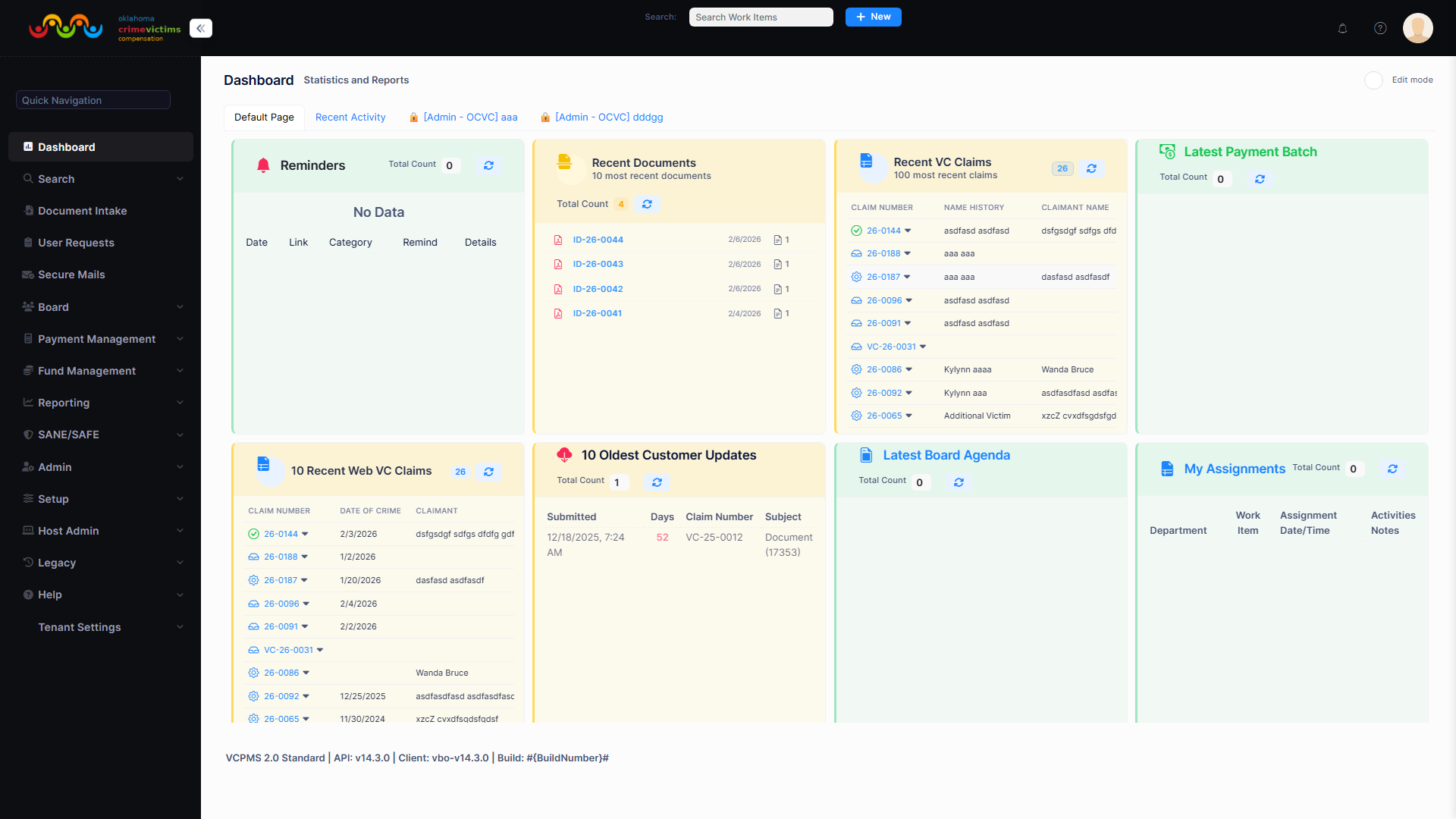
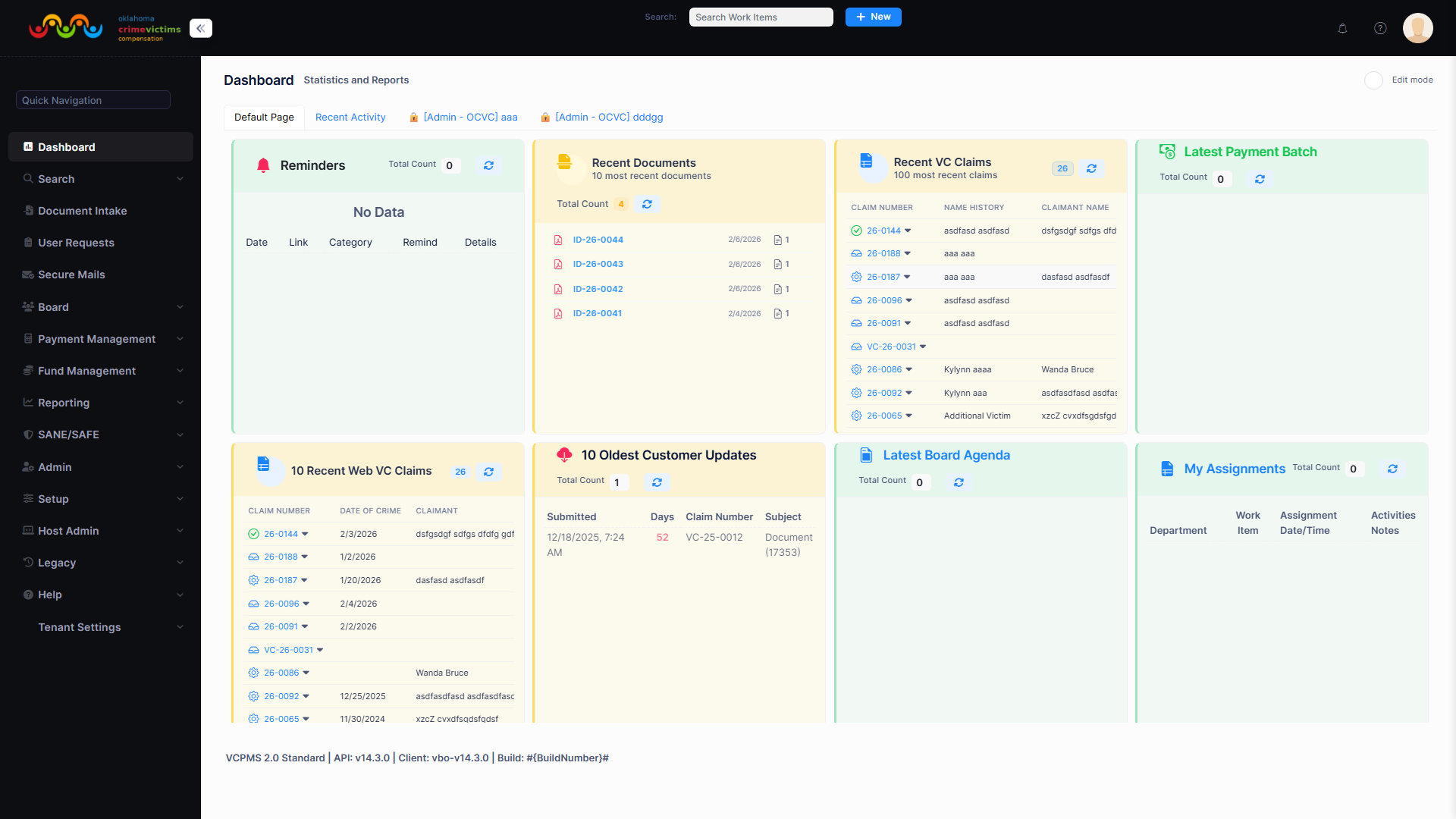
Custom Field Configuration — showing field type selector, placement options, visibility rules, and choice list editor
10. Dashboard Role Configurations
VCPMS dashboards provide personalized workspaces for each user, with configurable widgets, metrics, and layouts that adapt to the user's role and responsibilities. Administrators configure default dashboard layouts by role, while individual users can further customize their personal view.
10.1 Dashboard Widgets
A library of pre-built widgets provides real-time visibility into all aspects of program operations:
Open Applications
Displays count and list of applications awaiting action, filterable by status, age, and assignment. Click-through to individual claim details.
Pending Payments
Payments awaiting approval, processing, or batch submission. Shows amounts, payees, and aging. Drill-down to payment details.
To-Do Items
Personal task list showing assigned work items, upcoming deadlines, and required actions. Sortable by priority and due date.
Notifications
Real-time notification feed showing new assignments, status changes, approvals needed, and system alerts. Read/unread tracking.
Recent Documents
Recently uploaded or generated documents across assigned claims. Quick access to view, download, or process incoming documents.
Performance Metrics
Real-time KPIs including processing times, claim volumes, payment totals, and trend indicators with period-over-period comparison.
10.2 Customization Options
- Drag-and-Drop Layout: Users can rearrange widget positions, resize widgets, and organize their dashboard to match their workflow
- Filter Customization: Each widget supports customizable filters (date range, status, org unit) that persist across sessions
- Saved Preferences: Dashboard configurations are saved per user and restored automatically on login
- Role Defaults: Administrators configure default dashboard layouts for each role; new users start with the appropriate default
10.3 Dashboard Metrics
Supervisors and administrators have access to enhanced dashboard metrics for operational oversight:
- Real-Time Metrics: Live counts of open claims, pending payments, queue depths, and active sessions
- Activity Summaries: Daily, weekly, and monthly activity counts for claims processed, payments issued, and documents generated
- Drill-Down Capability: Click any metric to view the underlying detail records that contribute to the aggregate value
- Performance Reports: Staff performance metrics including average processing time, claims completed, and quality scores
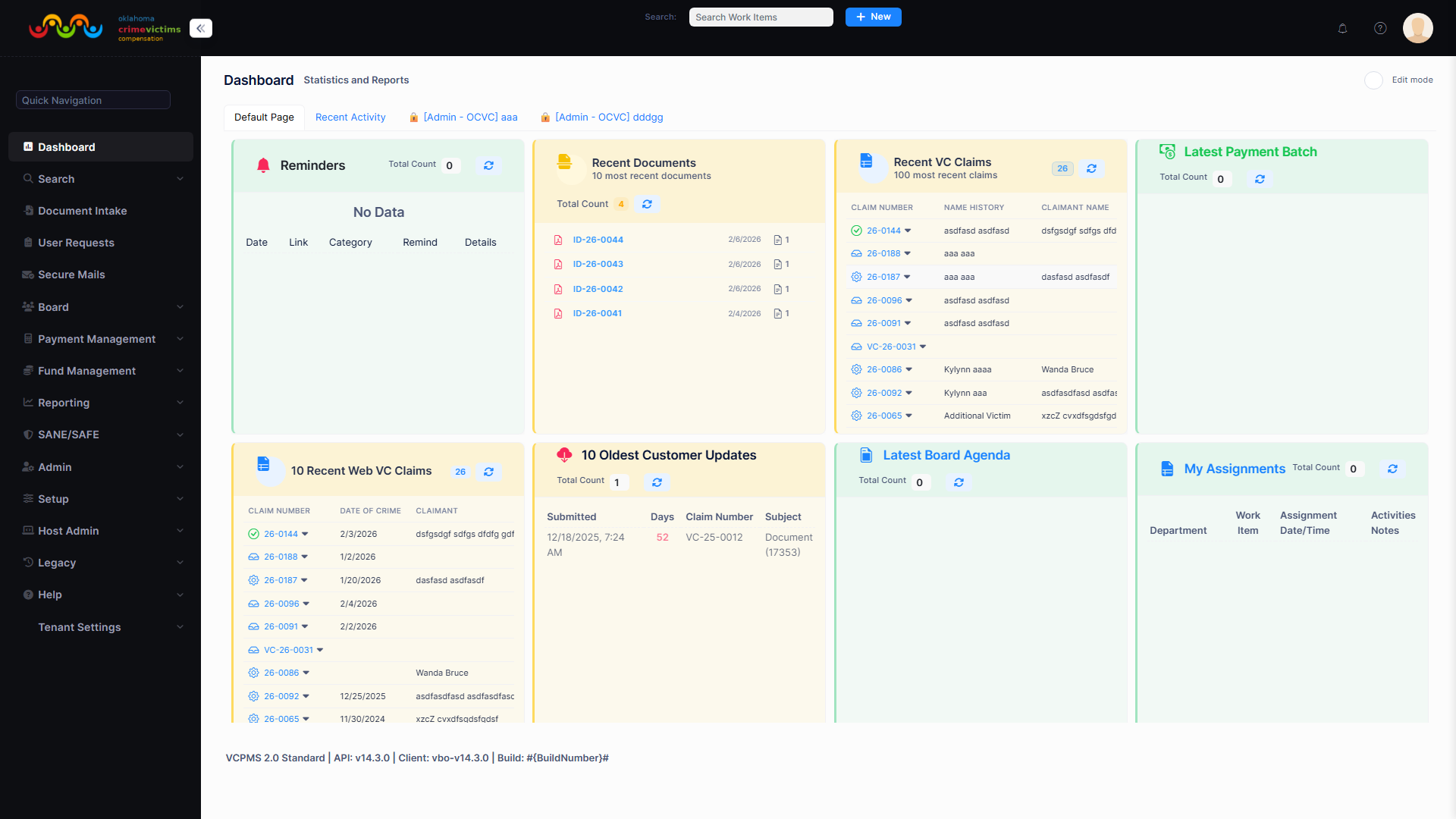
Dashboard Configuration — showing widget library, drag-and-drop layout editor, and role-based default settings
11. Standard Form Templates
Standard Form Templates provide a framework for creating reusable, structured data collection forms that are managed at the jurisdiction level. Unlike dynamic forms (which are fully configurable at runtime), standard form templates define predefined layouts for common operational needs such as intake checklists, assessment forms, and processing worksheets.
11.1 Template Management
- Create Templates: Design form templates with defined sections, field layouts, and data types for structured data collection
- Per-Jurisdiction Isolation: Each tenant maintains its own library of standard form templates, independent of other jurisdictions
- Version Control: Templates are versioned so that forms completed with a previous version remain accurate to the template at the time of completion
- Usage Tracking: Monitor which templates are actively in use, how many form instances have been created, and completion rates
11.2 Use Cases
| Template Type | Purpose | Typical Users |
|---|---|---|
| Intake Checklists | Structured data collection during initial claim intake | Intake staff, customer service |
| Assessment Forms | Standardized evaluation criteria for claim review | Claims processors, supervisors |
| Processing Worksheets | Step-by-step processing guides with data capture | All staff roles |
| Compliance Checklists | Regulatory compliance verification forms | Compliance officers, auditors |
Standard Form Template editor — showing section layout, field configuration, and preview
12. Enum Configuration
System enumerations define the standardized values used throughout VCPMS for dropdown selections, status codes, category classifications, and other coded values. Administrators manage these enumerations to align the system with their jurisdiction's terminology and operational requirements.
12.1 Manageable Enumerations
The following types of enumerations are configurable through the administration interface:
| Enum Category | Examples | Scope |
|---|---|---|
| State Display Labels | Display names and ordering for claim, payment, and document workflow states | Per jurisdiction (display text only — state values themselves are fixed in code) |
| Category Values | Crime types, benefit categories, expense types, document types | Per jurisdiction |
| Relationship Types | Victim-to-offender relationships, claimant-to-victim relationships | System-wide with jurisdiction overrides |
| Demographic Values | Gender, race, ethnicity, language preferences | System-wide |
| Operational Codes | Denial reasons, waiver types, priority levels, urgency classifications | Per jurisdiction |
12.2 Configuration Capabilities
- Add Values: Create new enumeration values with display text, sort order, and optional description
- Edit Values: Modify display text and description while preserving internal codes for data integrity
- Reorder: Change the display order of values in dropdown lists
- Deactivate: Remove values from active use without deleting historical data that references them
- Per-Jurisdiction: Each tenant can maintain its own set of enumeration values, ensuring terminology matches local requirements
Enum Configuration panel — showing enumeration categories, value list with sort order, and add/edit/deactivate controls
13. Tenant Configuration Export & Import
VCPMS supports comprehensive configuration export and import via
TenantConfigurationImportService. This is the mechanism used to bootstrap a
new jurisdiction from a proven tenant (e.g., Oklahoma) and to keep multiple tenants
aligned on shared workflow, template, and permission definitions. Operational data
(claims, payments, documents, users, audit history) is not part of the configuration
bundle — those are backed up via Azure SQL / Blob backups at the infrastructure layer.
13.1 Configuration Export
Configuration Bundle
Export complete tenant configuration including: settings & feature flags, roles & permissions, organization units & user groups, localization overrides, enum display labels, dashboards & dashboard role configs, WorkItemManagerConfigs, benefit-category configurations, entity-field configurations, document templates & background images, Dynamic Forms, Standard Fillable PDF templates, workflow condition templates, Standard Report templates, report template tokens, system notification definitions, InDocument categories, help topics & contextual help, quick links, report data sources, official contacts, SecMail templates, eligibility checks, denial reasons, Outlook integration config, and AI assistant knowledge articles.
Structured Format
Exported configuration uses a well-documented JSON schema with entity relationships preserved, enabling reliable import into target tenants.
Integrity Validation
Export process includes validation to ensure configuration completeness, referential integrity, and format compliance before packaging.
13.2 Data Import
The import process provides multiple safeguards to ensure data quality and integrity:
Validation
Imported data is validated against the VCPMS schema. Required fields, data types, referential integrity, and business rules are all checked before any data is committed.
Field Mapping
Map source fields to VCPMS fields with a visual mapping interface. Supports data transformation rules for format conversion, value mapping, and concatenation.
Deduplication
Automatic detection of duplicate records based on configurable matching criteria (name, date of birth, SSN, claim number). Duplicates are flagged for review.
Audit Trail Preservation
Imported records retain their original timestamps and change history. The import event itself is logged with source details, record counts, and any issues encountered.
13.3 Legacy Data Migration
For jurisdictions migrating from legacy systems, VCPMS provides a comprehensive migration toolkit:
- ETL Tools: Extract-Transform-Load utilities for converting data from common legacy formats (CSV, Excel, Access, SQL Server, Oracle)
- Legacy Extraction: Pre-built extractors for common victim compensation legacy systems with field-level mapping templates
- Incremental Migration: Support for phased migration — import historical data first, then switch over active claims with minimal downtime
- Parallel Testing: Run legacy and VCPMS systems simultaneously during migration to verify data accuracy before full cutover
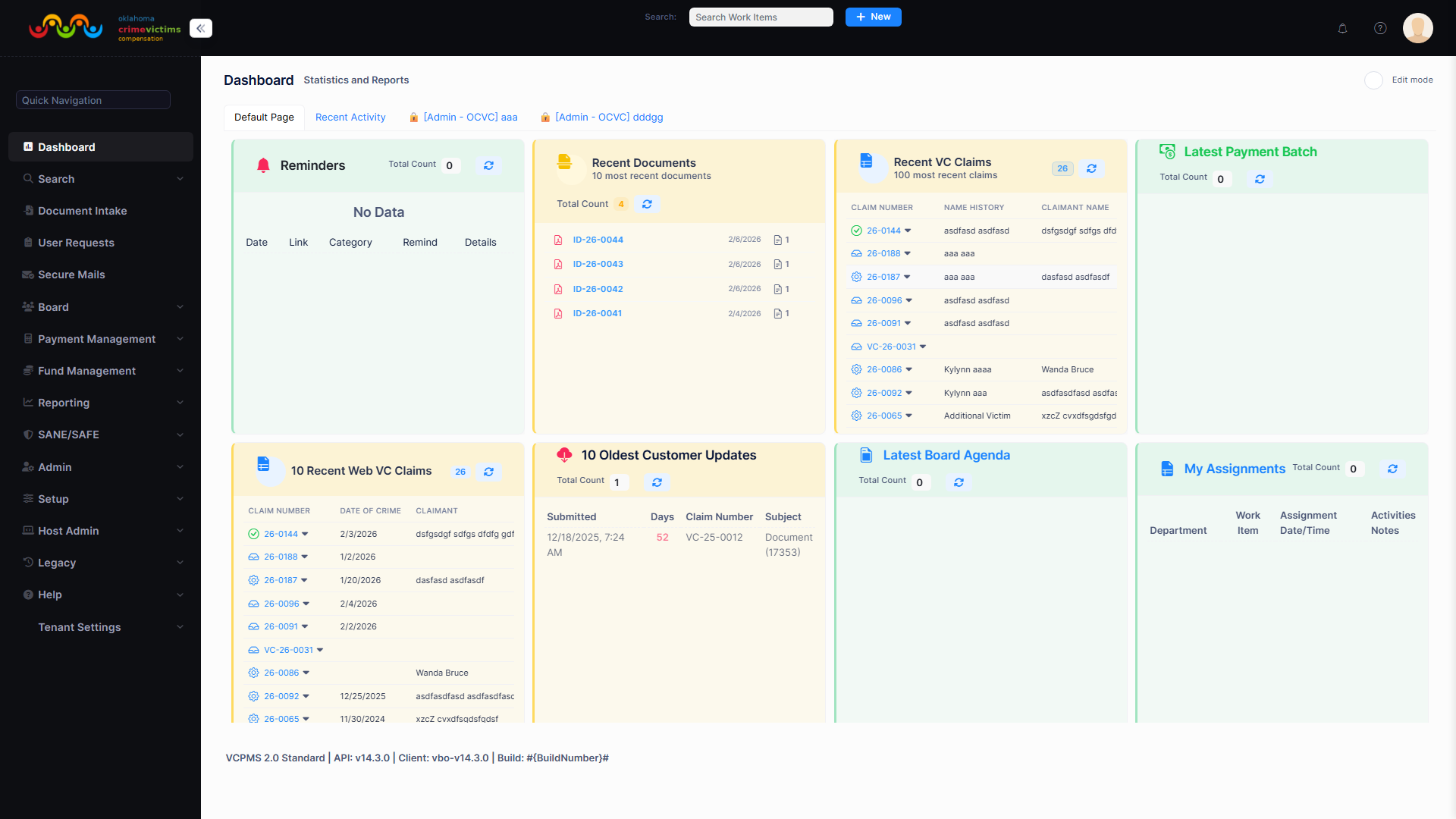
Data Import wizard — showing field mapping interface, validation results, and duplicate detection summary
14. Help Topics & Contextual Help
VCPMS includes a comprehensive help system that provides contextual guidance at every level of the application. Administrators configure help content for each jurisdiction, ensuring that staff and external users always have access to relevant, up-to-date guidance.
14.1 Page-Level Help
- Contextual Guides: Each page includes a help icon that displays page-specific guidance, including purpose, available actions, and common workflows
- Links to Manuals: Help content can include links to detailed user manuals, training materials, and external resources
- Per-Jurisdiction Configuration: Help content is configurable per tenant, allowing each jurisdiction to provide guidance specific to their policies and procedures
14.2 Field-Level Help
- Tooltips: Hover-activated tooltips on form fields provide brief descriptions and guidance
- Definitions: Expandable definitions for complex terms, legal language, and program-specific terminology
- Formatting Instructions: Input format guidance for fields with specific requirements (e.g., phone number format, date format)
- Examples: Sample values and completed examples to guide users through unfamiliar fields
14.3 FAQ Management
Administrators maintain FAQ libraries that are accessible across all portals:
- All Portals: FAQs are available to staff (VCPOffice), victims (VCPOnline), providers (VCPProvider), advocates (VCPAdvocate), and law enforcement (VCPAgency)
- Searchable: Full-text search across all FAQ content with category filtering and relevance ranking
- Administrator-Maintained: FAQs are created, edited, and organized by administrators through the VCPOffice help management interface
- Category Organization: FAQs are organized by category (claims, payments, eligibility, technical) for structured browsing
14.4 Training & Tutorials
| Training Method | Description | Audience |
|---|---|---|
| In-Person / Virtual Training | Live training sessions conducted by ASDCom specialists during implementation and on request | All user types |
| Webinars | Recorded and live webinars covering features, best practices, and new releases | Staff and administrators |
| User Manual | Comprehensive written documentation with screenshots and step-by-step instructions | All user types |
| Training Sandbox | Isolated environment with sample data for hands-on practice without affecting production data | Staff and administrators |
| Train-the-Trainer | Specialized program to prepare internal staff to train their colleagues | Designated trainers |
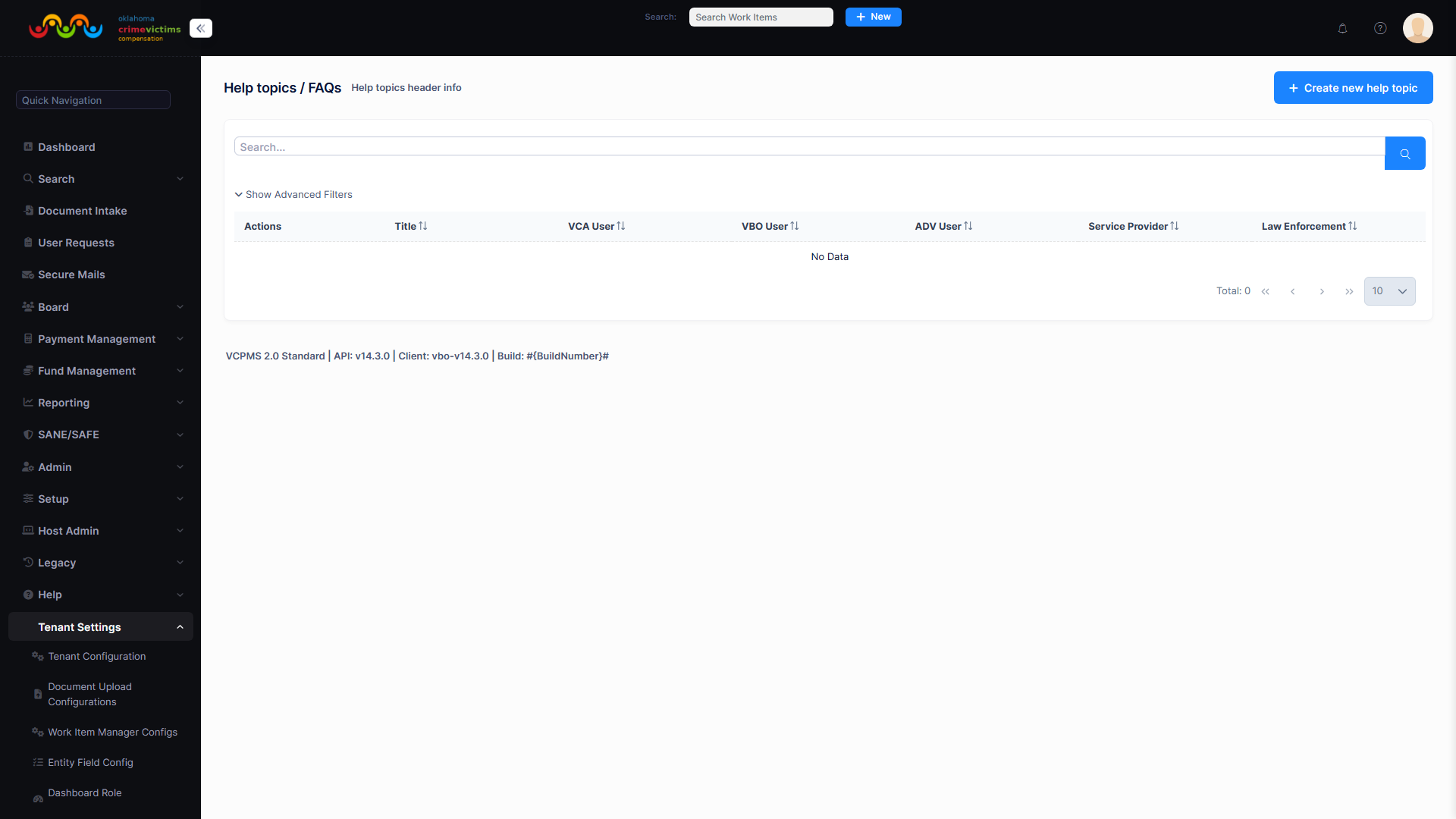
Help Topics management — showing page-level help editor, FAQ library, and tooltip configuration
15. User Groups
User Groups provide a flexible mechanism for organizing users into logical collections that serve multiple administrative purposes. While Organization Units model the formal organizational hierarchy, User Groups support cross-functional and ad-hoc groupings.
15.1 Group Management
- Create Groups: Define named groups with descriptions and add users from any user type or organization unit
- Manage Membership: Add or remove members individually or in bulk; view current membership with role and org unit details
- Nested Groups: Groups can contain other groups for hierarchical organization
15.2 Use Cases
| Use Case | Description | Example |
|---|---|---|
| Permission Assignment | Grant permissions to an entire group instead of individual users | "Senior Reviewers" group receives elevated claim review permissions |
| Notification Targeting | Send notifications to all members of a group simultaneously | "Finance Team" group receives payment batch completion notifications |
| Report Distribution | Schedule reports for automatic delivery to group members | "Leadership" group receives weekly claims activity summary |
| Cross-Functional Teams | Group users across org units for project-based collaboration | "Implementation Committee" with members from multiple departments |
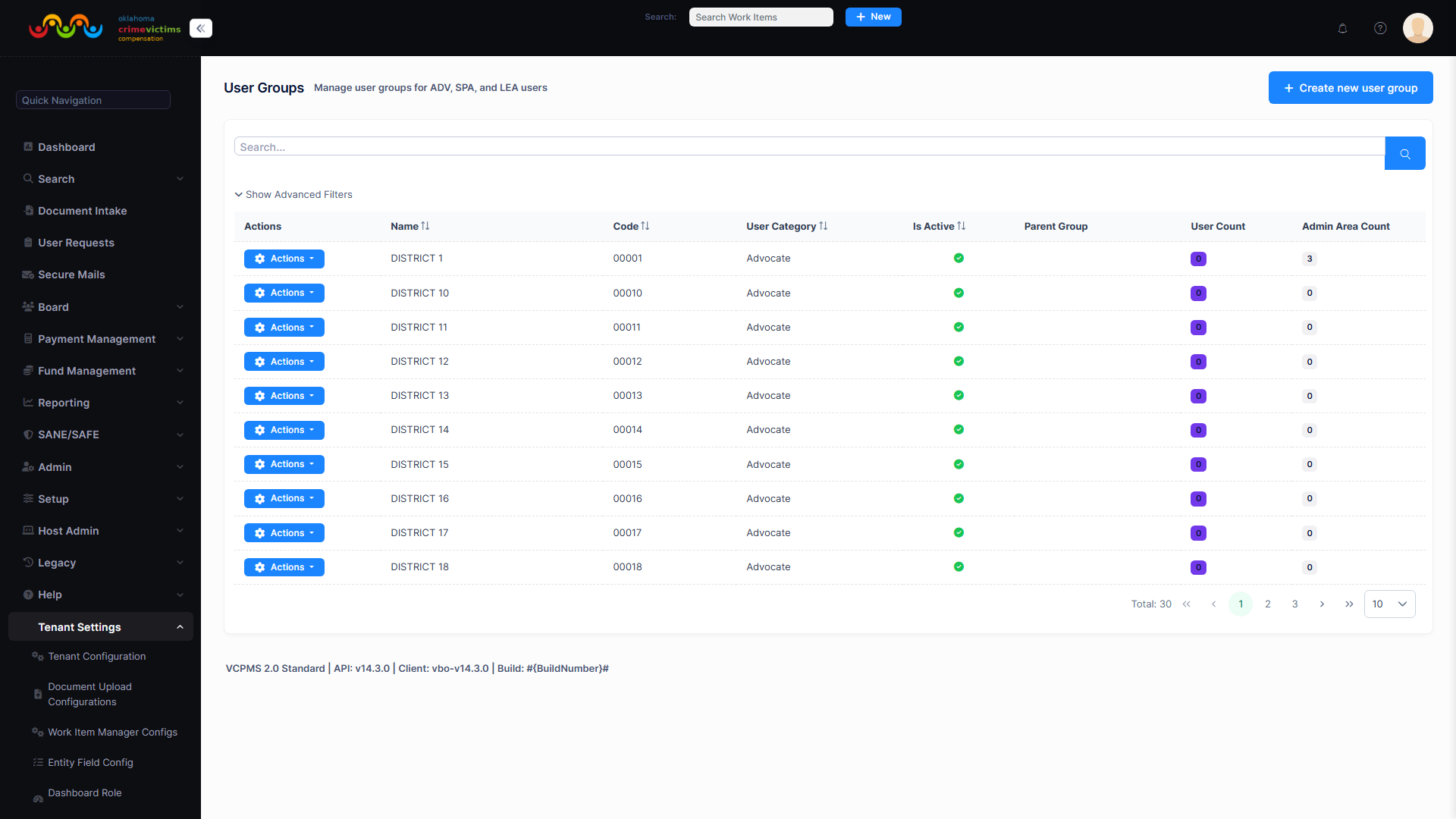
User Group management — showing group list, member management, and permission assignment panel
16. Visual & Branding Settings
Each jurisdiction can customize the visual appearance and branding of their VCPMS instance to reflect their agency identity. Branding settings ensure that all generated correspondence, portal interfaces, and printed materials carry consistent, professional branding.
16.1 Customizable Elements
Letterhead Templates
Upload and configure letterhead designs used for all system-generated correspondence. Supports multiple letterhead versions for different document types.
Custom Logos
Upload agency logos displayed in portal headers, login pages, and generated documents. Supports multiple formats and resolution options.
Headers & Footers
Configure default headers and footers for generated documents, including agency name, address, phone numbers, and legal disclaimers.
Electronic Signatures
Upload authorized signature images for automated inclusion in generated letters. Multiple signers can be configured with role-based selection.
16.2 Branding Consistency
Once configured, branding settings are automatically applied across all touchpoints:
- All portal login pages and headers
- System-generated correspondence and letters
- Report headers and footers
- Email notification templates
- Printed materials and PDF exports
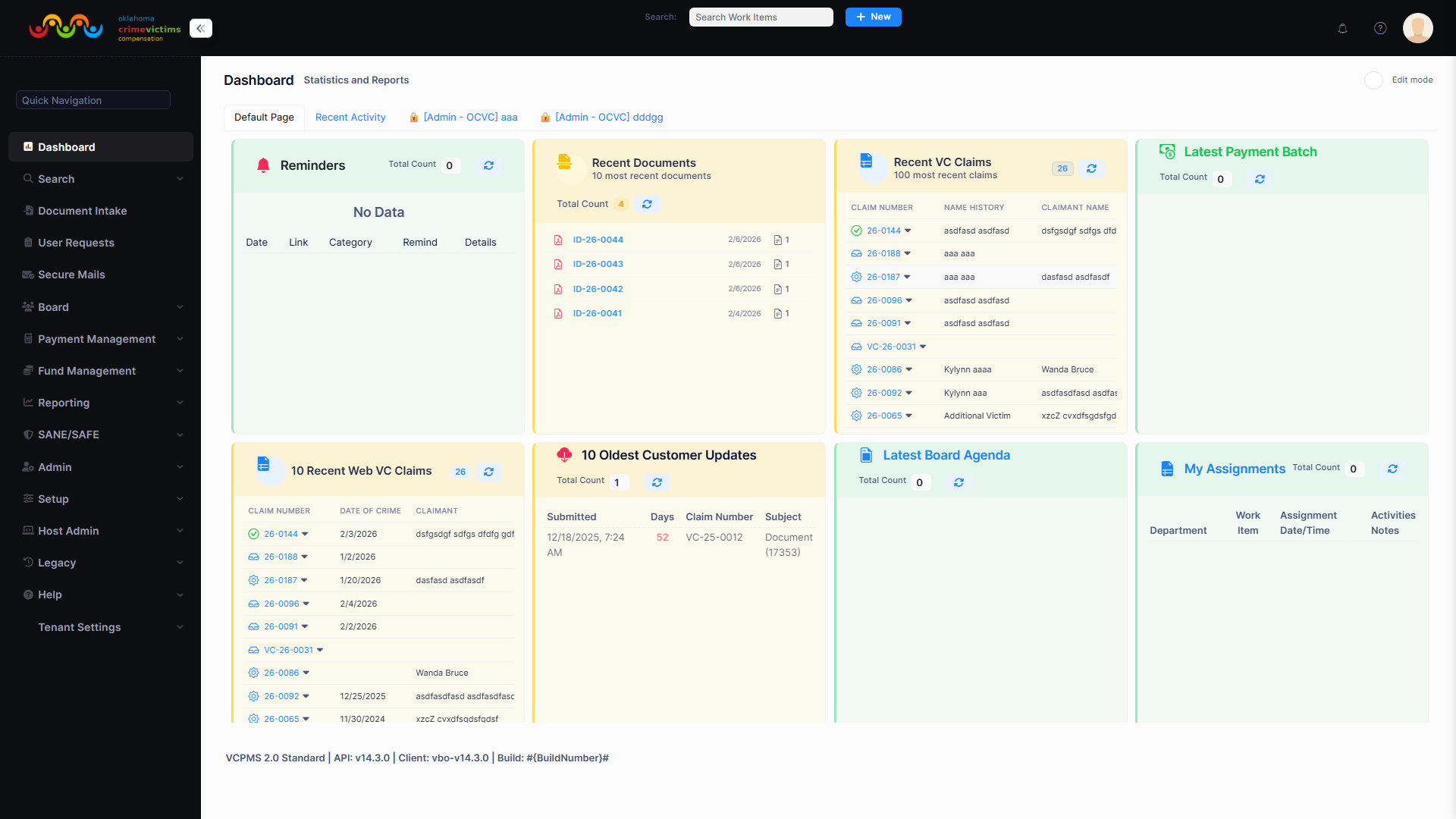
Branding Settings — showing logo upload, letterhead preview, and signature management
17. System Maintenance
VCPMS provides comprehensive system maintenance tools for administrators to monitor, configure, and maintain the platform. These tools ensure operational health, compliance, and continuous improvement.
17.1 Audit Logs
Every action in VCPMS is captured in a comprehensive, tamper-proof audit log. The audit system provides:
- Comprehensive Coverage: All entity changes, permission modifications, login events, state transitions, and administrative actions are logged
- Tamper-Proof: Audit records are append-only and cannot be modified or deleted, even by system administrators
- Searchable: Full-text search across audit entries with filters for date range, user, entity type, action type, and IP address
- Before/After Values: Entity change logs capture the previous and new values for every modified field
- Export: Audit logs can be exported for external review, compliance audits, or long-term archival
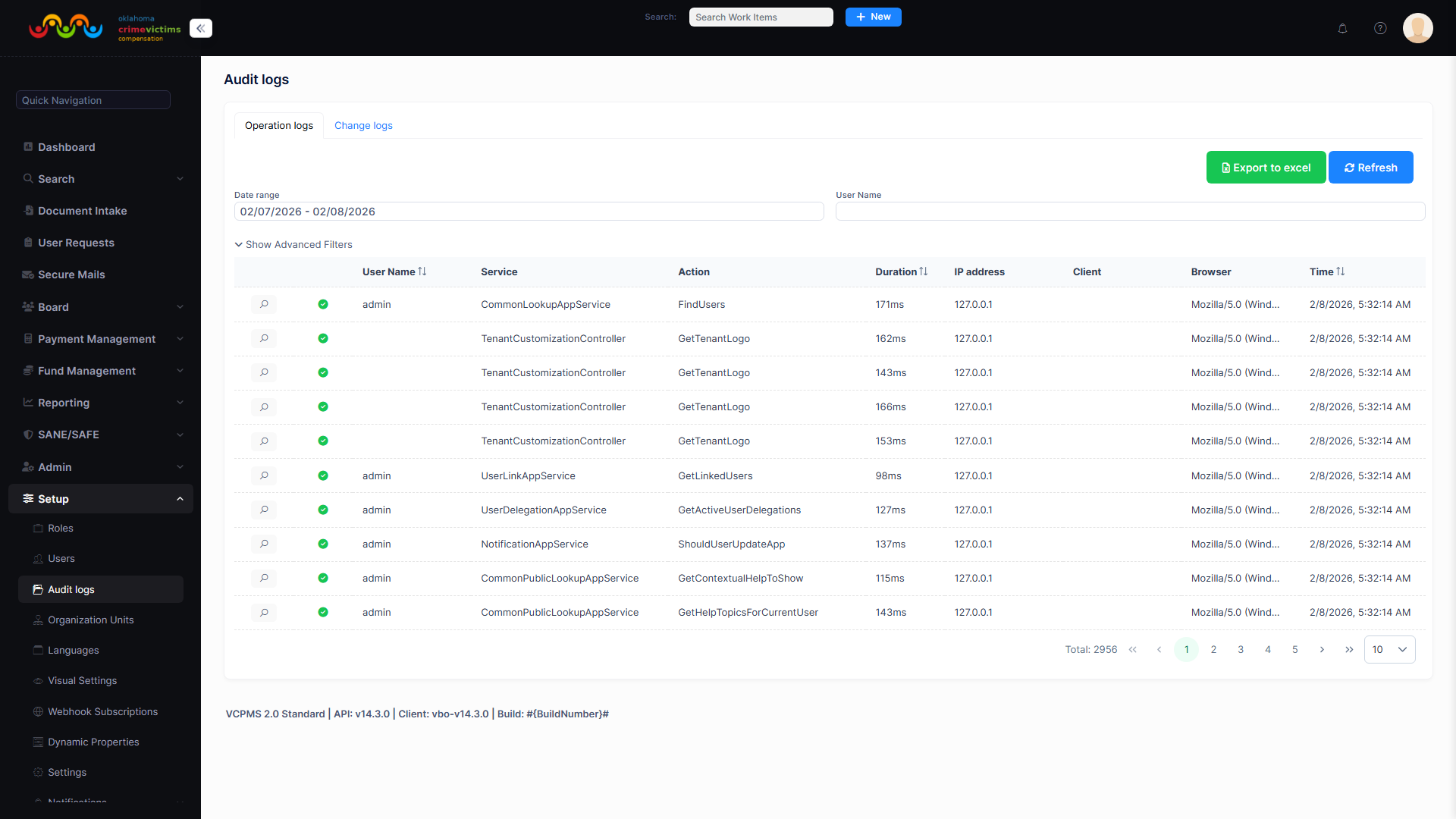
Audit Log viewer — showing search filters, log entries with timestamp/user/action, and before/after change details
17.2 Languages Management
- Multi-Language Support: VCPMS supports multiple languages for portal interfaces, forms, notifications, and reports
- Translation Management: Administrators can add, edit, and review translations for all user-facing text strings
- Language Packs: Import and export language packs for bulk translation management
- Per-User Preference: Users can select their preferred language, and the interface adapts accordingly
17.3 Webhook Subscriptions
Webhook subscriptions allow external systems to receive real-time notifications when events occur in VCPMS:
| Configuration | Description |
|---|---|
| Event Types | Subscribe to specific events: claim state changes, payment processing, document uploads, user actions, and more |
| Callback URLs | Configure HTTPS endpoints that receive JSON payloads when subscribed events occur |
| Authentication | Secure webhook delivery with HMAC signatures, bearer tokens, or custom headers |
| Monitoring | View delivery status, retry failed deliveries, and monitor webhook health with success/failure metrics |
| Retry Policy | Configurable retry attempts with exponential backoff for failed deliveries |
17.4 Dynamic Properties
- Custom Properties: Extend any entity with additional properties without schema changes
- Extensible Data Model: Dynamic properties support text, numeric, date, and boolean types with validation rules
- API Access: Dynamic properties are exposed through the API for integration with external systems
17.5 Template Tokens
Template tokens are placeholder variables used in document templates, notification templates, and email templates. The token management interface provides:
- Merge Field Tokens: Browse available tokens organized by entity type (claim, payment, claimant, provider, etc.)
- Data Mapping: View the data source and format for each token to understand how values are populated
- Custom Tokens: Create custom tokens that map to dynamic properties or computed values
- Token Preview: Preview token resolution with sample data before deploying templates
17.6 Data Management
- Federal Reporting Updates: Maintain reference data tables for federal reporting requirements (crime codes, expense categories, VOCA categories)
- Archival: Configure data archival policies to move aged records to archive storage while maintaining accessibility for reporting and compliance
- Optimization: Database performance monitoring and optimization tools for maintaining responsive query performance as data volumes grow
- Backup Verification: Automated backup integrity verification with alerts if backup processes fail or produce incomplete backups
17.7 Settings
The settings management interface provides centralized control over all configurable system parameters:
| Setting Scope | Description | Examples |
|---|---|---|
| Global Settings | Platform-wide settings that apply to all tenants | Password policy, session timeout, email server configuration |
| Per-Tenant Settings | Jurisdiction-specific settings that override global defaults | Business hours, timezone, filing deadlines, contact information |
| Feature Toggles | Enable or disable specific features per tenant | Online applications enabled, SMS notifications enabled, e-signature required |
| Defaults & Thresholds | Default values and threshold limits for business operations | Default payment priority, escalation thresholds, auto-archive age |
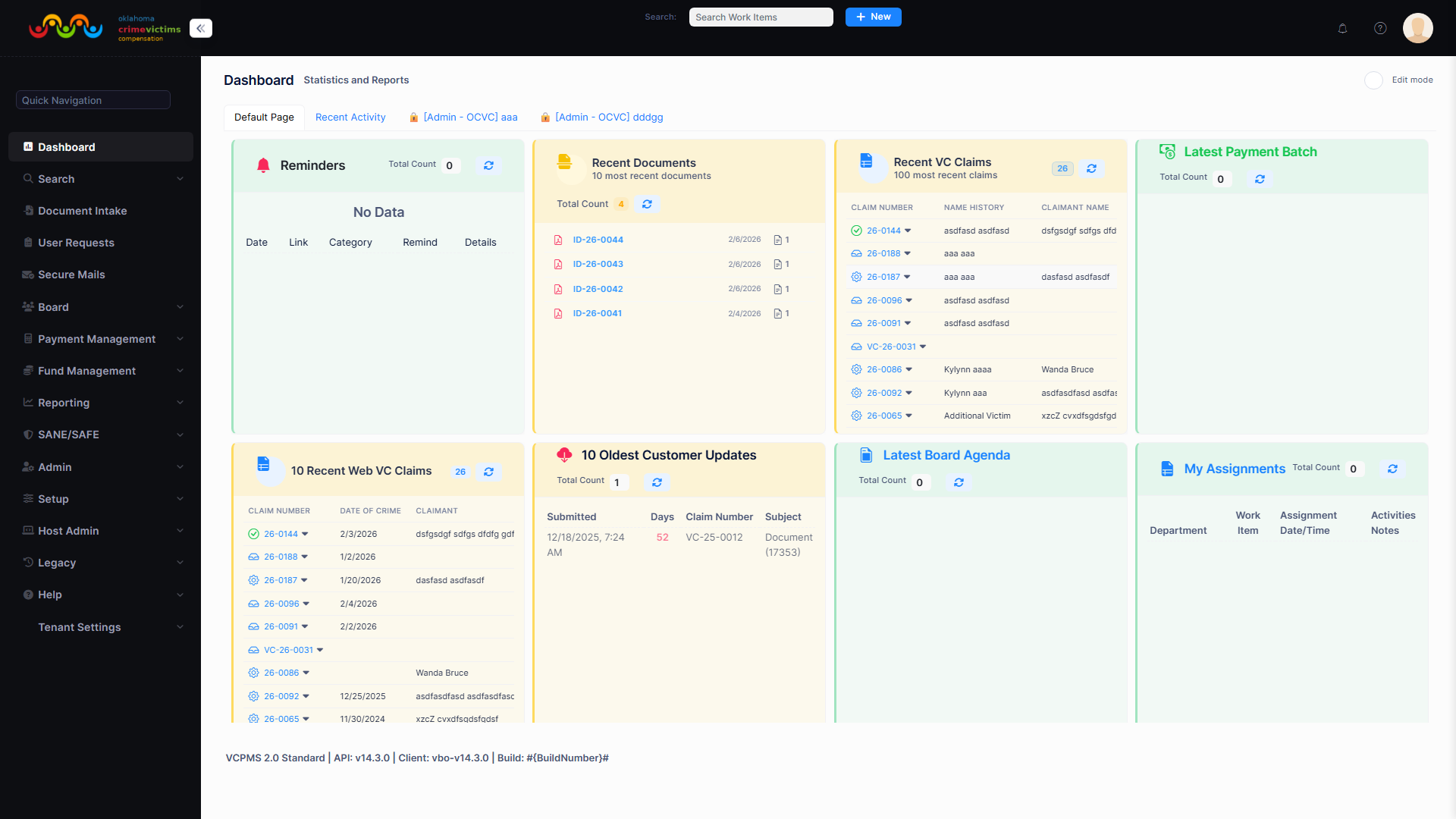
System Settings panel — showing global and tenant-specific settings with categories, current values, and edit controls
18. Document Upload Configuration
Document Upload Configuration defines how incoming documents are received, grouped into sets, associated with business entities, and classified by type. Each tenant can create multiple configurations for different upload sources such as mail room scanners, email imports, or fax receivers.
18.1 Configuration List
The configuration list page displays all upload configurations for the current tenant. Administrators can search, filter by name or active status, and sort by configuration name, active status, or creation time.
Two creation options are available:
- Create Default Configuration: Creates a pre-configured “MailRoomScanner” configuration with sensible defaults for typical mail room scanning workflows
- Create New: Opens a blank configuration form for custom setup
18.2 Configuration Settings
Each configuration is organized into four tabs covering different aspects of document processing:
Basic Settings
| Field | Description |
|---|---|
| Configuration Name | Descriptive name identifying this configuration (e.g., “MailRoomScanner”, “EmailImport”) |
| Is Active | Enable or disable the configuration. Inactive configurations are not used for document processing |
Set Identification
Controls how uploaded documents are grouped into document sets — batches of documents received together, such as the contents of an envelope or a batch scan.
| Method | Description | Pattern Usage |
|---|---|---|
| Subfolder Per Set | Each subfolder represents one document set | Not required |
| Filename Prefix | Files sharing the same filename prefix are grouped together | Regex to extract prefix |
| Time Window | Files received within a time window are grouped together | Minutes (e.g., “5”) |
| Metadata File | External CSV, JSON, or XML file defines set membership | Metadata filename |
| Barcode Separator | Barcode separator pages mark boundaries between sets | Regex for barcode filenames |
| Date Batch | All files received on the same date form one set | Date format pattern |
| All Files One Set | All files in the upload folder treated as a single set | Not required |
| Custom Regex | Custom regex with named group “setid” extracts set identifier | Regex with named group |
Entity Association
Controls how documents are linked to business entities such as claims, expense bills, or service providers.
| Method | Description | Pattern Usage |
|---|---|---|
| Manual Review Required | Staff manually links documents to entities after upload | Not required |
| Filename Pattern | Entity identifier extracted from the filename | Regex (e.g., CLAIM-(\d+)) |
| Folder Structure | Entity identifier derived from folder path | Folder level number |
| Metadata File | CSV/JSON maps filenames to entity identifiers | Metadata filename |
| Barcode On Document | Entity identifier read from a barcode on the document | Barcode format spec |
| OCR Extraction | Entity identifier extracted from document text via OCR | Regex (e.g., Claim #:\s*(\d+)) |
| Inherit From First | First document in set has identifier; rest inherit it | Combined with another method |
| External Lookup | External API/webhook determines the association | Webhook URL |
Additional fields include Expected Entity Type (e.g., VcClaim, ExpenseBill, ServiceProvider) and a Case Sensitive toggle for pattern matching.
Document Type Classification
Controls how the type of each document is determined (e.g., Compensation Application, Expense Bill, Treatment Plan).
| Method | Description |
|---|---|
| Manual Review Required | Staff manually assigns document types after upload |
| Folder Name | Document type determined by the folder name |
| Filename Prefix | Document type determined by filename prefix pattern |
| Metadata File | CSV/JSON specifies the document type for each file |
| OCR Classification | Machine learning model classifies documents by content |
| Default Type | All documents receive the same configured default type |
Processing Rules
| Setting | Default | Description |
|---|---|---|
| Max File Size (MB) | 50 | Maximum file size per document (1–1,000 MB) |
| Max Pages Per Document | 500 | Maximum page count per document (1–10,000) |
| Retry Attempts | 3 | Number of retries for failed uploads (0–10) |
| Retry Delay (Seconds) | 60 | Wait time between retries (0–300 seconds) |
| Continue On Error | Off | When enabled, batch processing continues after individual file failures |
| Processing Rules | — | Additional JSON configuration for custom processing rules (advanced) |
18.3 Default Configuration
The Create Default Configuration button generates a “MailRoomScanner” configuration pre-set for typical mail room workflows: documents grouped by subfolder, with manual review for entity association and document type classification, 50 MB file size limit, and retry-on-error enabled.
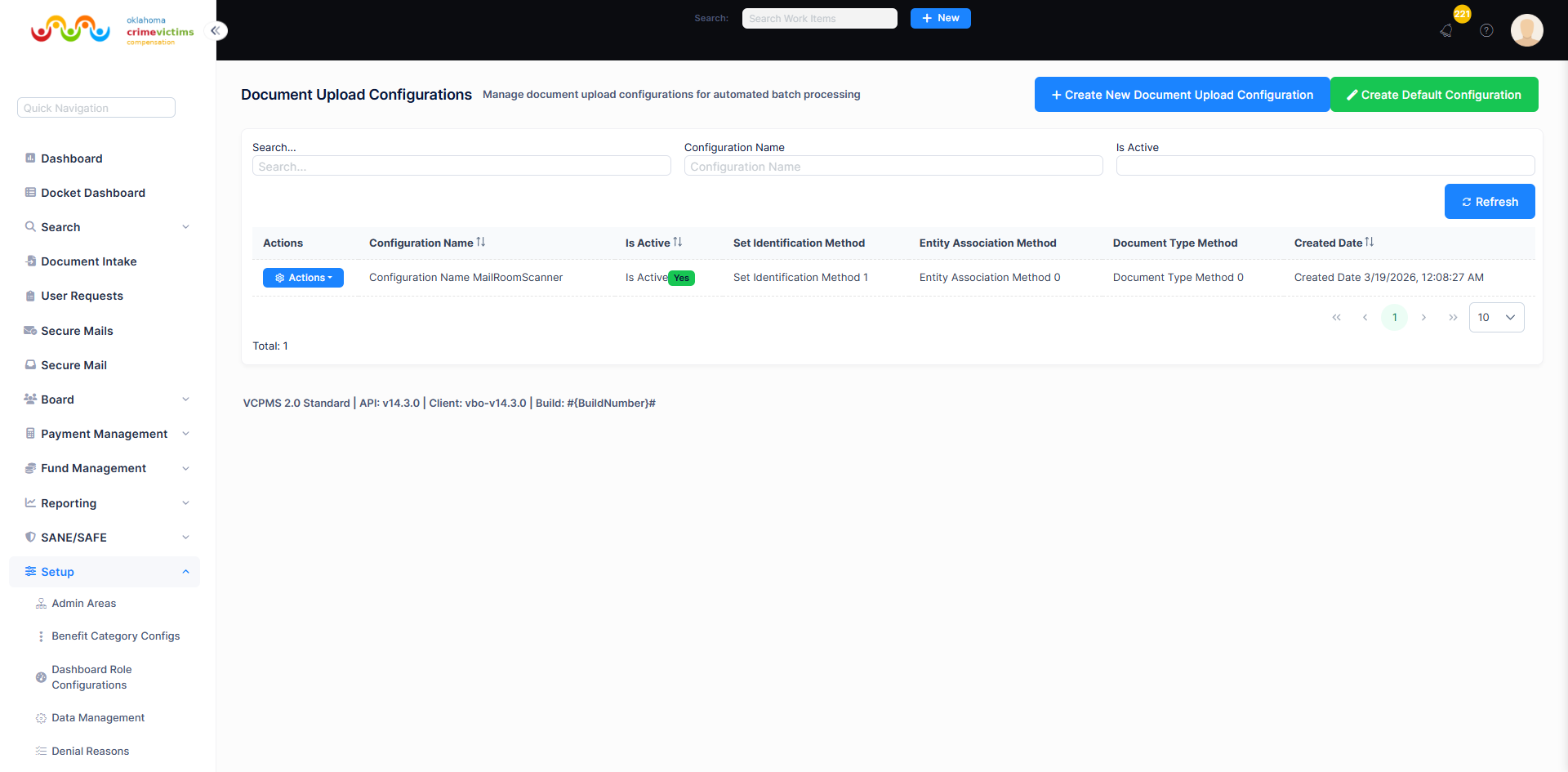
Document Upload Configuration list — search, filter, and manage upload configurations
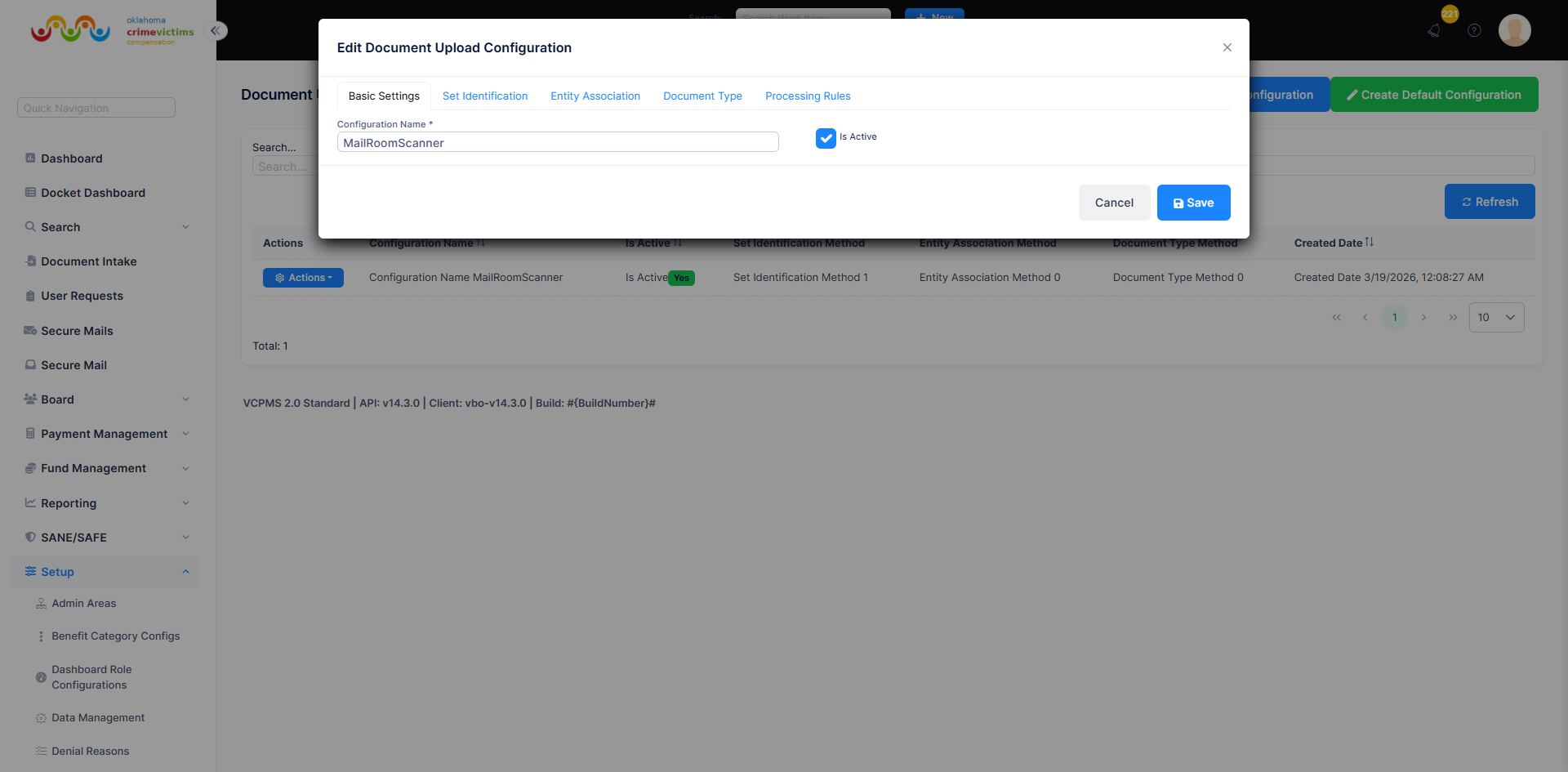
Basic Settings tab — configuration name and active status
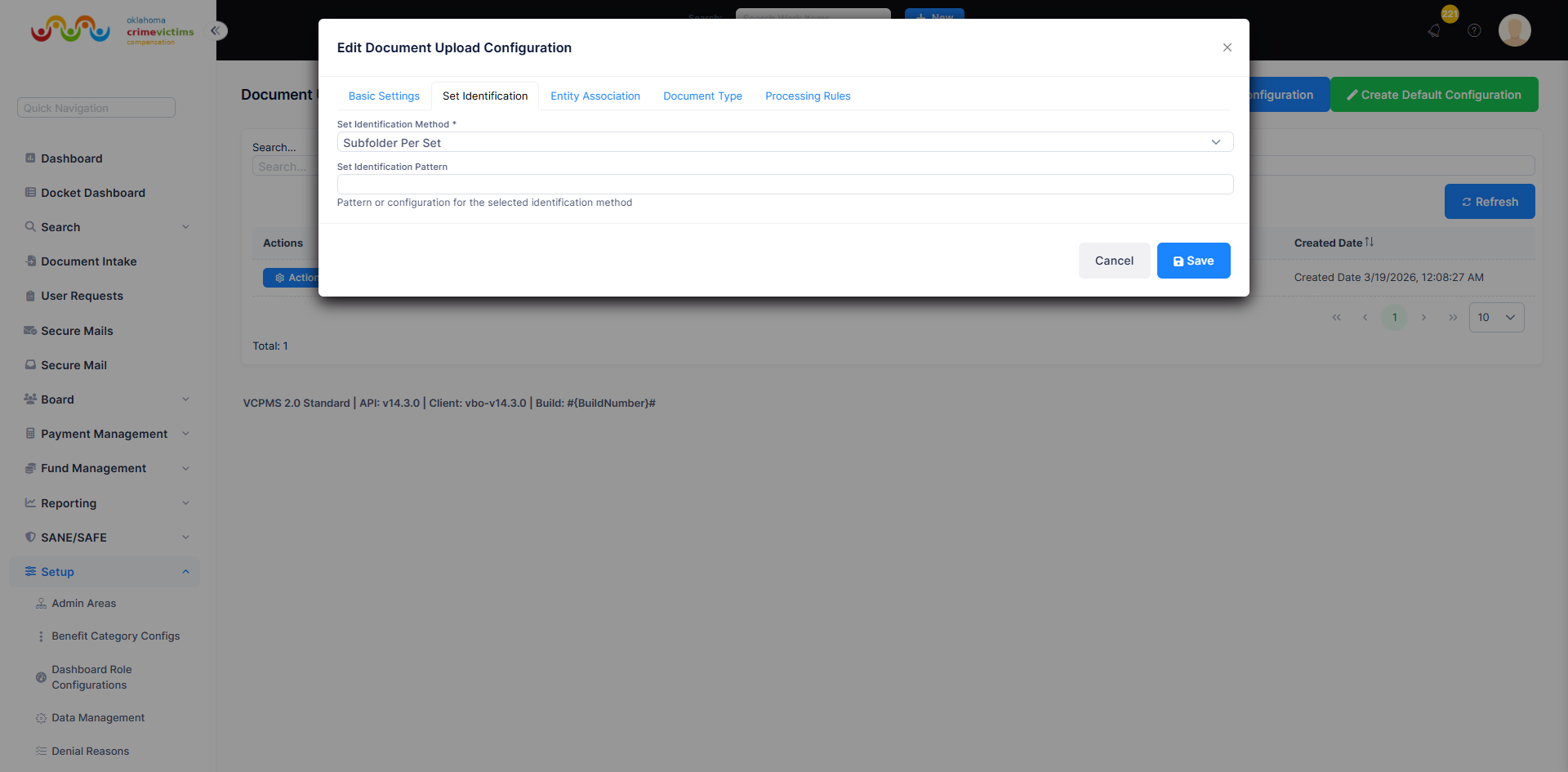
Set Identification tab — choose how documents are grouped into sets
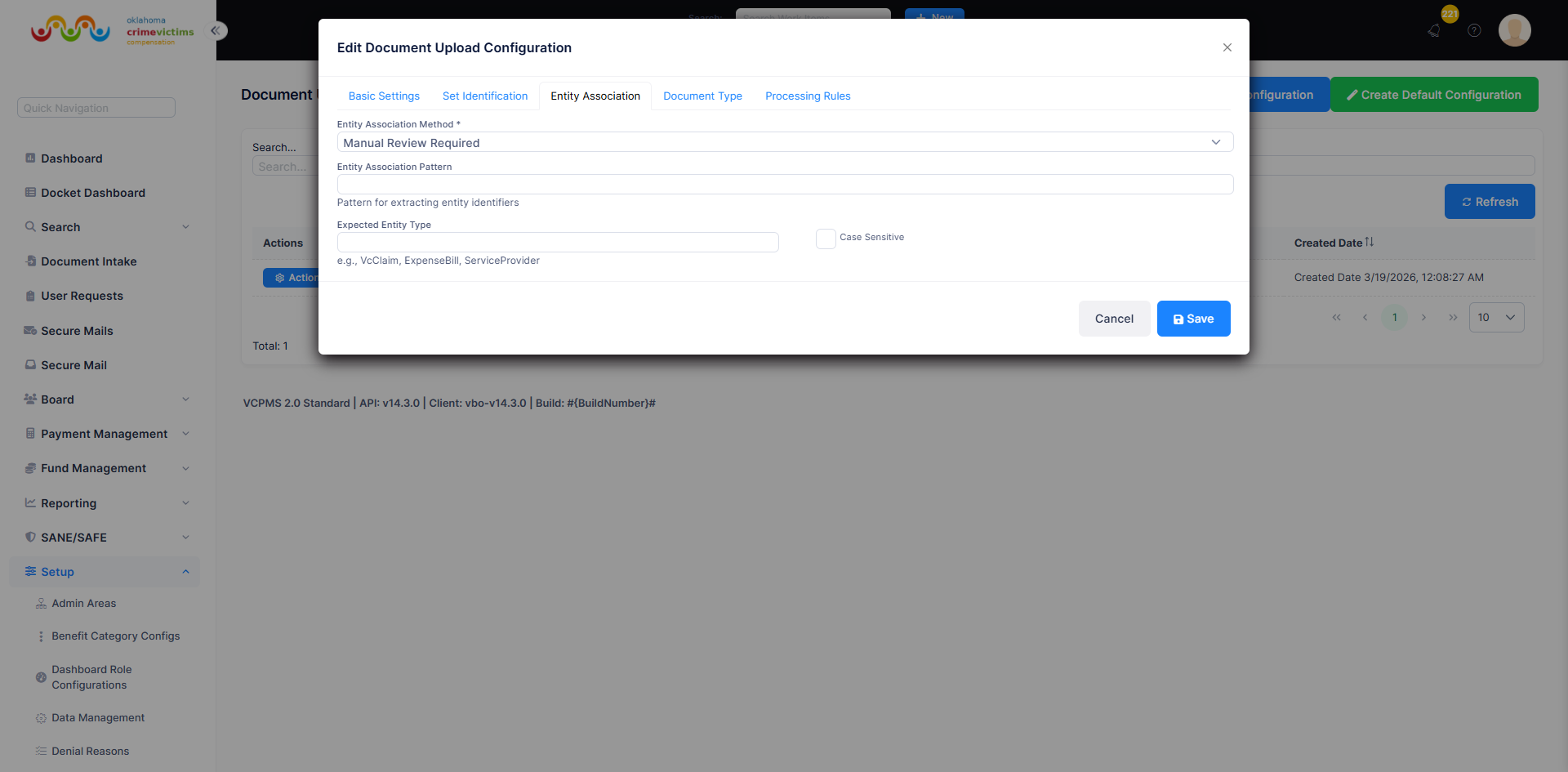
Entity Association tab — link documents to claims, expense bills, or service providers
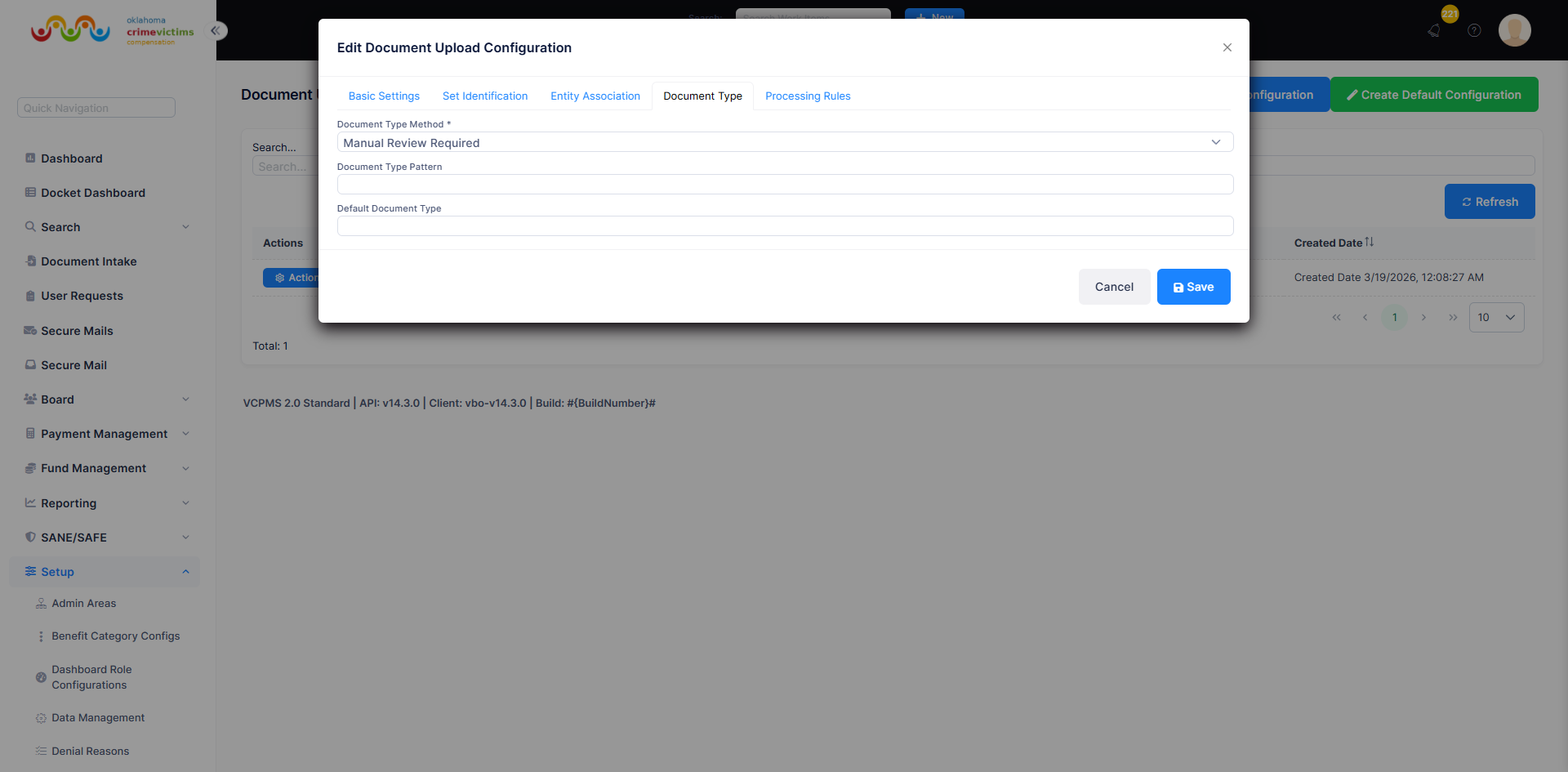
Document Type tab — configure how document types are classified
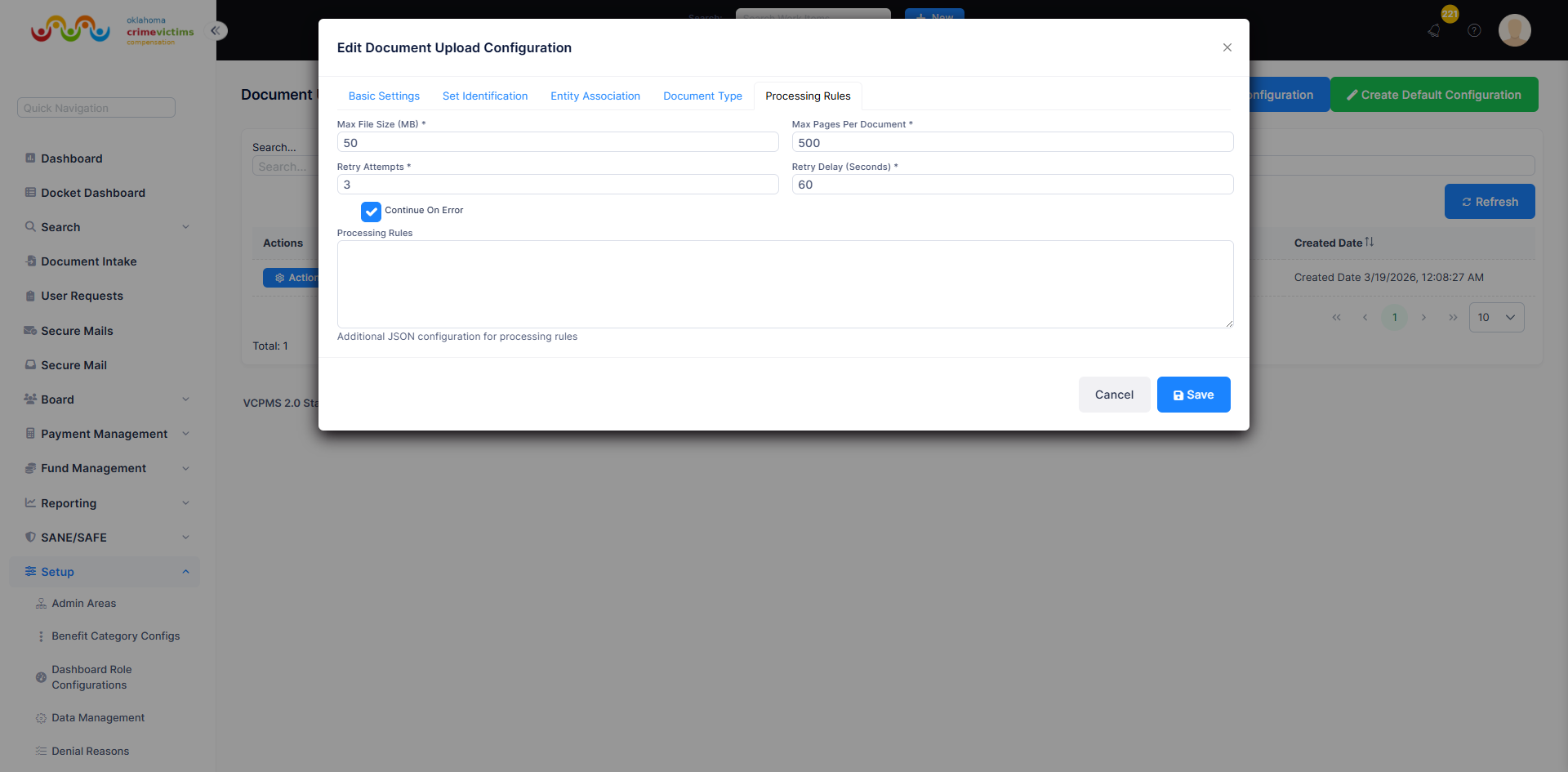
Processing Rules tab — file size limits, retry behavior, and error handling
Why Choose VCPMS Administration
No-Code Configuration
Business users configure workflows, forms, templates, eligibility rules, and benefit categories through intuitive interfaces — no vendor support tickets, no development cycles, no waiting.
Multi-Tenant Flexibility
Each jurisdiction maintains completely independent settings, workflows, templates, and business rules while sharing a single, centrally maintained and upgraded platform.
Comprehensive Audit Trail
Every configuration change, permission modification, and administrative action is captured in a tamper-proof audit log with user attribution, timestamps, and before/after values.
Configurable Workflows
Adapt claim processing workflows, approval chains, assignment rules, and notification triggers to match any state's unique policies and procedures — no code changes required.
Self-Service Management
Reduce vendor dependencies and operational costs. Program administrators handle day-to-day configuration changes independently, with full control and instant effect.
Role-Based Security
Four-level granular permissions (system, page, field, document) with five action types (add, update, view, delete, search) ensure every user has precisely the access they need.