
VCPOffice
Table of Contents
- Overview
- Dashboard
- Claims Processing Workflows
- Benefits Management
- Payment Processing
- Document Management
- Board Management
- Reporting & Analytics
- Communication
- Search Hub
- Assignment & Workload Management
- User Management
- SANE/SAFE Program Support
- Restitution & Subrogation Tracking
- Benefits of VCPOffice
1. Overview
VCPOffice is the comprehensive back-office administration portal of VCPMS, serving as the central hub for all victim compensation program operations. It is the primary workspace for internal staff—claims examiners, analysts, supervisors, administrators, and board liaisons—providing full lifecycle management of claims, benefits, payments, documents, and communications.
Designed around the real-world workflows of state victim compensation programs, VCPOffice consolidates dozens of legacy tools (Access databases, Excel spreadsheets, manual filing systems, PeopleSoft interfaces) into a single, unified web application. Every function from initial claim intake through final payment issuance, board decision recording, and federal reporting is managed from within this portal.
Core Functional Areas
Claims Processing
Full lifecycle management for Victim Compensation (VC) Claims and Financial Reimbursement (FR) Claims with configurable state workflows, eligibility determination, and duplicate detection.
Benefits & Awards
Award creation and approval workflows, expense bill processing, treatment plan management, income loss tracking, and service bill handling across all benefit categories.
Payment Processing
Two-level payment authorization, batch processing, external financial system integration, payee management, source fund tracking, void/reversal/reissue, and returned check handling.
Document Management
Document Intake Queue with upload, preview, split, merge, and categorize capabilities. Outgoing document generation from configurable templates with letterhead and electronic signatures.
Board Management
Determination docket preparation, docket management (E, A, B, M, X types), electronic board packets, decision entry (individual and batch), and post-decision letter generation.
Reporting & Analytics
30+ pre-defined standard reports, ad hoc data reporting, federal compliance reports (VOCA), performance metrics, KPI dashboards, and multi-format export capabilities.
Navigation Structure
The VCPOffice portal is organized into the following primary navigation sections, each mapping to a core functional area:
| # | Section | Purpose |
|---|---|---|
| 1 | Dashboard | Personalized home view with configurable widgets and KPIs |
| 2 | Document Intake | Incoming document queue and processing |
| 3 | Compensation Claims (VC) | Full victim compensation claim lifecycle management |
| 4 | Reimbursement Claims (FR) | Service provider claim management (SANE/SAFE, forensic) |
| 5 | Awards | Award creation, approval, and board submission |
| 6 | Payments | Payment processing, batches, and reconciliation |
| 7 | Service Providers | Provider directory and management |
| 8 | Payees | Payee directory and payment recipient management |
| 9 | Source Funds | Fund management and balance tracking |
| 10 | Determination Dockets | Board meeting preparation and decision recording |
| 11 | Standard Reports | Pre-defined report generation |
| 12 | Data Reports | Ad-hoc data queries and custom reports |
| 13 | Search Hub | Unified search across all 30+ entity types |
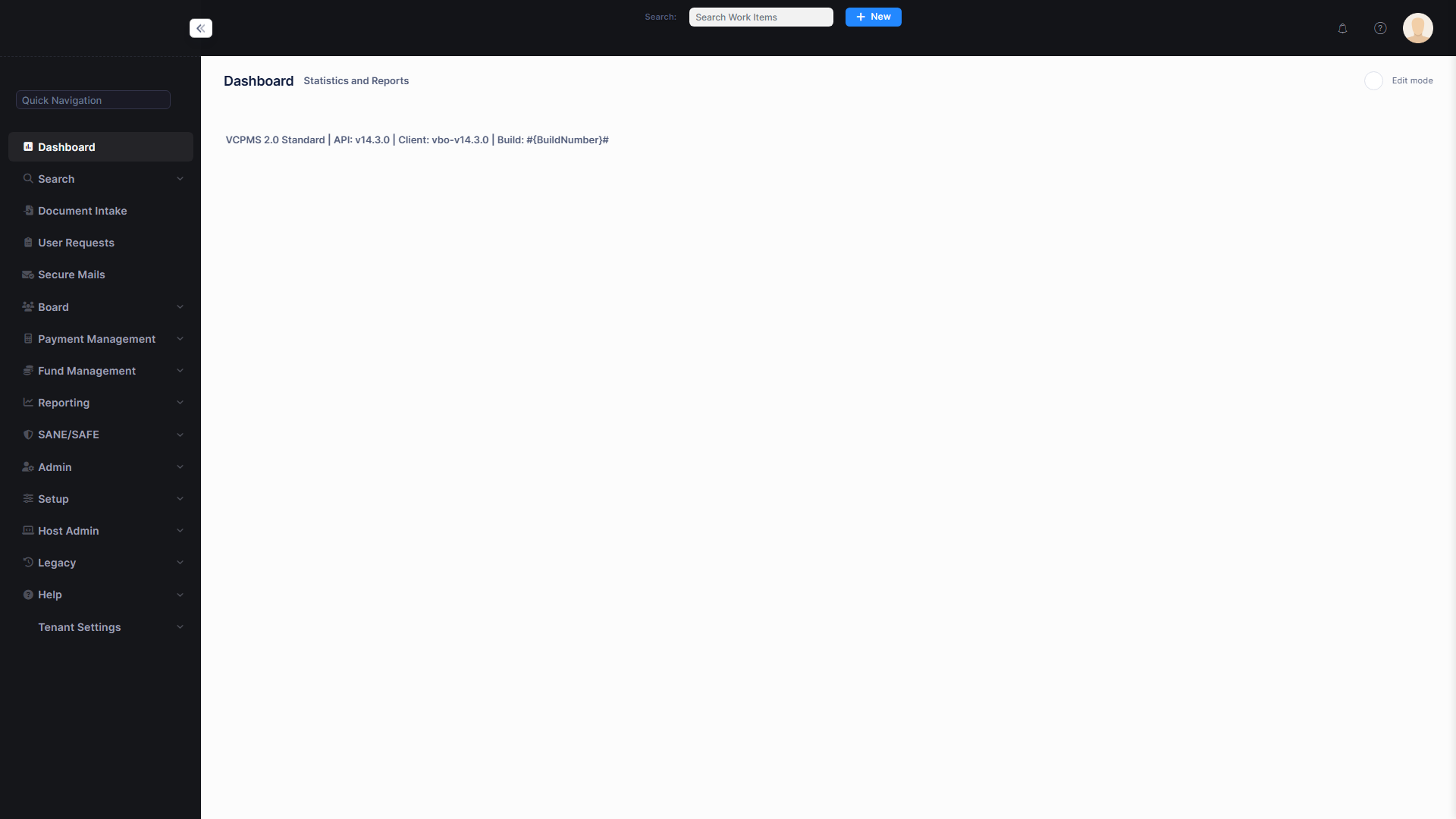
VCPOffice main navigation and dashboard overview
2. Dashboard
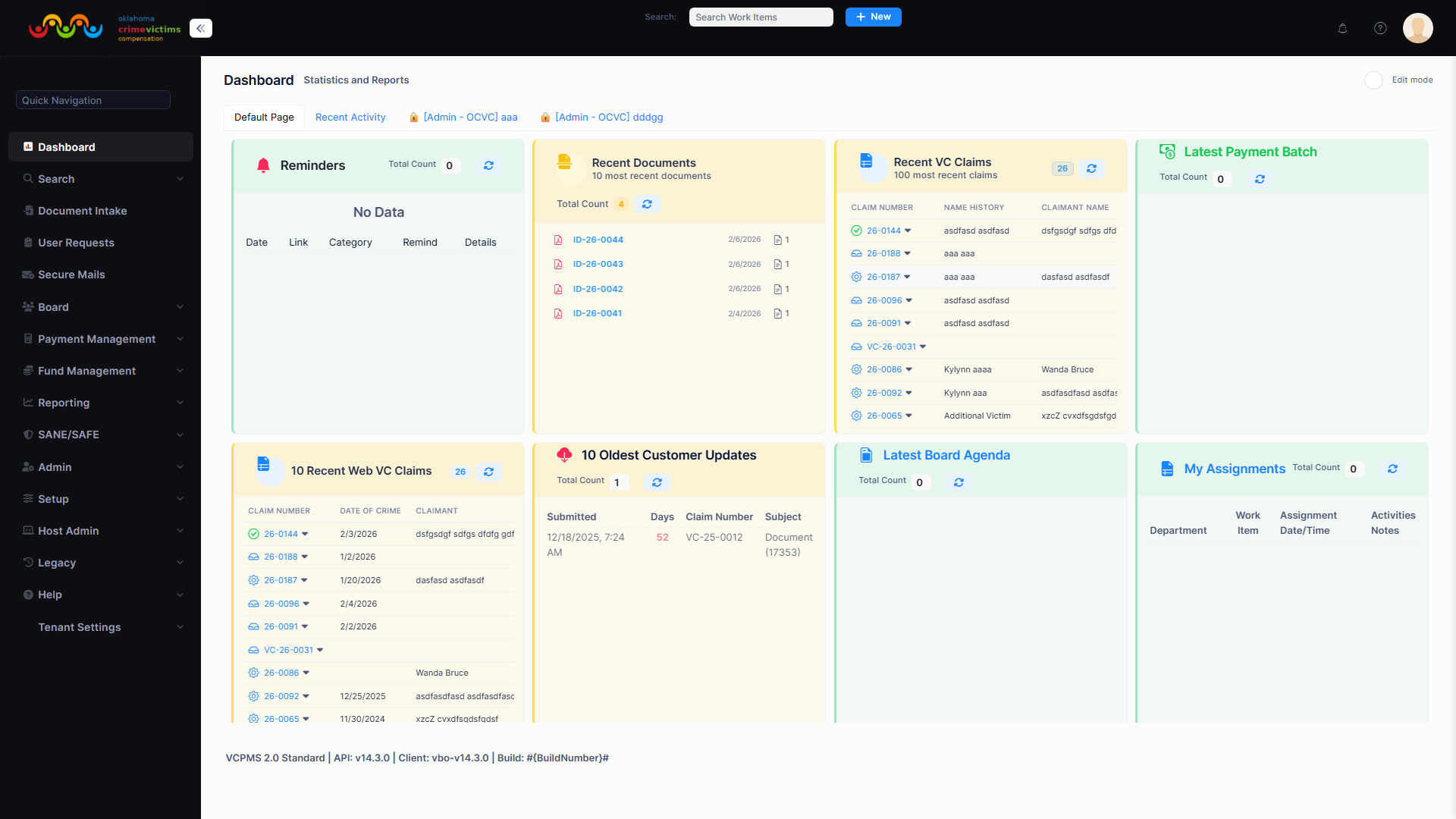
Upon login, each VCPOffice user is presented with a personalized, jurisdiction-specific dashboard. The dashboard is a modular, widget-based workspace that provides at-a-glance visibility into daily operations, pending tasks, and key performance indicators.
Dashboard Widgets
Open Applications
Claims assigned to the logged-in user, organized by status and priority. Clickable to navigate directly to the claim record.
Pending Payments & Bills
Bills and payments requiring review, approval, or processing. Highlights items approaching deadlines.
To-Do Items & Reminders
Personal task list with due dates, priorities, and categories. Overdue reminders are flagged visually for immediate attention.
Recent Submissions
Recently submitted or updated claims from all portals (VCPOnline, VCPProvider, VCPAdvocate). Real-time feed of incoming work.
Notifications & Alerts
System alerts including returned mail, upcoming board deadlines, document uploads, assignment changes, and threshold warnings.
Daily Activity Summary
Claim counts, processing times, payment totals, and workload distribution. Drill-down into details from any metric.
Customization
- Toggle widgets on/off — Each user selects which components to display
- Drag-and-drop layout — Rearrange widget positions to match personal workflow
- Apply filters — Filter by status, date range, claim type, or jurisdiction
- Save preferences — Layout and filter settings persist across sessions
- Real-time metrics — Pending claims, upcoming tasks, recent payments, and workload distribution update in real time
Role-Based Defaults
Program administrators can define jurisdiction-wide dashboard defaults for different roles (e.g., claims examiner vs. supervisor vs. board member). This ensures consistency and usability across the program while empowering individuals to refine their own views. Defaults serve as starting templates that users can further customize.
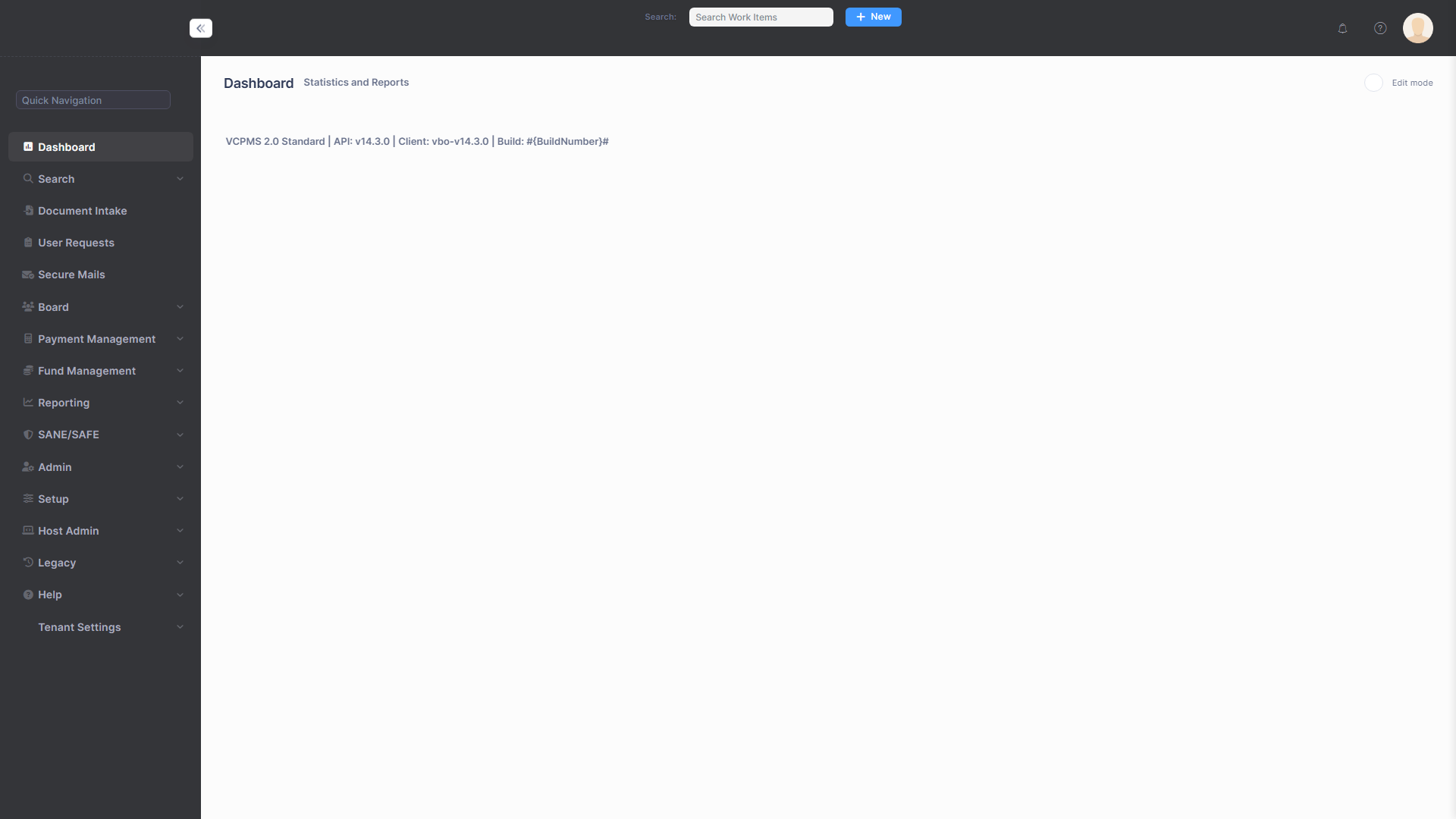
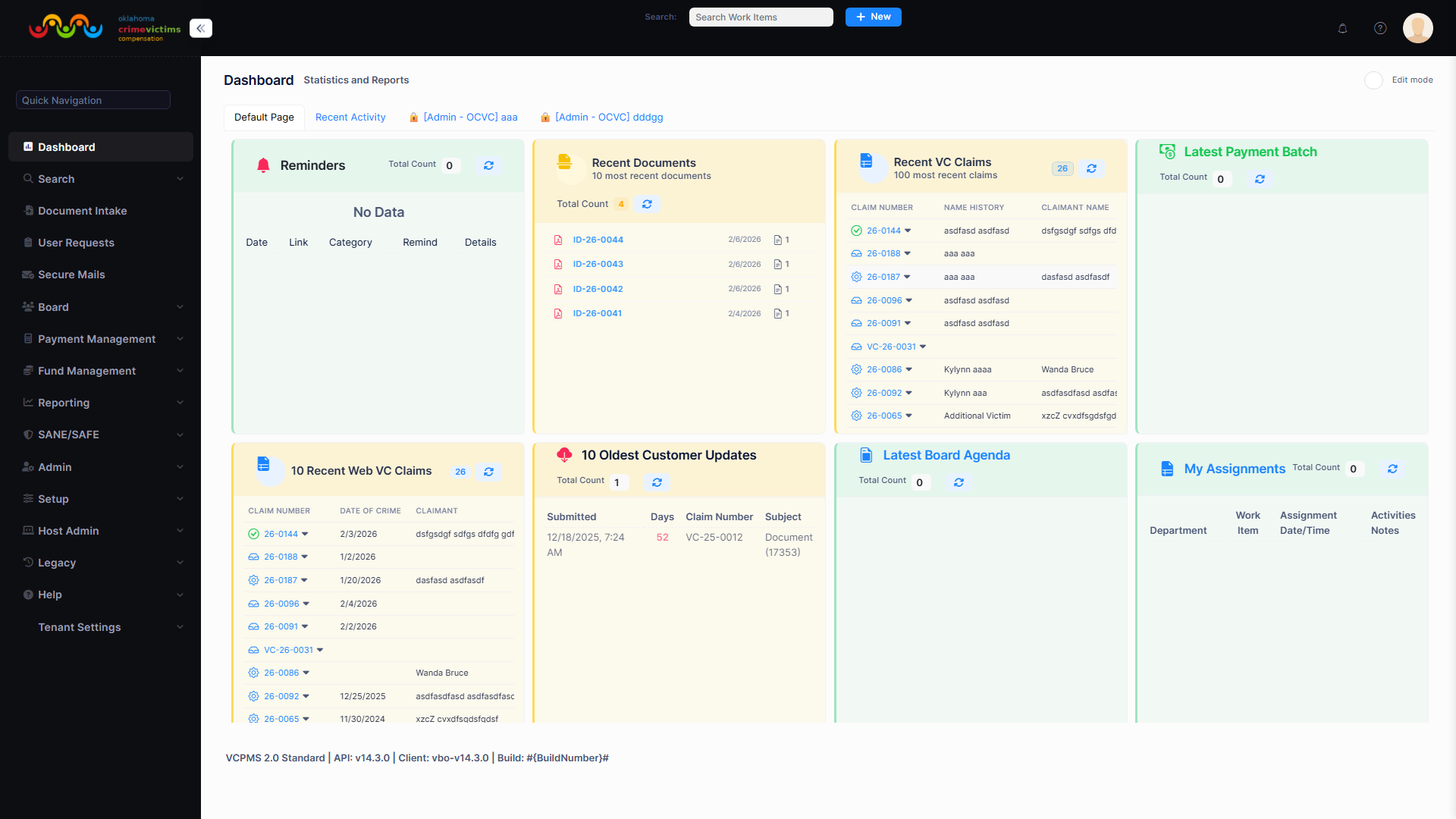
VCPOffice personalized dashboard with configurable widgets
3. Claims Processing Workflows
Claims processing is the heart of VCPOffice. The system supports two primary claim types—Victim Compensation (VC) Claims and Financial Reimbursement (FR) Claims—each with configurable state workflows, eligibility rules, and processing procedures.
3.1 Victim Compensation Claims (VC Claims)
VC Claims represent victim compensation applications filed by or on behalf of crime victims. Each claim tracks the full lifecycle from initial intake through eligibility determination, award processing, board review, payment, and eventual closure.
Claim Workflow States
VCPOffice supports a comprehensive, configurable set of claim states. Programs can enable or disable specific states to match their jurisdiction's workflow requirements. The following represents the union of all available states:
Appeals are handled by the separate VcClaimAppeal WorkItem, not by transitioning the VcClaim into an Appeal state. Continuances are tracked by VcContinuance (claim-on-hold records) while the VcClaim remains in its current active state.
| State | Description | Editable? |
|---|---|---|
| Draft | Initial creation state. Claim is being assembled before formal intake. | Yes |
| Intake | Application received. Staff verifies data and collects documents to prepare the claim for review. | Yes |
| Pending Review | Intake complete; claim is queued for analyst review of eligibility and benefits. | Yes |
| Under Review | Analyst is actively reviewing eligibility criteria, documentation, and AI-assisted flags. | Yes |
| Pending Determination | Review complete; claim is awaiting examiner or supervisor determination. | Yes |
| Pending Board Determination | Claim is scheduled on a Determination Docket (DeterminationDocket) and awaiting board vote. | Locked |
| Approved | Decision recorded and an immutable Award snapshot has been created. Locked, editable only with special role permissions. | Special Role |
| Denied | Claim denied with a required reason code. Locked, editable with special role to support rescinding a denial if needed. | Special Role |
| Rescinded | A prior approval or denial has been rescinded (new information, fraud finding, policy reversal). Claim re-enters review. | Special Role |
| Withdrawn | Claimant voluntarily withdrew the claim. Locked; re-openable back to Intake if circumstances change. | Locked |
Claim Data Entry Tabs
The VC Claim management interface provides comprehensive data capture organized into tabbed sections:
Victim Tab
Name, DOB, SSN, Race, Gender, preferred written and spoken language (with “Other” option for languages not listed), communication methods (phone, email, postal, fax), address with auto-verify (City/County/State from Zip), international address support, Tribal Affiliation dropdown, and Federal Qualifiers (Domestic Violence, Bullying, Elder Abuse, Hate Crimes, Mass Violence, Interstate Crime).
Claimant Tab
Claimant information (may differ from victim for guardian/representative filings), referral source tracking (DA Office, Hospital, Provider, Friend/Family, Internet, Victim Advocate, Law Enforcement, etc.), address update with documentation in View All Notes, Email VWC button, and notes field.
Crime Tab
Crime type selection (Arson, Assault, Burglary, Child Abuse, Homicide, Human Trafficking, Sexual Assault, Terrorism, DUI/DWI, Robbery, and more), crime location type (Home, School, Workplace, Street, Club, Business, Rural, Auto, etc.), county with jurisdiction codes, crime date, and detailed location fields.
Offenders Tab
Offender name and identifying information, prosecutor information, correctional facility tracking, and restitution payment tracking that populates the restitution tracking report.
Insurance Tab
Insurance information capture for collateral source determination. Tracks insurance type, carrier, policy numbers, and coverage amounts that factor into benefit calculations.
Additional Tabs
Civil Attorney information (civil suit details), Contacts management, Financials summary, History/audit trail, Assignments, Activities log, Notes, Documents, and Letters.
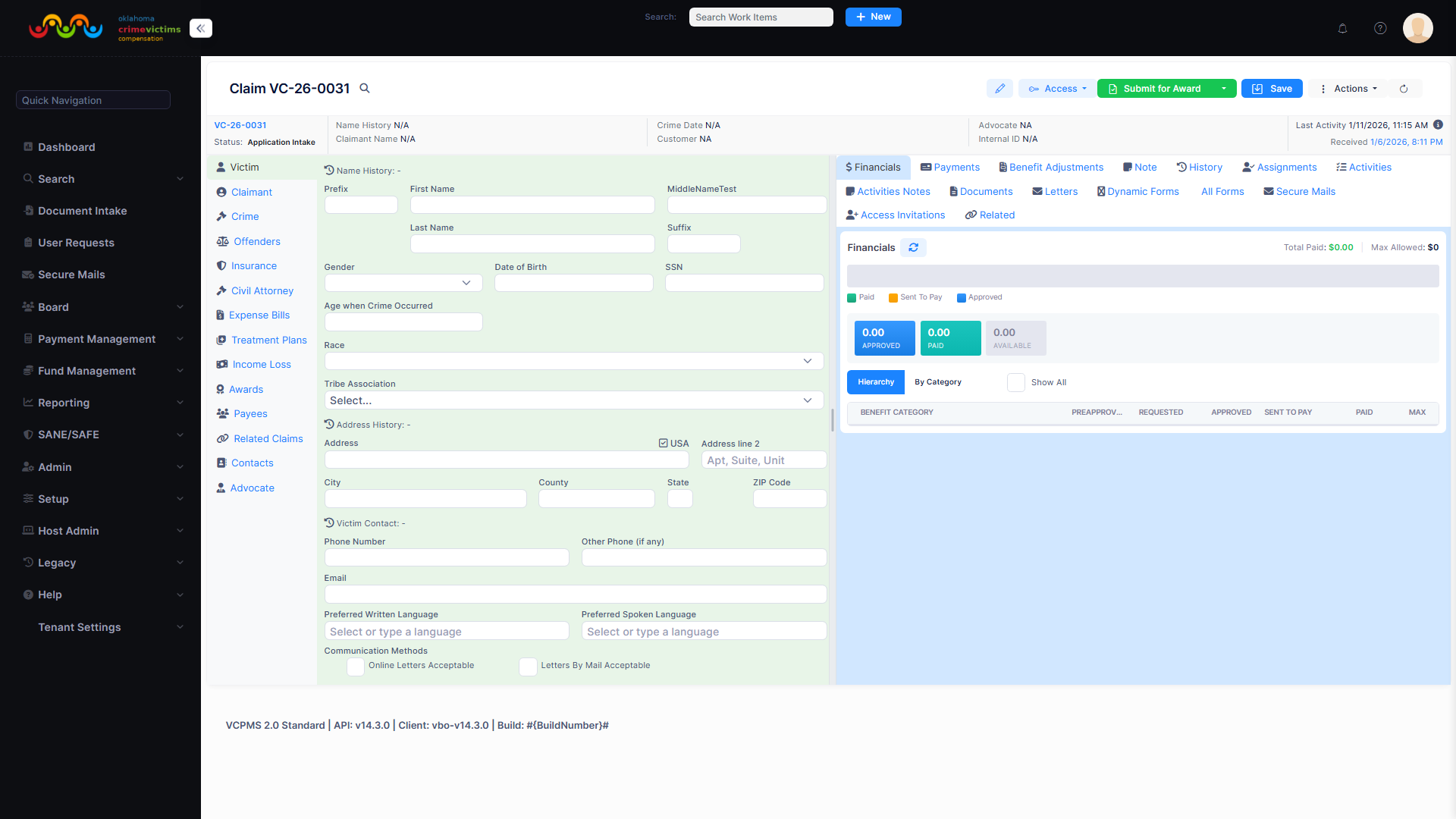
VC Claim management interface with tabbed data entry sections
Claim Creation & Intake Process
Create New Claim
Add new claim record. Claim number is auto-generated using configurable display number format (e.g., “VC-2026-0001”). Status is automatically set to the initial state (Draft when created by staff, or Intake when received from a VCPOnline submission).
Enter Victim & Claimant Information
Complete victim demographics (name, DOB, SSN, race, gender), communication preferences, address with auto-verification, tribal affiliation, and federal qualifiers. Enter claimant information if different from victim.
Duplicate Detection
System automatically checks for existing claims using multiple combinations of Birthdate, SSN, and Crime Date. Pop-up message displayed if a potential match is found, allowing staff to link or proceed with a new claim.
Enter Crime Information
Crime type, location, county, date, and details. County populates jurisdiction information automatically. Date of application received is auto-populated; date acknowledged is recorded.
Generate Acknowledgement Letter
Print acknowledgement letter (with Spanish version option), auto-created from template with merge fields. Letter packaged with FAQs for mailing. Submission method recorded (online, mail, fax, hand-delivery).
Assign to Examiner
Claim assigned to correct analyst or queue based on configurable rules (round-robin, geographic area, workload balancing). Assigned user receives notification; claim appears in their dashboard.
Eligibility Determination
VCPOffice provides a structured eligibility determination process with configurable checkpoints. Each checkpoint requires a Yes/No determination. If the answer is “No,” the system requires an explanation.
| Checkpoint | Description | If No |
|---|---|---|
| Compensable Crime | Was the crime a qualifying compensable crime under the program? | Explanation required; may lead to denial |
| Eligible Victim/Claimant | Is the applicant an eligible victim or authorized claimant? | Explanation required; guardian verification for minors |
| Crime by Victim (Contributory Conduct) | Did the victim’s conduct contribute to the crime? | Explanation required; may reduce or deny benefits |
| Cooperation | Has the victim cooperated with law enforcement? | Explanation required; waiver option with documentation |
| Timely Reporting | Was the crime reported to law enforcement within required timeframe? | Explanation required; waiver option available |
| Timely Filing | Was the application filed within the statute of limitations? | Explanation required; waiver option for good cause |
| Compensable Expense | Are the claimed expenses eligible for compensation? | Explanation required; partial approval possible |
Duplicate Detection & Co-Claim Linking
- Automatic detection — System checks for duplicates using Birthdate + SSN + Crime Date combinations
- Companion claims — Multiple victims from the same incident linked together
- Cross-reference claims — Same victim with claims from different incidents
- Secondary claims — Configurable per jurisdiction (some programs allow only one claim per victim)
- Co-claim linking — Single document can be linked to multiple claims for co-claimants or shared service records
Processing Time Tracking
3.2 Financial Reimbursement Claims (FR Claims)
FR Claims represent financial reimbursement requests from service providers, including SANE/SAFE forensic exam claims. Providers submit claims through the VCPProvider portal or VCPConnect API, and staff process them through VCPOffice.
FR Claim Workflow States
FR Claim Key Properties
| Field | Description |
|---|---|
| Service Provider | Provider organization submitting the claim (must be registered and valid) |
| Total Cost Amount | Total cost of services rendered |
| Insurance Amount | Amount covered by insurance or other collateral sources |
| Percent to Pay | Percentage of remaining amount the program will cover |
| Service Date Range | Start and end dates of service period |
| Victim Name | First and last name of the victim who received services |
| Amount to Pay | Calculated: (Total Cost - Insurance) × Percent to Pay |
FR Claim Business Rules
- Must have a valid, registered service provider
- Automatic amount calculation: Amount to Pay = (Total Cost - Insurance Amount) × Percent to Pay
- Duplicate detection based on victim name + service date + provider
- Supporting documentation required before approval
- SANE/SAFE claims may be processed through a separate fund (configurable)
FR Claim processing interface with financial calculation fields
3.3 Claim Review & Investigation Features
- View all claim details (victim info, crime details, expenses) in consolidated interface
- Add/edit claim notes, comments, and investigation findings
- Attach and view documents within a claim record
- Request additional information from the claimant (triggers portal notifications and correspondence)
- Link related claims (companion claims for same victim; cross-reference claims for same incident)
- Claim assignment tracking with full audit trail
3.4 Decision & Approval Workflow
- Approve / Deny / Table decisions — Each decision type updates claim status correctly
- Multi-level approval — Supervisor must approve after analyst recommendation; routing and restrictions verified
- Board review integration — Claims marked for board review appear in the Board module; decisions flow back to the claim
- Denial reasons and letters — System captures reason code and generates denial letter with appeal instructions
- Waiver capability — Staff can override eligibility flags with documentation
- Claim re-opening — Closed claims can be re-opened to process additional expenses
3.5 Benefit Categories & Limits
Benefit categories and maximum amounts are configurable per jurisdiction. Example configuration:
| Benefit Category | Maximum Amount |
|---|---|
| Medical | $15,000 |
| Mental Health / Counseling | $15,000 |
| Income Loss (Lost Wages, Dependent Care, Loss of Support) | $15,000 |
| Relocation | $15,000 |
| Miscellaneous | $15,000 |
| Funeral | $4,500 |
| Crime Scene Cleanup | $1,000 |
| Homicide Benefit | $1,000 |
| Locks / Security | $1,000 |
| Dependent Care | $1,000 |
| Burial Monument | $500 |
| Eyeglasses / Vision | $300 |
| POMC (Parents of Murdered Children) | $150 |
3.6 Edge Cases & Special Scenarios
- Multiple victims per incident — One incident, multiple claimants, each tracked separately with co-claim linking
- Minor victims — Guardian information required; potential delayed filing accommodated
- Out-of-state applicants — Supported with configurable residency rules
- Sexual assault cases — May trigger different procedures or SANE/SAFE module handling
- Maximum compensation limit reached — System enforces caps and alerts staff
- Claim re-opening — Previously closed claims can be reopened for additional expenses (e.g., therapy years later)
4. Benefits Management
Benefits management encompasses the creation, tracking, and processing of all financial benefits associated with claims. This includes awards, expense bills, treatment plans, income loss, and service bills.
4.1 Awards
Awards represent approved compensation amounts for claims. Each award goes through a formal workflow from creation through board review and completion.
Award — an immutable decision snapshot
As of VCPMS 15.2, Award is no longer a state-machine WorkItem. An Award is created automatically when a VcClaim decision is recorded (Approved or Denied) and captures an immutable snapshot of the full case at decision time — vote tally, reviewer notes, benefit items, payee(s), amounts. It is the legally defensible record of the decision.
The workflow that produces an Award now runs on the DeterminationDocket (Determination Docket) WorkItem:
A docket can also transition to Voided from any active state when it is withdrawn before the decision is recorded.
| DeterminationDocket State | Description |
|---|---|
| Draft | Docket is being assembled. Staff adds VcClaims/benefits, schedules the meeting date, configures the board roster. |
| WaitingForDecision | Docket is finalized and scheduled. Awaiting the board meeting or examiner review. |
| RecordingDecision | Decision is actively being recorded for each docket item. Award records are created as approvals are entered. |
| Completed | All items decided. Award snapshots are finalized; downstream payment processing can begin. |
| Voided | Docket withdrawn before decision (rescheduled, cancelled, administrative error). Items return to their prior state. |
Award Features
- Award amounts organized by benefit type with summary view
- Letters divided to proper format for EOB (Explanation of Benefits) for victim or provider
- Future awards tracking for ongoing treatment
- Board docket preparation with multiple versions/formats
- Adjustments recommended by examiner, approved by administrator
- Configurable overall maximum (e.g., $25,000 per claim, additional $25,000 for income loss)
- Financial encumbrances calculated per benefit category based on award amounts
- Automatic deduction of payments from encumbered amounts
Award management interface with benefit type summary and board docket
4.2 Award Items
Award Items are individual line items within an award. Each award contains one or more award items specifying:
- Benefit category (Medical, Mental Health, Funeral, etc.)
- Amount approved for this specific item
- Provider or payee information (who receives payment)
- Service dates covered by this award item
4.3 Expense Bills
Expense Bills are provider-submitted bills for services rendered to victims, processed within the context of a VC Claim. They follow the Requested Benefit workflow.
Requested Benefit Workflow (Expense Bills, Treatment Plans, Income Loss)
Requested Benefits share a 10-state RequestedBenefitState machine that parallels the VcClaim lifecycle:
| State | Description |
|---|---|
| Draft | Benefit request is being assembled (claimant upload, staff entry, provider submission). |
| Intake | Request submitted and received. Staff verifies the benefit type, service dates, and attached documentation. |
| Pending Review | Intake complete; queued for benefit analyst review. |
| Under Review | Analyst is calculating allowable amounts, validating collateral sources, and checking caps/limits. |
| Pending Determination | Review complete; awaiting examiner/supervisor approval. |
| Pending Board Determination | Benefit is on a Determination Docket (DeterminationDocket) awaiting the board vote. |
| Approved / Determined / Processed | Benefit approved at the requested amount. Rolls forward into payment generation. |
| Denied | Benefit denied with a required reason code. |
| Rescinded | A prior approval has been rescinded. Benefit re-enters review. |
| Withdrawn | Benefit withdrawn by claimant, provider, or staff. |
Expense Bill Financial Fields
| Field | Description |
|---|---|
| Requested Amount | Original balance of the bill (amount requested by provider) |
| Insurance Amount | Insurance payment / collateral source coverage |
| Prepaid Amount | Patient payment (amount already paid by claimant) |
| Outstanding Amount | Remaining amount after insurance and prepaid deductions |
| Coverage Percent | Editable percentage the program will cover |
| Coverage Amount | Balance due to be paid out by the program |
| Amount to Reimburse | Claimant reimbursement portion (e.g., $100 paid by claimant reimbursed at Coverage Percent) |
| Reimbursement Adjustment | Any adjustment to the reimbursement amount |
Expense Bill Additional Features
- Funding source selection (State or Federal grant)
- Document number field for invoice number or other identifying number
- Bill lifecycle status: received, in review, approved, partially approved, denied, paid, returned
- Status changes timestamped with user notes for each transition
- Dedicated note fields for each bill
Expense Bill processing interface with financial calculation fields
4.4 Treatment Plans
Treatment Plans manage ongoing mental health and medical treatment authorizations. The system tracks approved date ranges, session counts, costs, and individual session payments.
Treatment Plan Workflow
Upload Treatment Plan Documentation
Provider submits treatment plan documentation through VCPProvider portal or VCPConnect. Document enters the Document Intake Queue for processing.
Process & Link to Claim
Staff processes the document from the intake queue, links it to the appropriate VC Claim, and creates the Treatment Plan record.
Enter Treatment Plan Details
Staff enters the approved date range, number of sessions, cost per session, total cost, and provider information. Multiple treatment plans can exist per claim (e.g., separate awards for primary and secondary victims’ mental health treatment).
Submit for Award Approval
Treatment plan follows the Requested Benefit workflow: Draft → Intake → Pending Review → Under Review → Pending Determination → (optional) Pending Board Determination → Approved / Determined / Processed.
Process Service Bills
When the provider sends billing for individual sessions, each session is attached to the appropriate award. Date of service is recorded for each session. Payments are entered on the right side column under Payments.
Track Session Payments
Each session payment is tracked individually. Once a session has been paid, the “Paid” checkbox is checked. The highlighted award shows the currently selected award for entering payments.
Treatment Plan management interface with session tracking and payment entry
4.5 Income Loss
Income Loss tracks financial benefits for victims who have lost wages, require dependent care, or have suffered loss of support due to a crime. Income Loss follows the same Requested Benefit workflow as Expense Bills and Treatment Plans.
Income Loss Categories
| Category | Description | Processing Notes |
|---|---|---|
| Lost Wages | Wages lost due to inability to work as a result of the crime | Documented with employer verification, pay stubs, medical notes |
| Dependent Care | Costs for care of dependents while victim is incapacitated | Receipts and documentation required |
| Loss of Support | Ongoing support payments for dependents of homicide victims | Paid one month at a time, set up yearly. May qualify for additional maximum. |
4.6 Service Bills
Service Bills are provider billing records linked to FR Claims. Service providers submit bills through the VCPProvider portal or VCPConnect API for services including:
- Dental services
- Medical services
- Counseling / Mental Health
- Funeral services
- Prescriptions (RX)
- SANE/SAFE forensic exams
- Other related services
5. Payment Processing
VCPOffice provides comprehensive payment processing capabilities, from individual payment creation through batch processing, external financial system integration, and reconciliation. The payment module handles the full lifecycle of every dollar disbursed by the compensation program.
5.1 Payment Creation & Authorization
Two-Level Payment Approval
Payments can be configured to require multi-level authorization. Each approval stage is recorded with user ID, timestamp, status, and approval tier. Payments above configurable thresholds require supervisor approval before processing.
Payment Item Creation
Payment Items are created on Expense Bills or Treatment Plans and wait for processing in a Payment Batch. Each Payment Item has:
- Reference field (50 characters max) — Intended to be shared with the payee on payment statements
- Comment field (1,000 characters) — For internal use, not shared with payee
Payment Grouping Logic
5.2 Payment Batches
Payment Batch processing allows bulk creation and management of payments, streamlining the disbursement process.
Batch Processing Workflow
Create Payment Batch
Specify the fund source (state or federal). System identifies all Payment Items waiting for processing that match the selected fund. Batches can be created automatically based on predetermined criteria or manually generated.
Verify Fund Availability
System verifies sufficient funds are available from each payment source before generating the batch. Prevents disbursement if balance is insufficient.
Review Batch Contents
Review all payments in the batch before finalizing. View payment items grouped by claim and payee. Make adjustments, remove items, or split into separate batches as needed.
Process & Generate Payment Files
Generate payment files for export: CSV/XML for bank batch upload and check print files. Payment letters/statements are generated for each payment showing paid and unpaid items. (NACHA/ACH electronic-payment file generation is on the roadmap and not yet shipped.)
Finalize & Export
Finalize the batch, mark payments as issued. Export to external financial systems (PeopleSoft, SCEIS, state finance system). Track payment status: pending, issued, cleared, returned.
Batch Operations
- Automatically create payment batches based on predetermined criteria (federal, state)
- Modify automatic batch criteria without technical support
- Manually generate payment batches with selection capability
- Generate payments daily with flexible selection
- Change payment source (state vs. federal) by batch
- Cancel a payment batch or individual payment within a batch
- Generate detailed payment letters/statements to accompany payments
- Show paid and unpaid items on payment statements
Payment Batch processing interface with batch review and fund verification
5.3 Payee Management
The Payee directory maintains all payment recipients (persons or organizations). Payee records include name, address, tax identification, payment preferences, and links to all associated payments.
- Payee directory with search and filter capabilities
- Supplier ID integration with external systems (e.g., OMES vendor registration)
- Confidential payee support (victim payments routed through program address)
- Payee address management with update tracking
- Payment history per payee
5.4 Source Funds & Fund Collections
Source Fund Tracking
- Maintain fund balances across multiple funding sources (federal, state, VOCA, donations)
- Real-time fund balance tracking: total allocated, total expended, current encumbrances, available balance
- Automatically update fund balance upon generated payments
- Prevent disbursement if balance is insufficient
- Track subactivity codes (e.g., 00001 for State, 00002 for Federal)
- Grant number tracking for current federal grants
Fund Collections
- Record collected revenue by type: restitution, donation, overpayment recovery
- Track receipt of funds by collection type
- Deposit tracking with claim number association
- Funds returned to general program fund upon deposit completion
- Limits tracked per victim (not per claimant)
5.5 External Financial System Integration
VCPOffice integrates with external state financial systems for payment processing, reconciliation, and reporting.
State Finance Systems
Integration with PeopleSoft, SCEIS, and other state financial systems via API, web services, or batch file interfaces. Data field mapping for claimant info, amounts, and claim IDs.
Check Processing
Check printing directly from the system OR export to external check processing system. Warrant file generation, voucher creation, and reconciliation support.
Bank Batch Export
CSV/XML export with payment fields (payee, address, amount, routing) for upload to your bank or state financial system. (NACHA/ACH file generation is on the roadmap and not yet shipped.)
Reconciliation
Bank file import for cleared checks. Reconciliation logic for payment status updates. Automated matching of issued vs. cleared payments.
5.6 Payment Void, Reversal & Reissue
- Void payment — Cancel an issued payment before it clears. Updates fund balance and claim records.
- Accept refunds — Process returned overpayments or refunds back to fund balance.
- Reissue — Reissue a voided or lost payment with new check information. Clone existing payment details with new warrant number.
- Reversal — Reverse a cleared payment, adjusting fund balances and claim totals.
5.7 Returned Check Processing
When a check is returned (undeliverable, stopped, or bounced), VCPOffice supports a distinct return check workflow:
- Returned check logged with reason and date
- Notes recorded in claim record
- Payment status updated to reflect return
- Staff can initiate reissue or void based on circumstances
- Fund balances automatically adjusted
- Notification to assigned staff for follow-up
5.8 Payment Edge Cases
- Exceeding claim balance — System prevents payments exceeding remaining claim balance
- Multiple payees per claim — Payments to different payees (provider vs. claimant) for the same claim
- Payments to minors — Payable to guardian or trust, with appropriate documentation
- Restitution payments from offenders — Received payments credited to program fund, tracked against offender record
- Split funding — Multiple funding sources per payment (state + federal split)
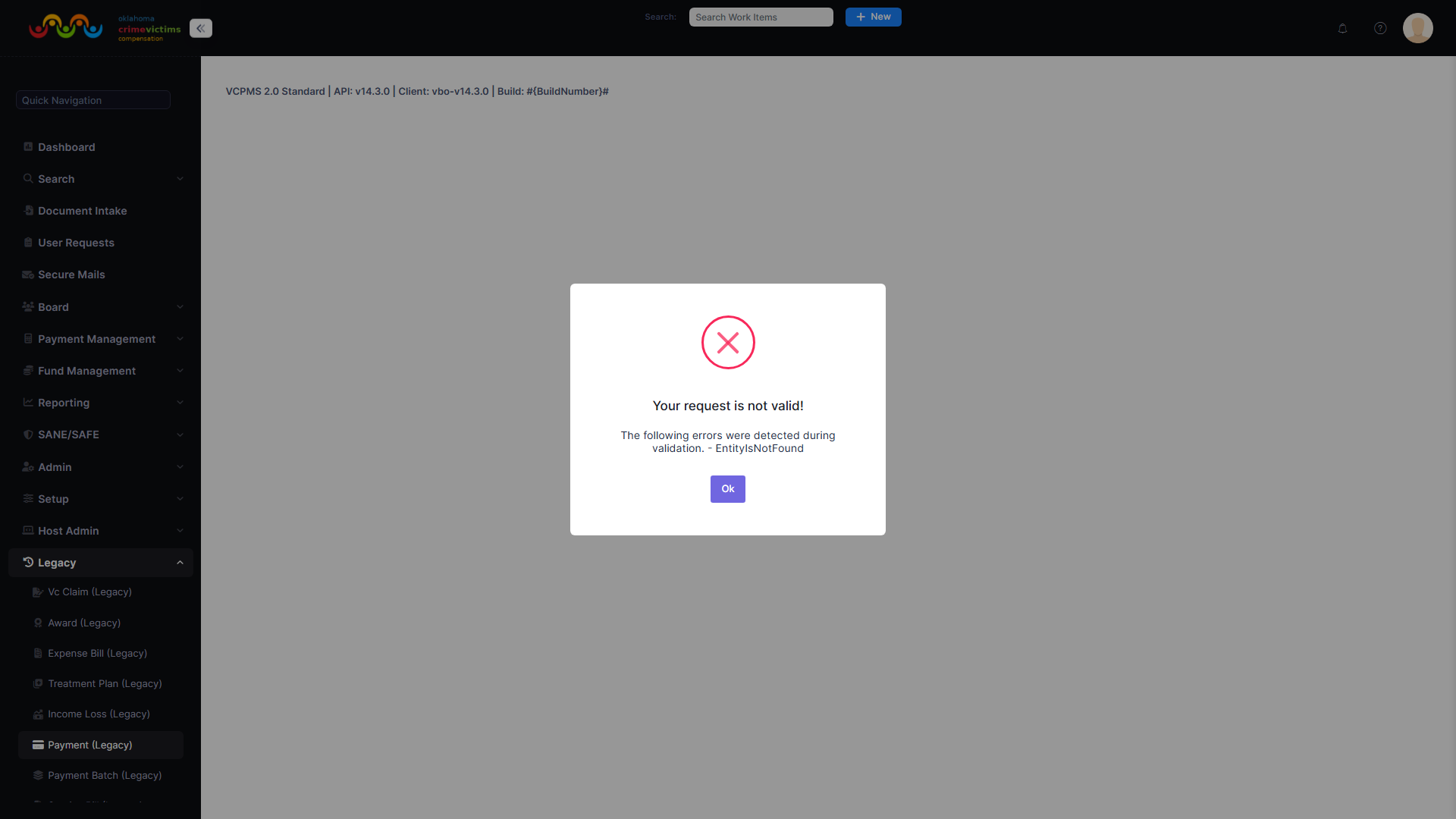
Payment processing interface with fund tracking and batch management
6. Document Management
VCPOffice provides comprehensive document management capabilities covering the entire lifecycle of incoming and outgoing documents—from initial receipt and scanning through processing, storage, and delivery.
6.1 Document Intake Queue
The Document Intake Queue is a centralized incoming document processing center. All documents entering the system—whether scanned, uploaded, or submitted through external portals—flow through this queue for review, classification, and routing.
Document Intake Workflow
Document Receipt
Documents enter the queue through multiple channels: manual upload by internal users, automated “Watcher” process monitoring designated shared locations for scanned files, or submissions from external portals (VCPOnline, VCPProvider, VCPAdvocate).
Preview & Review
Staff previews document content using the built-in document viewer. Quick Edit and Preview screens available during intake (not full Manage screens). Review tabs include: Financials, History, Assignments, Activities, Notes, Documents, and Letters.
Split & Merge
Split multi-page documents into separate documents (e.g., separate a packet containing bills from multiple providers). Merge multiple documents into a single document when appropriate.
Classify & Tag
Apply metadata: document type, received date, classification tags. Import date defaults to upload date but is adjustable. Customize document names for clear identification.
Associate with Claims
Link document to one or more claims. A single document can be linked to multiple claims (co-claimants, shared service records). Documents already linked to one claim can later be associated with additional claims.
Process or Archive
Process: Move document to claim record for further action. Archive: Soft delete that removes document from processing list (can be un-archived later). Download: Save file to user workstation.
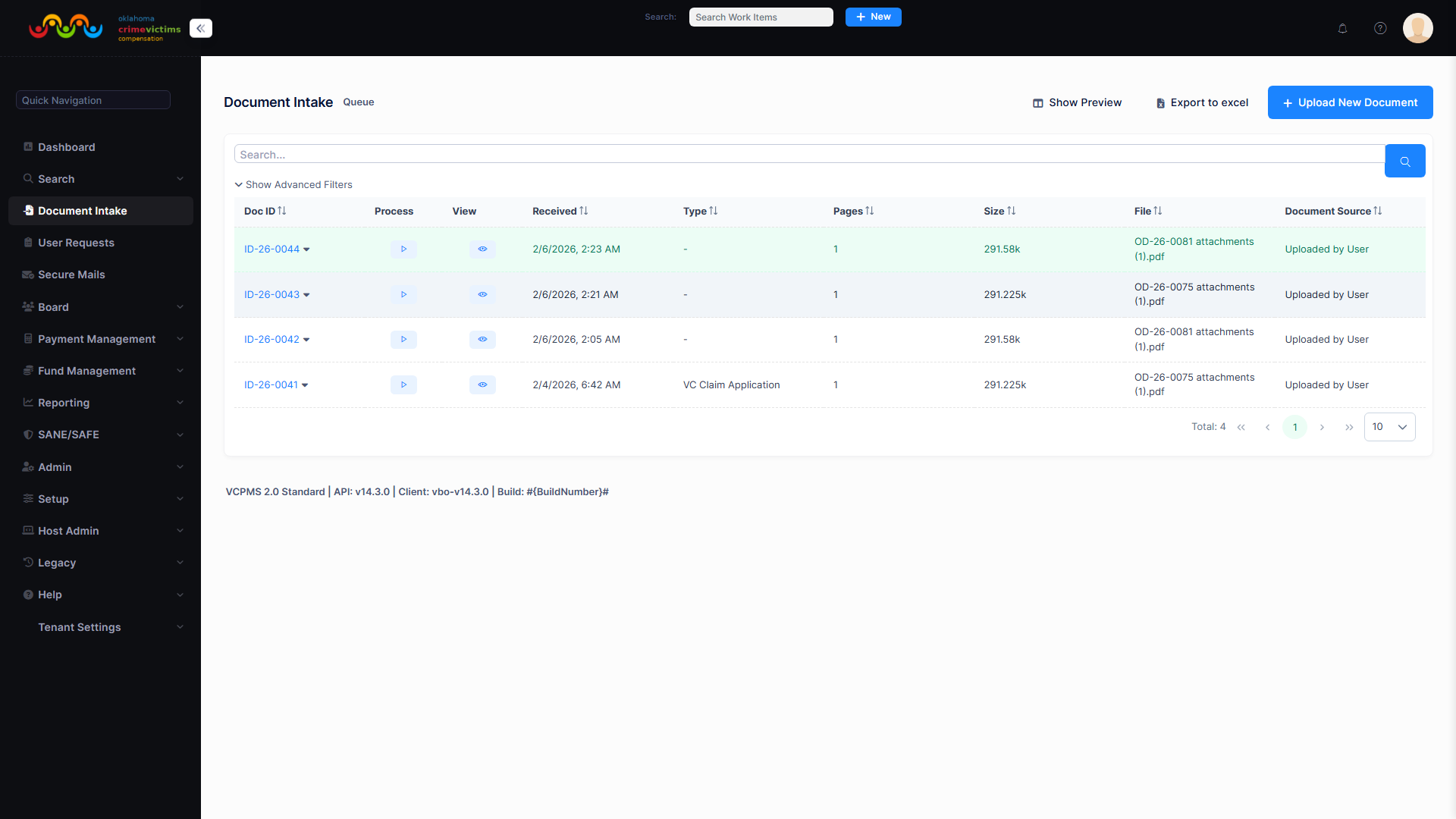
Document Intake Queue with preview, split/merge, and processing controls
6.2 Outgoing Documents (Letters & Correspondence)
Template-Based Letter Generation
- Template library for all standard correspondence types
- Templates support conditional logic, insertable fields (merge fields), and custom formatting
- Predefined templates that can be edited by administrators without technical support
- Rich text editing for ad hoc letter creation
- Letter customization per district/jurisdiction (letterhead, signature, formatting)
Letter Types
| Category | Letter Types |
|---|---|
| Intake | Acknowledgement letter (English and Spanish), FAQ documents |
| Information Requests | Request for police report, request for additional information |
| Decisions | Application approval, bill approval, denial with appeal instructions, D&O (Decision and Order) letters |
| Financial | EOB (Explanation of Benefits) for victims, EOB for providers, cover letters |
| Notifications | Bill status update (approved, denied), request for restitution |
Letterhead & Signature Integration
- Each program uploads and manages its own letterhead templates
- Dynamic logos, headers, and footers
- Electronic signatures: JPEG signature files or digital signature tokens mapped to user roles
- Printer-friendly PDF output with district letterhead and electronic signature
Batch Letter Operations
- Filter recipients by various fields (e.g., victims paid in last 7 days)
- Apply templates to the resulting list for mass generation
- Customized letters or emails generated for each recipient
- Emails sent automatically; letters queued for batch printing
- Post-board meeting batch letter generation for all decisions
6.3 Document Storage & Management
- All documents stored centrally with role-based access control
- PDF generation and storage for every finalized letter
- Document viewing, annotation, and PDF management
- Document classification and tagging
- Copy/link PDFs from one claim to another (reference link by default, not duplication)
- Print all documents individually or as entire claim package in single PDF
- Secure document storage and retrieval with encryption at rest
6.4 Document Templates (Configurable)
Document templates are fully configurable by program administrators, allowing each jurisdiction to maintain its own library of letter templates, forms, and correspondence formats.
- Create and edit templates using a rich text editor
- Insert merge fields that auto-populate with claim, victim, and payment data
- Conditional sections that appear/hide based on claim data
- Version control for template changes
- Template sharing across jurisdictions (optional)
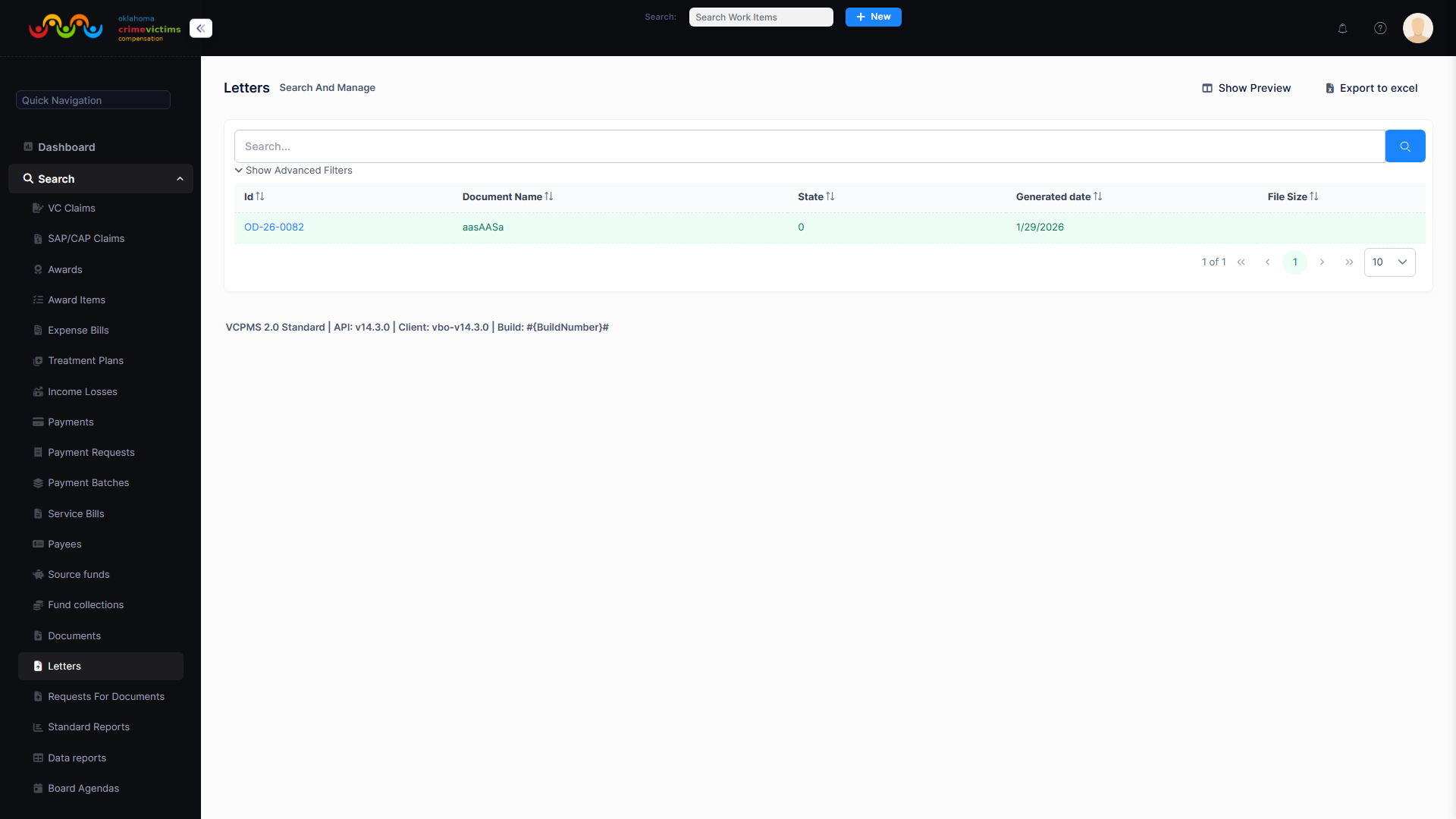
Outgoing document generation with template selection and merge field preview
7. Board Management
The Board Management module supports the full lifecycle of board meeting preparation, execution, and post-decision processing. It replaces legacy Excel-based minutes, Access database switchboards, and manual docket procedures with a unified digital workflow.
7.1 Determination Dockets & Meeting Preparation
Determination Docket Workflow
Agenda Preparation Features
- Identify claims and generate claim lists by board meeting date
- Administrator selects which standardized fields appear in the claim list
- Configurable field selector per jurisdiction
- Templates saved and reused for different meeting types
- Claims tagged and grouped into the agenda
- Electronic Board Packet generated as PDF (viewable online or printed)
Board Packet Contents
Each electronic board packet includes:
- Claim summaries with key details
- Links to full claim details and documents
- Attached documentation (police reports, bills, receipts, verification notes)
- Staff notes and recommendations (suggested award amounts, eligibility analysis)
- Cover sheets for each section
- Victim/claimant information with appropriate confidentiality safeguards
- Crime details (incident description, date, law enforcement report)
- Itemized expenses with amounts, prior payments, and applicable caps
Determination Docket Order
- Appeals — Appeal cases are heard first
- New Applications — Ordered by received date; if a victim appears in person, their claims are pulled out of received order for priority handling
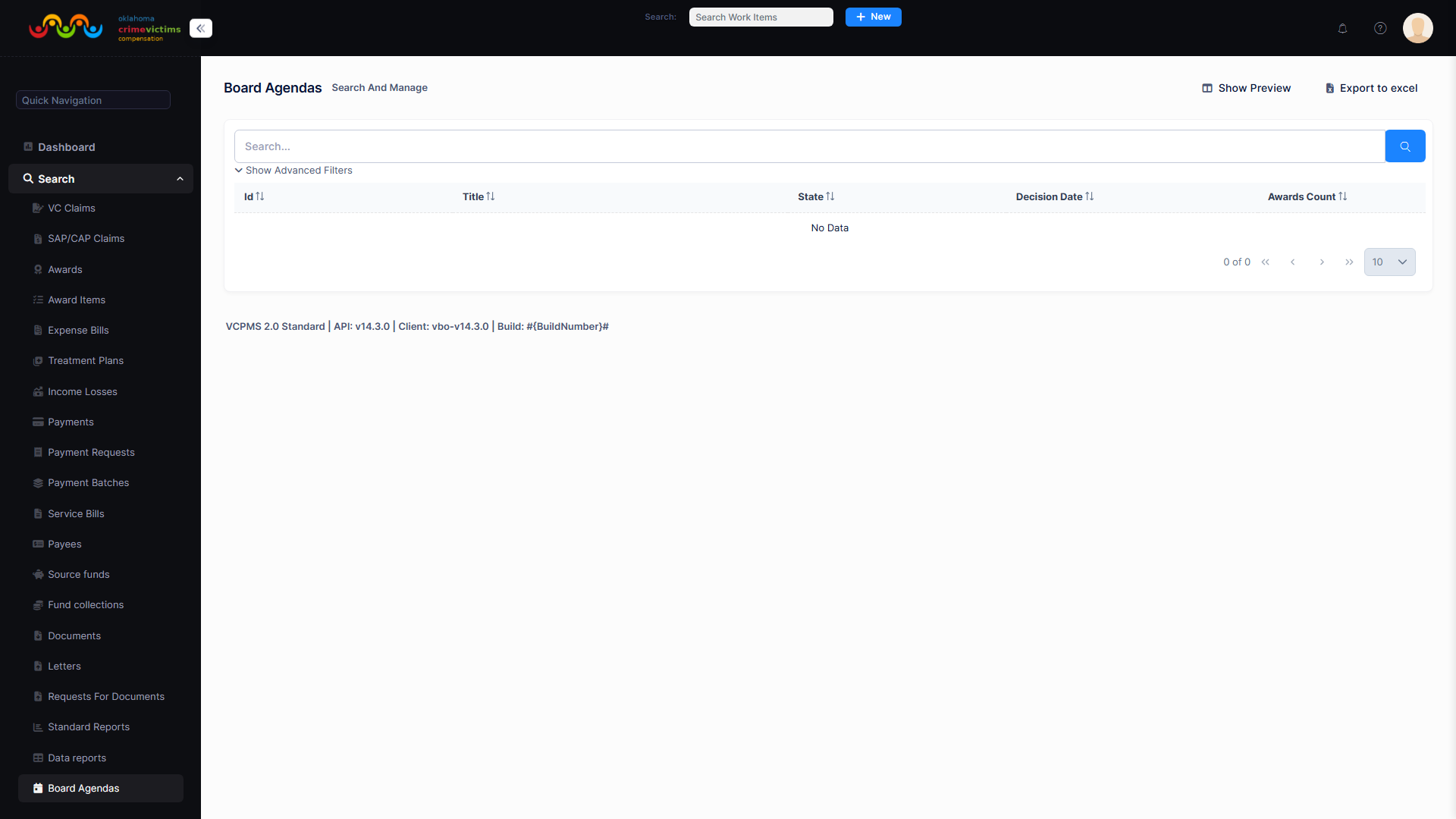
Determination Docket preparation interface with claim list and packet generation
7.2 Docket Types
VCPOffice supports configurable docket types for organizing claims by processing level. The following illustrates a typical configuration:
| Docket Type | Name | Amount Range / Purpose |
|---|---|---|
| E | Eligibility | Eligibility determinations (approve/deny eligibility before any awards). Recommended limit: 40 claims per E docket. |
| A | Administrative | $0.01 – $2,400.00. Lower-value claims approved administratively without full board review. |
| B | Board | $10,000+. Higher-value claims requiring full board review and decision. |
| M | Mid-Range | $2,500 – $9,999.99. Mid-range claims processed through administrative review. |
| X | Additional | Additional consideration for existing claims. Used when there is a break in service and a new bill comes in after initial award. Reviews previous award totals to ensure claim maximum is not exceeded. |
7.3 Board Decision Entry
- Decision types: Approve, Deny, Table (for more information), Continue
- Authorization: Only authorized users (administrator or designated board liaison) record decisions
- Individual or batch entry: Enter decisions one at a time or update multiple claims simultaneously
- Status updates: e.g., “Approved - Board 10/15/2025” or “Tabled - Awaiting Documentation”
- Board member adjustments: Board can recommend and approve adjustments on a claim during the meeting
- Minutes generation: System generates meeting minutes and provides note area for board members
- Decision review: Print board decisions for administrator sign-off
7.4 Post-Decision Letter Generation
Enter Decisions
Record board decisions for all agenda items. For denied claims: select decline decision, denied reason, and D&O/Minutes wording code. For continued claims: select continued as decision. For approved: enter award amounts.
Generate Decision Language
System generates Decision text, “How to Appeal” text, and Minutes text for each claim. Create D&O Decision, D&O Text, Minutes Text, and Payee Summary.
Update Dates & Create Letters
Update appeal due dates and mail dates for all claims in the docket. Generate D&O letters, cover letters, EOBs (victim and provider versions) via mail merge. Review and correct any errors.
Administrator Review
Bundle all letters and reconciliation documents for administrator review and signature. Make corrections as needed, update dates, reprint affected letters.
Mail & Distribute
For victims: D&O letter, summary of payments and balances, cover letter, check, and survey. For providers: Provider EOB and check. Email decisions to district offices as appropriate. Security envelopes used for all mailings containing checks.
7.5 Private Notes
Board members can enter private notes visible only to themselves, supporting thoughtful review and preparation before meetings.
- Notes persist across sessions
- Stored securely and tied to the specific claim and meeting
- Not part of the official claim record
- Not visible to staff or other board members
- Supports flagging questions and concerns before the meeting
7.6 Post-Decision Access & Archive
- Review final resolution for each claim
- Notes on partial awards or denial reasons
- Archive of all board meeting records
- Official PDFs of board decisions for recordkeeping and audit
- Access past meeting packets for reconsideration cases
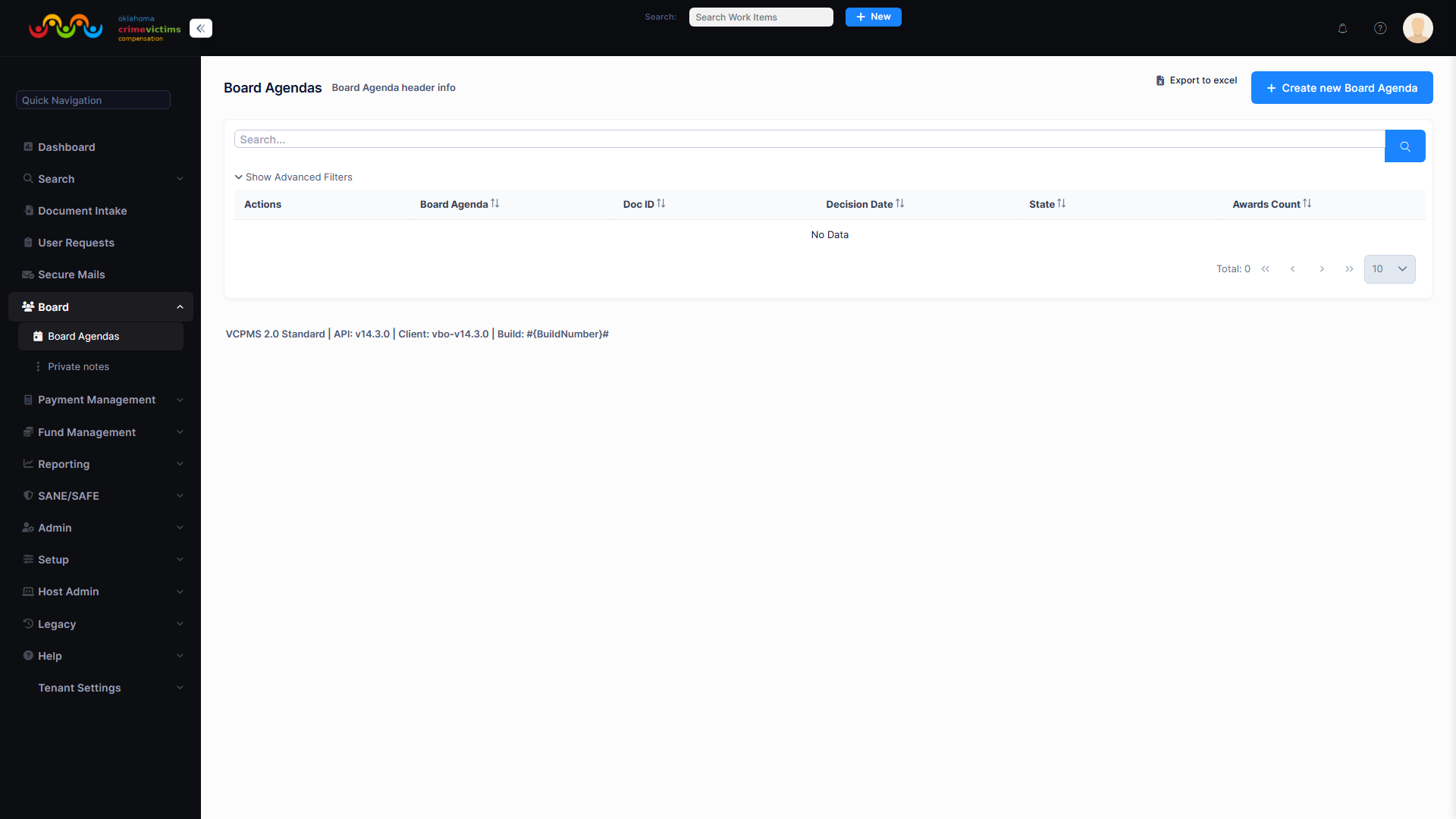
Board meeting management with docket view, decision entry, and letter generation
8. Reporting & Analytics
VCPOffice provides a comprehensive reporting suite covering operational metrics, federal compliance, financial summaries, and ad hoc data analysis. Reports are available in multiple formats and can be run on demand or scheduled for recurring delivery.
8.1 Standard Reports
The system includes approximately 30+ pre-defined reports covering all major functional areas:
Operational Reports
Claims by status, claim volumes, processing times, service provider activity, fund utilization, and victim demographics. Filterable by date range, status, benefit type, and funding source.
Federal Compliance Reports
VOCA performance measures, Crime Victim Compensation State Certification Form, and JustGrants-compatible exports. Pre-populated with real-time data and editable fields.
Financial Reports
Payment totals by benefit category, fund balance summaries, payment reconciliation reports, and fiscal year comparisons. Breakdown by funding source.
Performance Reports
Average time from claim received to payment, claims processed per user, processing time by stage, bill receipt to payment/denial time, and approval rates by user.
Report Features
- Filter by date range, claim status, benefit type, funding source, jurisdiction
- Generate on demand or schedule for recurring delivery
- Multiple output formats: Excel (.xlsx), PDF, CSV, printer-friendly versions
- Custom report generation capability
- Expansion of report library without technical support
- Data drill-down capabilities from summary to detail
- Report access controls by role
- District-level vs. statewide reports
8.2 Data Reports (Ad Hoc)
VCPOffice includes a powerful ad hoc reporting tool that allows users to query any data field in the system:
- Query using any data field: application data, demographics, benefit types, bill details, payment statuses, provider info, fund activity, timestamps
- Custom date ranges, relative time periods, rolling windows
- Parameters: claim status, jurisdiction, funding source, benefit type, provider, user ID
- Saved and reusable parameter sets
- Output: Excel (.xlsx), PDF, CSV
- No SQL knowledge required—visual query builder interface
8.3 Federal Reporting
VOCA Performance Report
- System automatically compiles data from key functional areas
- Includes claim volumes, payment totals, benefit types, processing times, victim demographics
- Interactive interface for review and modification before submission
- Reports exportable for upload to JustGrants
Crime Victim Compensation State Certification Form
- Total compensation paid from all sources
- Deductions (restitution recovered, other offsets)
- Net eligible payments using state funds
- Available balance in compensation fund
- Pre-populated with real-time data, editable fields for adjustments
Statewide Rollup
- State administrator generates rollup reports across all jurisdictions
- Aggregates data from all local programs into unified statewide view
- Data filtered by funding source, time period, benefit type, and jurisdiction
Data Quality Validation
8.4 Dashboard KPIs
Key Performance Indicators displayed on the dashboard include:
- Average time from claim received to first payment
- Number of claims processed by user (daily, weekly, monthly)
- Average processing time with custom-defined time variables
- Time from bill receipt to payment or denial
- Claim approval rates by user and stage
- Open claims by status and age
- Payment totals by period and fund source
8.5 Export Formats
| Format | Use Case |
|---|---|
| Excel (.xlsx) | Data analysis, pivot tables, further manipulation |
| Official reports, printing, archival | |
| CSV | Data exchange, import into other systems |
| Printer-friendly | Direct printing with optimized layout |
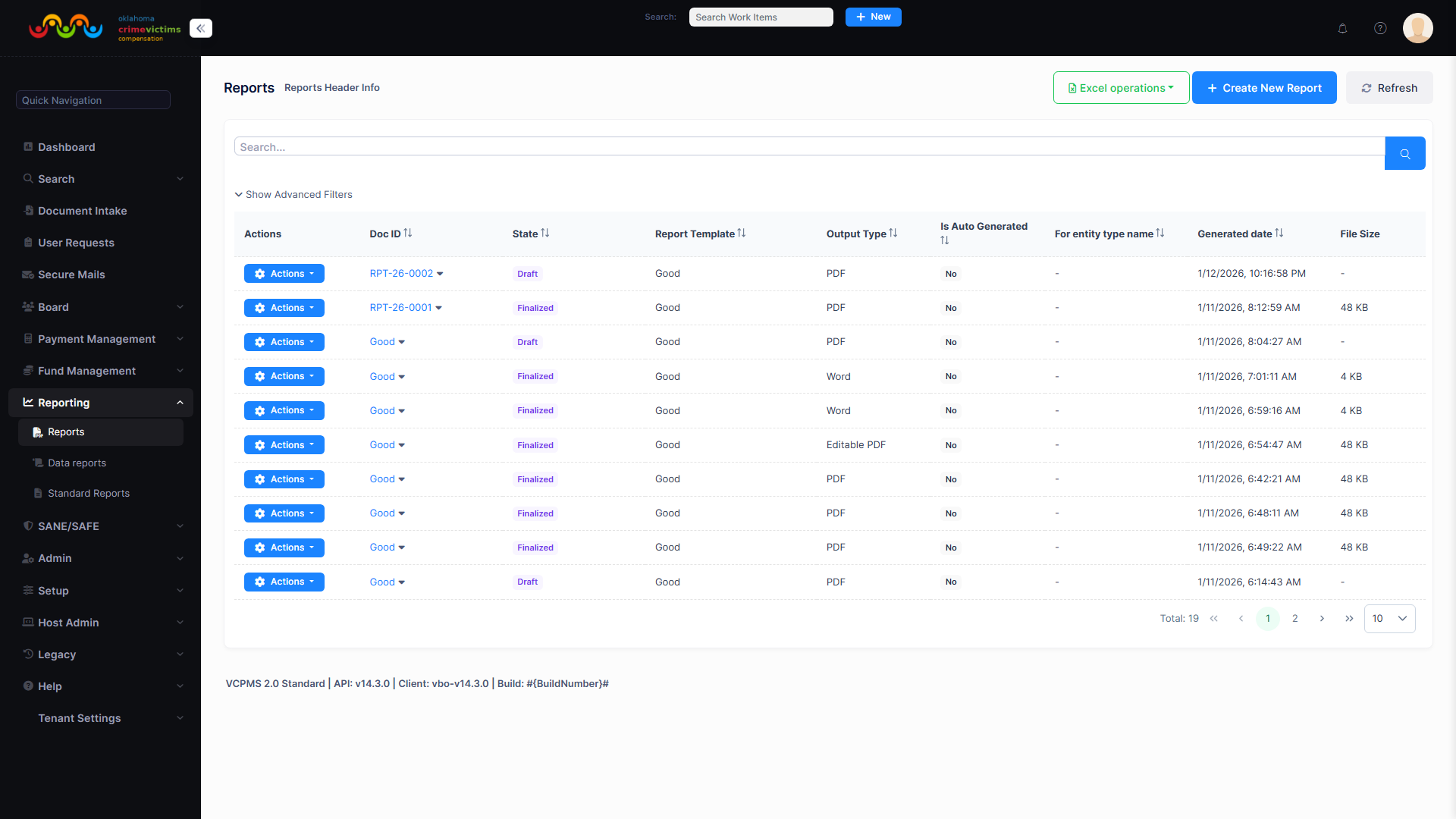
Reporting dashboard with standard reports, ad hoc query builder, and export options
9. Communication
VCPOffice provides multiple communication channels for staff to interact with victims, claimants, advocates, service providers, and law enforcement. All communications are logged in the claim record for complete audit trail.
9.1 SecMail (Secure Messaging)
SecMail is the secure messaging system for two-way communication between internal staff and external users across all portals.
- Staff can communicate with victims, claimants, advocates, and providers
- External users can submit requests, upload documents, and send messages
- Internal users notified when external requests require handling
- All correspondence logged in communication history
- Messages linked to specific claims for context
- Secure, encrypted communication channel
9.2 vPostalBox (Virtual Postal Box)
vPostalBox is a secure document delivery mechanism that posts documents to external users’ portal dashboards.
- Letters and documents posted to secure portal for external user access
- Documents available in the applicant’s dashboard for download and print
- Eliminates postal delays for time-sensitive correspondence
- Delivery confirmation tracked for each document
9.3 Notifications & Alerts
Automated Notifications
- Email triggered on key status changes (e.g., Submitted → Approved)
- Templates configurable with merge fields (name, claim number, status)
- Delivery tracked for confirmation
- Alert when email is undeliverable (bounce handling)
- SMS alerts (optional, via Twilio or state-provided gateway)
- Portal message notifications via VCPOnline, VCPProvider, VCPAdvocate
- Notification preferences per user (email, SMS, portal messages, printed letters)
Internal Alerts
- Counseling incremental limits or predefined threshold alerts
- Payment cap excess warnings
- Returned mail notifications
- Upcoming board deadlines
- Document upload notifications
- Assignment change notifications
- Overdue reminder flags
9.4 Mass Notifications
- Filter recipients by various criteria (status, date range, jurisdiction, benefit type)
- Generate customized communications to selected groups
- Apply templates to resulting recipient list
- Emails sent automatically; letters queued for batch printing
- Track delivery status for each notification
Activity Categories
All communications are categorized for tracking and reporting:
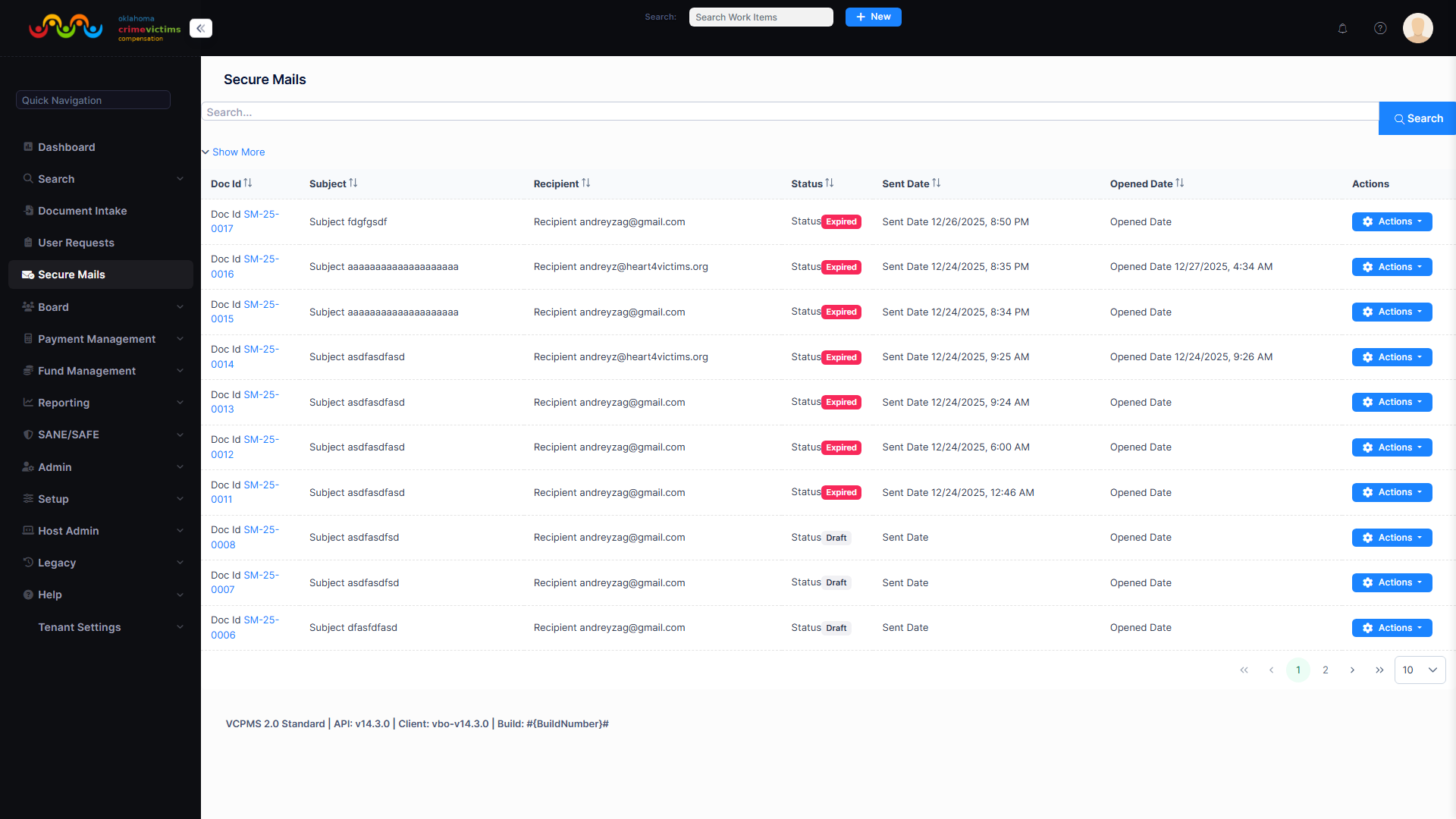
SecMail messaging interface and notification management center
10. Search Hub
The Search Hub provides a unified search interface across all 30+ entity types in the system. It supports full or partial data matching, wildcard lookups, advanced filters, and clickable results that navigate directly to the matching record.
Searchable Entity Types
| Category | Entity Types | Count |
|---|---|---|
| Claims | VC Claims (Victim Compensation), FR Claims (Financial Reimbursement) | 2 |
| Requested Benefits | Expense Bills, Treatment Plans, Income Loss | 3 |
| Financial Items | Awards, Award Items, Payments, Payment Items, Payment Batches, Service Bills | 6 |
| Parties & Entities | Payees, Service Providers, Offenders, Source Funds | 4 |
| Fund Management | Fund Collections | 1 |
| Documents | Incoming Documents, Outgoing Documents, Standard Reports, Data Reports, Determination Dockets, Standard Forms, Application Submissions, VC Claim Document Submissions, Expense Bill Document Submissions | 9 |
| Submissions & Updates | Claim Update Requests, Claim Access Requests, Contact Info Change Requests, Personal Info Change Requests | 4 |
| Activity Tracking | Domain Entity Activities | 1 |
Claim Search Parameters
Claims can be searched using any combination of the following fields:
Person-Based
Victim name (first, last, partial), victim DOB, claimant name, SSN, offender name
Case-Based
Claim number, offense report number, court case number, crime date
Payment-Based
Date range, service provider name, warrant or check number, payment status, funding source
Full-Text Search
- Indexed full-text search across all application records and notes
- Search by first name, last name, or specific phrases
- Preview snippets of matching text in results
- Filter by note type, date range, and author
11. Assignment & Workload Management
VCPOffice provides comprehensive tools for assigning work, managing queues, tracking tasks, and monitoring workload across the organization.
11.1 Claim Assignment
Assignment Methods
| Method | Description |
|---|---|
| Manual Assignment | Administrators/supervisors assign claims to specific users via dropdown selection |
| Automated Assignment | Predefined rules based on county, claim type, crime type, workload balancing, round-robin, or geographic area |
| Auto-Forward | Automatic routing from intake to investigator to supervisor based on workflow stage |
| Re-Assignment | Manually re-assign claims to queues or other staff as needed |
Assignment Features
- Assigned users receive system notifications
- Claims appear in personal inbox and dashboard
- Assignment logs maintained for transparency and performance tracking
- Full audit trail of all assignment changes
11.2 Queue Management
- Set up and manage departmental, working, and personal queues
- Share queues with other users for team collaboration
- Centralized “inbox” for all submitted applications
- Filtering and sorting by assigned user, date, applicant name, status, urgency
- Efficient claim intake and prioritization
11.3 To-Do Items & Reminders
- Add reminders and to-do tasks to any claim
- Task types: follow-up with victims, document requests, board decisions, deadline tracking
- Each reminder has due date, priority, and category
- Tasks can be assigned to current user or delegated to others
- Shown in user’s dashboard and daily summaries
- Overdue reminders flagged visually for immediate attention
- Reports on open tasks, completion rates, overdue actions by user or office
11.4 Workload Tracking & Productivity
- Daily activity summaries: claim counts, processing times
- Track progress of claims through workflow stages
- Payment history and processing volumes
- Productivity reports for individual users or departments
- Key metrics: claims processed, average processing times, user activity
- Drill-down from summary dashboards to individual records
12. User Management
VCPOffice provides complete user lifecycle management for both internal staff and external users across all portal types.
12.1 Internal User Management
- Create, edit, and archive internal user accounts
- Set roles, permissions, and temporary passwords
- Assign administrative rights (IT and non-IT level)
- Password management: reset passwords, enforce complexity and expiration policies
- Account lockout after configurable failed attempt threshold
- Session timeout enforcement
- Full audit trail of all user actions
12.2 External User Management
- Manage profiles for all external user types across portals
- Reset passwords and update contact information
- Approve external users before granting access (configurable per jurisdiction)
- Duplicate detection during registration (email for VCPOnline, EIN for VCPProvider)
- Inactivate users (denied login but activity history preserved)
12.3 Role-Based Access Control (RBAC)
Permission Levels
| Level | Description | Examples |
|---|---|---|
| System Level | Restrict access to specific modules | Claims module, Payments module, Board module |
| Page Level | Enable or hide entire sections | Award tab visible/hidden, Reports section access |
| Field Level | Mask, read-only, or hide individual data fields | SSN masking, victim DOB visibility, financial fields |
| Document Level | Control upload, view, download, reassign permissions | Confidential documents restricted to supervisors |
User Categories
| Category | Portal | Description |
|---|---|---|
| VboUser | VCPOffice | Back Office staff (claims examiners, supervisors, administrators) |
| VcaUser | VCPOnline | Victims and claimants who file and track claims |
| SpaUser | VCPProvider | Service providers who submit bills and FR claims |
| AdvUser | VCPAdvocate | Victim advocates who assist with claim filing and monitoring |
| LeaUser | VCPAgency | Law enforcement officers who submit reports and verify information |
12.4 Audit Trail
- Track who made changes, description of change, and when for every record
- Applies to: claim edits, user role modifications, data field updates, status changes, document management
- Audit logs are read-only and tamper-proof
- Searchable by user, date range, affected module, and action type
- Supports compliance with VOCA/OVC audit expectations
- Every approval stage recorded with user ID, timestamp, status, and approval tier
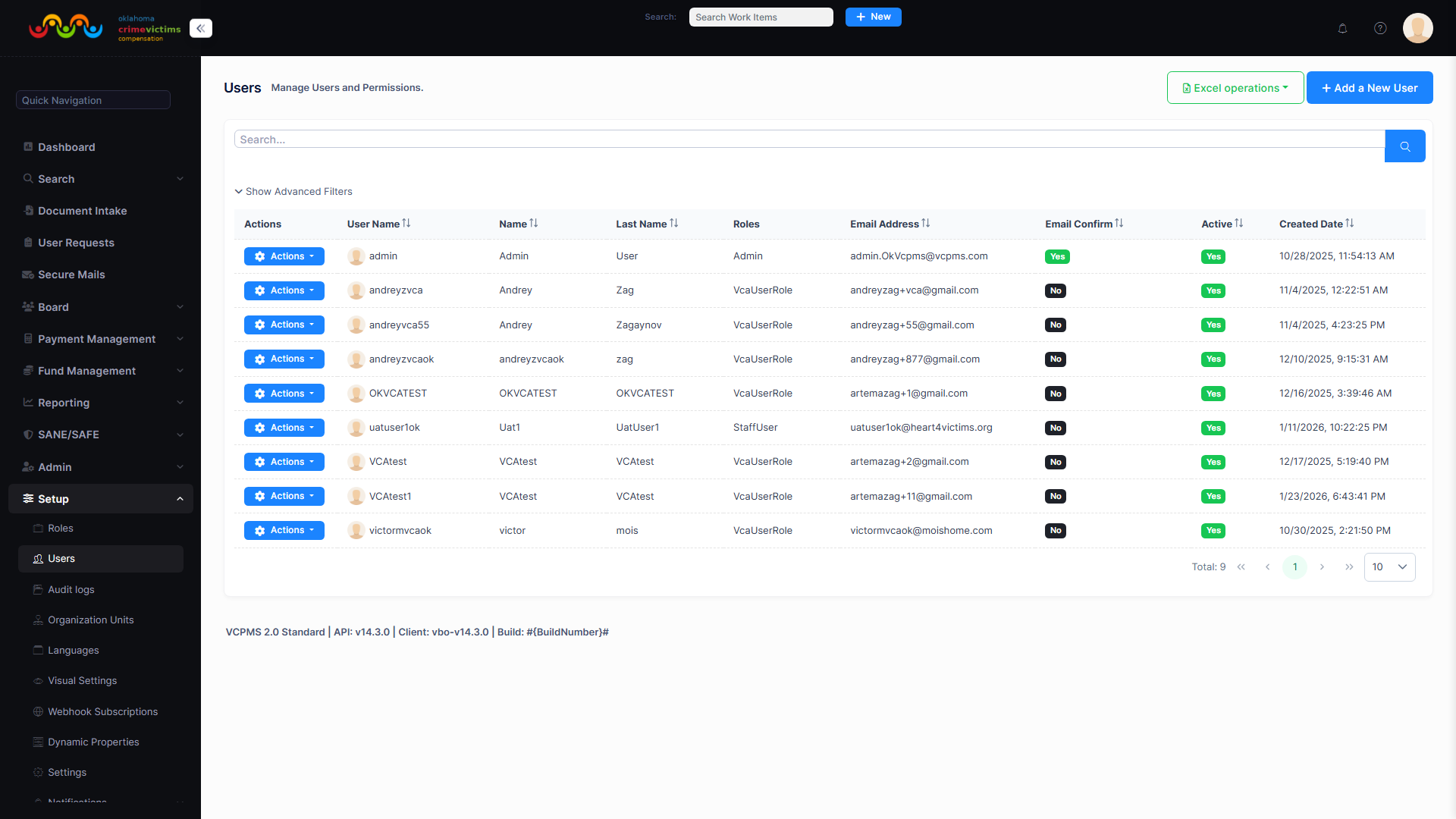
User management interface with role assignment and permission configuration
13. SANE/SAFE Program Support
VCPOffice includes a configurable module for managing SANE (Sexual Assault Nurse Examiner) and SAFE (Sexual Assault Forensic Exam) program operations. This module handles the unique workflow of sexual assault forensic exam reimbursements, which operates separately from the standard victim compensation claim process.
SANE/SAFE Overview
- Specialized module integrated into VCPOffice
- Handles unique sexual assault forensic exam reimbursement workflow
- Tracks exam reports and payments to medical providers
- Generates required reports for separate SANE fund
- Manages SANE cases more efficiently than legacy spreadsheet-based processes
Provider Requirements
- Provider must be certified as a SANE examiner
- Must be registered in the state vendor system (e.g., OMES)
- SANE certificate may need to be supplied for first-time providers
- Certificates have expiration dates (tracked by the system)
- Expiration date note field for certificate tracking
Processing Workflow
- SANE application form available on program website for providers to complete and submit
- Victim goes to provider for SANE nurse exam
- Provider submits reimbursement claim through VCPProvider portal or directly
- Processing follows similar path to regular FR claims but through separate SANE fund
- Docket date selection and form completion
- Separate fund tracking and reporting
Configurable Features
- Sexual Assault Kit Tracking (SAKI) — Track submission, location, and status of sexual assault kits
- CPT Code Tracking — Configurable option for jurisdictions requiring CPT code entry on SANE claims
- Jurisdiction-Based Access — Access to SANE data can be restricted to specific user roles or districts
- Provider service tracking — Providers submit SANE-related bills through VCPProvider with separate billing and tracking
SANE/SAFE module with provider certification tracking and kit status
14. Restitution & Subrogation Tracking
VCPOffice provides comprehensive restitution and subrogation tracking, managing the full lifecycle from initial case flagging through court order entry, payment collection, fund crediting, and case resolution.
Restitution Workflow
Initial Case Setup & Flagging
Collect and enter offender information (suspect name, court case number, crime details). Link multiple victims as co-claims. Flag case for restitution upon conviction. This triggers internal workflows and reminders, and may generate tasks for preparing a restitution request before sentencing.
Generate Restitution Request Report
Administrator initiates report generation using existing claim data: victim name, crime details, court case number, defendant name, and itemized expenses. Consolidates multiple victim claims into single or separate reports. Court-ready document formatted to jurisdictional standards, reducing administrative burden.
Review & Submit to Court
Submit restitution request to prosecuting attorney or court clerk before sentencing. Submission via email, physical letter, or PDF upload. System logs submission and stores copy in claim file.
Court Order & Initial Tracking
Update case with court decision. Mark claim as “Restitution Ordered.” Enter amount ordered and date. Link restitution obligation to offender profile. Monitor payments across multiple cases. Set up reminders/tasks for payment follow-up.
Payment Processing & Fund Management
Log each restitution payment received, categorized as “Restitution – offender payments.” Linked to corresponding claims and offender. Automatically credits victim compensation fund and updates financial ledger. Each entry: amount, date, source, notes. Real-time outstanding balance visibility.
Ongoing Monitoring & Status Tracking
Generate restitution status reports at any time showing collected amounts, outstanding balances, and payment history. Identify delinquent accounts for follow-up. Supports posting payments long after claim closure.
Case Resolution
System marks restitution as satisfied when fully paid. Reports listing outstanding balances available for collections agencies or probation coordination. Full history preserved for audit.
Offender Tracking Features
- Offender payments viewable on the Offender screen
- Total offender payments shown on claim Financial Summary
- Restitution payment tracking populates the restitution tracking report
- Prosecutor information captured alongside offender data
- Correctional facility tracking
- Offender profile linked to all restitution obligations across claims
Fund Collection Process
- Daily restitution checks received from courts or VWCs are processed
- Each check matched to case number and offender
- Claim number or invoice number written on check for identification
- Deposit recorded with fund code assignment
- Upon deposit completion, funds return to the general program fund
- Two-person verification required for reconciliation
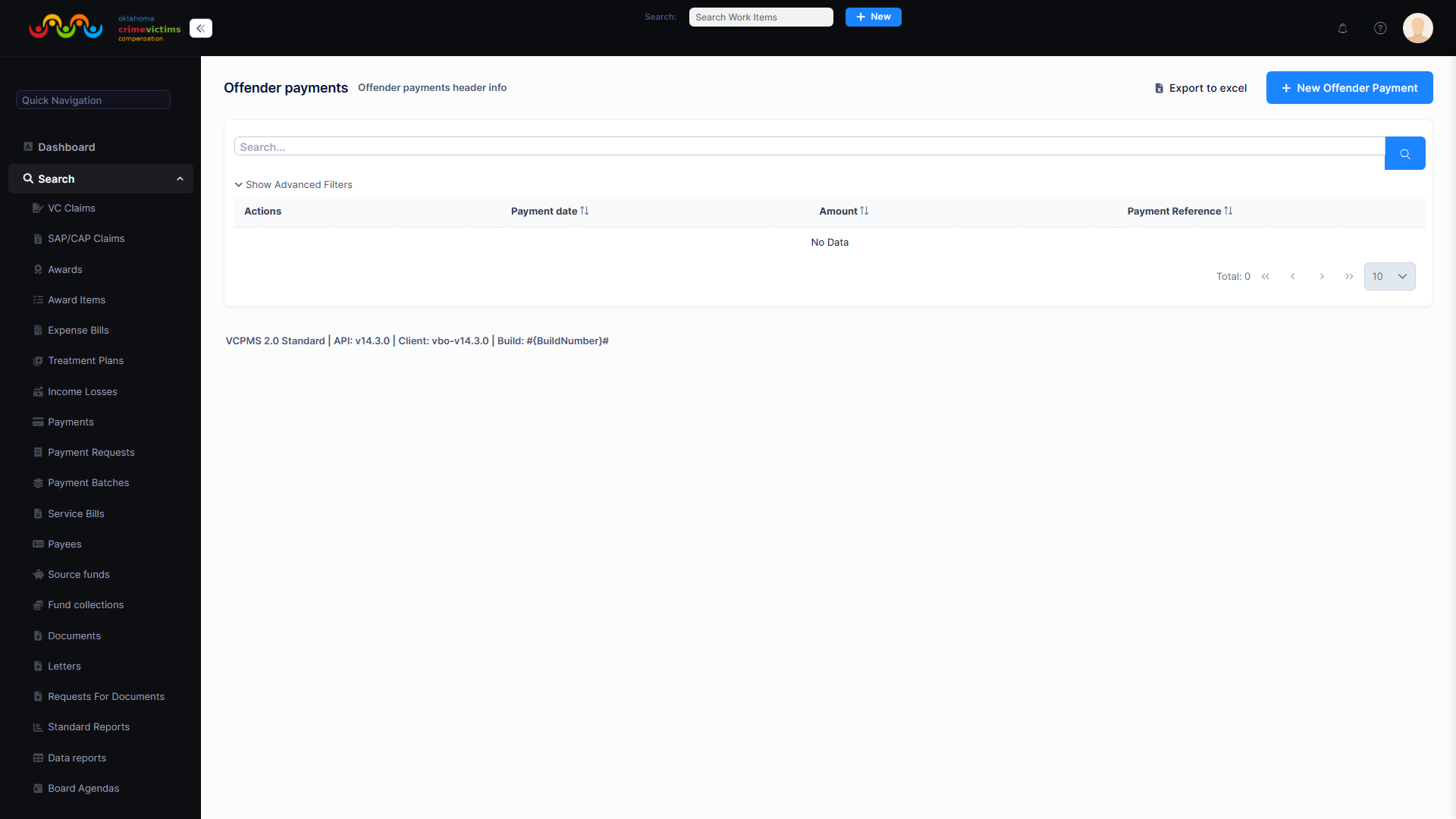
Restitution tracking dashboard with offender payment history and outstanding balances
15. Benefits of VCPOffice
Unified Operations Hub
Replace dozens of legacy tools—Access databases, Excel spreadsheets, manual filing systems, and PeopleSoft interfaces—with a single, integrated web application. Every function from intake to payment in one platform.
Configurable Workflows
Fully configurable claim states, eligibility rules, benefit categories, letter templates, and processing thresholds. Administrators tailor VCPOffice to their jurisdiction's requirements without technical support or code changes.
End-to-End Claim Lifecycle
Manage every stage from initial application intake through eligibility determination, award processing, board review, payment issuance, and eventual closure—all within a single, auditable workflow.
Automated Financial Processing
Intelligent payment grouping, batch processing, fund balance tracking, and external financial system integration. Two-level approval, void/reversal/reissue, and returned check handling reduce manual effort and errors.
Digital Board Management
Replace paper-based board packets and Excel minutes with electronic determination dockets, digital packets, online decision entry, and automated post-decision letter generation. Private notes for board members.
Federal Reporting Compliance
Auto-compiled VOCA performance reports, State Certification Forms, and JustGrants-compatible exports. Data quality validation ensures completeness before submission. Statewide rollup across all jurisdictions.
Document Automation
Centralized Document Intake Queue with split, merge, and categorize capabilities. Template-based letter generation with merge fields, electronic signatures, and batch operations. vPostalBox for instant digital delivery.
Comprehensive Audit Trail
Every action tracked with user ID, timestamp, and description. Tamper-proof audit logs searchable by any criteria. Full compliance with VOCA/OVC audit expectations and state accountability requirements.
Scalable Cloud Architecture
Cloud-based on Microsoft Azure with elastic scaling. Handles increasing users, growing data volumes, and expanding functionality without degradation. Modular design adapts as programs evolve.
Personalized Workspaces
Role-based dashboard defaults with individual customization. Drag-and-drop widgets, configurable filters, real-time metrics, and to-do management. Each user's workspace reflects their daily operational needs.
Multi-Portal Integration
Seamlessly connected to VCPOnline (victims), VCPProvider (service providers), VCPAdvocate (advocates), and VCPAgency (law enforcement). External submissions flow directly into VCPOffice workflows.
Reduced Processing Time
Automated workflows, intelligent duplicate detection, configurable assignment rules, and streamlined payment batching significantly reduce the time from application receipt to payment issuance, improving service to crime victims.